178
In this practical tip, you’ll learn how to change the keyboard input language on Android and set up the Cyrillic script for typing in Russian.
Setting up a Russian Android keyboard
Your Android smartphone comes with a wide range of different language packs. To access less common keyboard language packs, you’ll need to download them from the Settings.
- First, open ‘Settings’.
- Scroll down to ‘Language and input’ and open it.
- Under the ‘Keyboards and input methods’ tab, you’ll see the installed Android keyboards. Tap on the keyboard you use. For this practical tip, we’re using the “Samsung Keyboard”, but the principle applies to all input apps.
- In the next window, tap “Add input languages”.
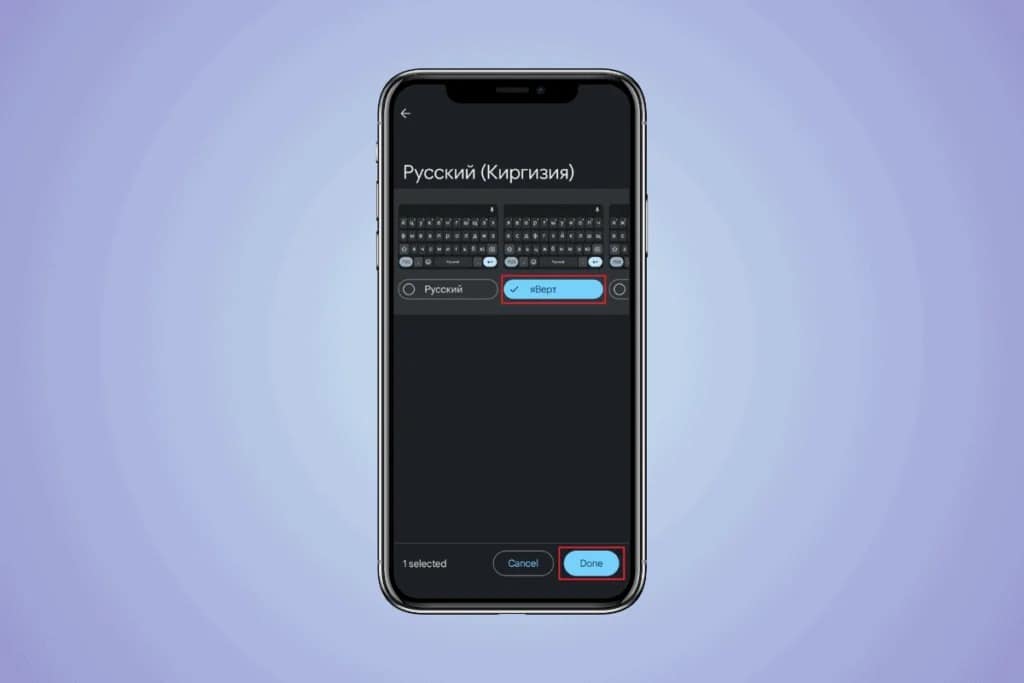
- You’ll now see the language packs you’ve already downloaded for your Android keyboard. Further down, a list of additional languages appears; you can download and install these by tapping on them.
- To install the Russian language pack – i.e. the Cyrillic characters – scroll almost all the way to the bottom. Select “русский” and you’ll be able to type in Russian from then on.
- To switch back to German, simply select “Deutsch” from the list. Alternatively, with the keyboard open, tap the notification in the notification bar and select “Deutsch” there.