3
If you want to back up your Samsung mobile, you can use various services such as Samsung Cloud, Smart Switch or Google. We’ll explain exactly how to do this here.
Backing up your Samsung mobile: Create a backup easily via Samsung Cloud
Backing up your smartphone’s data isn’t just a good idea when you’re changing your mobile. A backup is also helpful if your device breaks or gets lost. The easiest way to do this with a Samsung device is via Samsung Cloud.
- To do this, open Settings and tap ‘Accounts and Backup’.
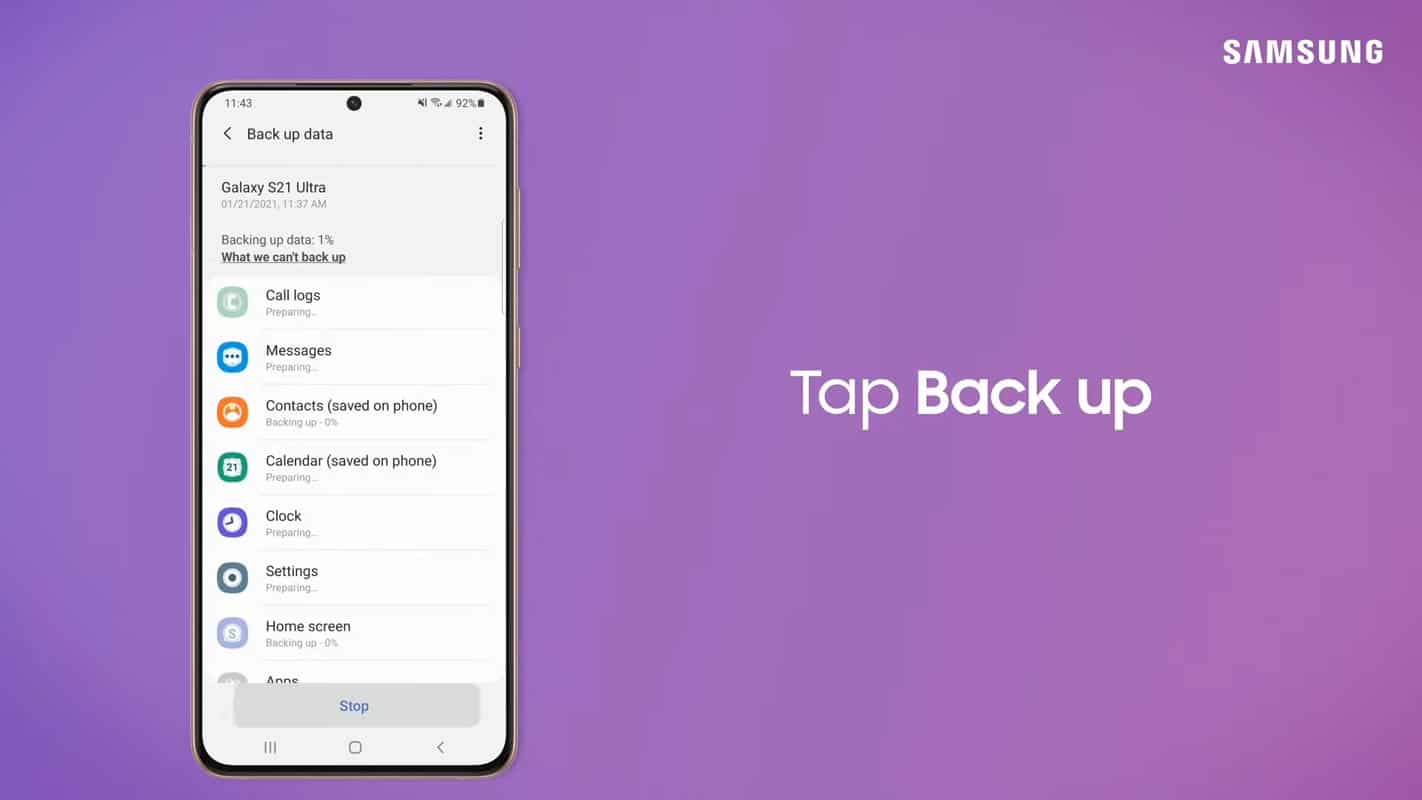
- Under ‘Samsung Cloud’, select ‘Back up data’.
- You will then need to log in with your Samsung account, if you haven’t already done so. Alternatively, you can create a new account here.
- An overview will appear where you can specify which data should be backed up. This includes, amongst other things, your settings, contacts, calendar, text messages and app data stored in Samsung Apps.
- If you also wish to back up photos and videos from the Gallery, this is only possible via Microsoft’s OneDrive. To do this, you must create a separate Microsoft account and log in to your smartphone using it.
- You can use the slider to select which data you want to back up. Tap the ‘Back up now’ button to start the backup process.
Samsung Mobile Backup with Smart Switch: Step-by-step guide
- First, download the Smart Switch app onto your smartphone.
- If you want to save the backup to a microSD card or a USB stick, open the app and tap the memory card icon on the right.
- Select ‘SD card’ or ‘USB stick’ and specify which items you want to back up. To do this, make your selection and tap ‘Next’, then ‘Back up’.
- If your smartphone no longer has a memory card slot, you can also back up the data on your PC. To do this, you’ll need to download the software onto your computer.
- Connect your Samsung mobile to your PC using a USB cable and open Smart Switch on your computer.
- Using the ‘Backup’ button, you can specify which data to back up and start the backup process.

Google as an alternative for your backup
If you do not wish to use Samsung’s services, you can also perform a backup via Google Drive. Please note, however, that this backup method is not as comprehensive as backing up using Samsung’s tools.
- To start the backup via Google, open Settings and select ‘Accounts and Backup’.
- Under ‘Google Account’, tap ‘Back up data’.
- Here, you can enable the backup by tapping the ‘Enable’ button. To start the process, tap ‘Back up now’.
- When backing up via Google, contacts, calendar events, saved Wi-Fi networks, language and time settings, and installed apps are stored in the cloud. App data, however, cannot be backed up.
- If you have synchronised the photos and videos in your gallery with Google Photos, these will be backed up via Google Drive.
