Learn how to easily install Windows 11 without an internet connection. This guide provides practical steps to successfully complete the offline installation and overcome any potential difficulties.
Installing Windows 11 Without an Internet Connection: Reasons and Benefits of an Offline Installation
Windows 11 is the latest version of Microsoft’s popular operating system. While most installations are performed online, there are situations where an offline installation may be necessary or preferred, such as when there is no internet connection or the connection is unstable.
- A missing or unstable internet connection can complicate the installation of Windows 11. In rural areas or during temporary network outages, an offline installation is often the only way to install the operating system.
- Security concerns may necessitate an offline installation. If you work in an environment where security is a top priority, avoiding internet connections during installation can provide additional security.
- When installing on multiple devices, an offline installation saves time. Instead of setting up each device online individually, you can use a prepared installation medium multiple times or deploy a system image to different devices, as Microsoft recommends for larger rollouts.
- Offline installation can also help with troubleshooting. If problems arise during online installation, switching to the offline method may provide a solution.
Preparing for an Offline Installation of Windows 11: System Requirements & Installation Files
Before you begin the offline installation of Windows 11, you should take a few preparatory steps to ensure a smooth process. These include downloading the installation files, creating a bootable USB drive, and verifying that your device meets the system requirements for Windows 11.
- Make sure your device meets the minimum requirements for Windows 11. These include, among other things, a compatible processor, sufficient RAM and storage space, and a supported graphics card.
- Download the Windows 11 installation files from the official Microsoft website. These files are necessary to create a bootable USB drive, which is used for offline installation.
- Create a bootable USB drive using the downloaded installation files. To do this, use a tool like Rufus, which transfers the files to the drive and makes it bootable.
- Verify the integrity of the installation files before you begin the installation. This ensures that no files are corrupted and that the installation can proceed without issues.
Step-by-Step Guide: Offline Installation of Windows 11 Without an Internet Connection
The actual installation of Windows 11 without an internet connection is a multi-step process that requires patience and attention.
- Boot your computer from the bootable USB drive. Make sure your BIOS or UEFI is configured to boot from USB. This is required to start the installation.
- Follow the instructions in the Windows 11 Setup Wizard. Select your preferred language and other settings before proceeding with the installation.
- Select the custom installation option to customize the partitioning of your hard drive. This is especially important if you want to install Windows 11 alongside another operating system.
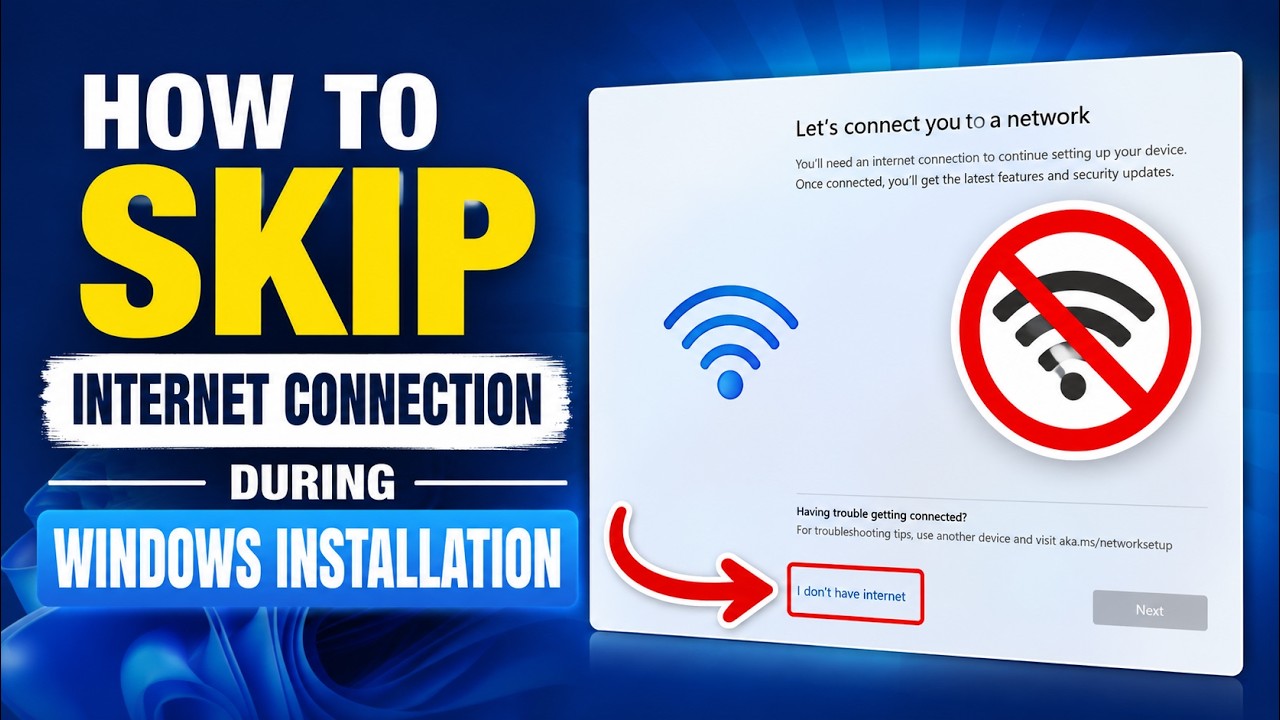
- If you are prompted to enter a network key or connect to the Internet, you can skip this step when installing Windows 11 Pro and set up a local user account. However, for Windows 11 Home, an Internet connection and a Microsoft account are required in current versions.
Getting Started After an Offline Windows 11 Installation: Drivers, Settings, and Security
After successfully installing Windows 11, there are a few steps you should take to get the most out of your new operating system and ensure that all features are working properly. This includes installing drivers, customizing settings, and backing up your data.
- Install the necessary drivers for your hardware. Although Windows 11 automatically detects many drivers, you should ensure that all devices are functioning properly.
- Customize the system settings to suit your needs. This includes display settings, power options, and privacy settings that are important for your usage.
- Back up your data regularly to prevent data loss. Windows 11 offers various backup options, including the use of external hard drives and cloud services.
- Check your system’s security settings to ensure your device is protected against threats. Windows 11 offers built-in security features that should be updated regularly.