236
Having to repair a faulty hard drive is like a race against time—the faster you act, the greater the chance of recovering your data. Whether it’s an HDD, SSD, or hybrid solution: systematic error analysis and the right toolkit determine success or failure.
Repairing a Hard Drive: Preparation and Troubleshooting
- Back up critical data immediately: Use live systems such as “Ubuntu Live USB” or “SystemRescueCD” (requires basic Linux knowledge) to read data from unbootable drives. For SSDs, disable TRIM in the operating system beforehand to preserve residual data. Cloud backups (e.g., Backblaze, pCloud) supplement local backups and protect against hardware failure.
- Analyze SMART values: Tools like “CrystalDiskInfo” or “GSmartControl” display health status, temperature, and error counters. For HDDs, “Reallocated Sectors” or “Spin Retry Count” indicate mechanical issues. SSDs often report “Wear Leveling Count” or “Available Spare”—a value below 10% indicates critical wear.
- Distinguish between HDD and SSD symptoms: HDDs: Clicking noises, slow access (“at a snail’s pace”), overheating (critical at 50°C or higher).
SSDs: Sudden write errors, boot problems after firmware updates, “frozen” status in the BIOS.
- Check connections and power supply: Replace SATA cables, test other USB ports, or use an external dock. For external hard drives, a faulty power supply may be the cause.

Repair Tools and When to Call in the Pros
Not every error can be fixed with free software—some tools carry risks, while others reach their limits when dealing with physical damage. Choose wisely and know when to stop.
- Built-in Windows tools for logical errors: “chkdsk” (Command Prompt as Admin: chkdsk X: /f /r /b) repairs file system errors on NTFS- or FAT32-formatted drives. The /b parameter also re-checks bad sectors. Warning: On SSDs, chkdsk can trigger TRIM and irretrievably delete data.
- Data Recovery with TestDisk & Recuva: “TestDisk” restores deleted partitions, corrects the Master Boot Record (MBR), and also works on SSDs. “Recuva” scans for lost files—success depends on whether the memory cells have already been overwritten.
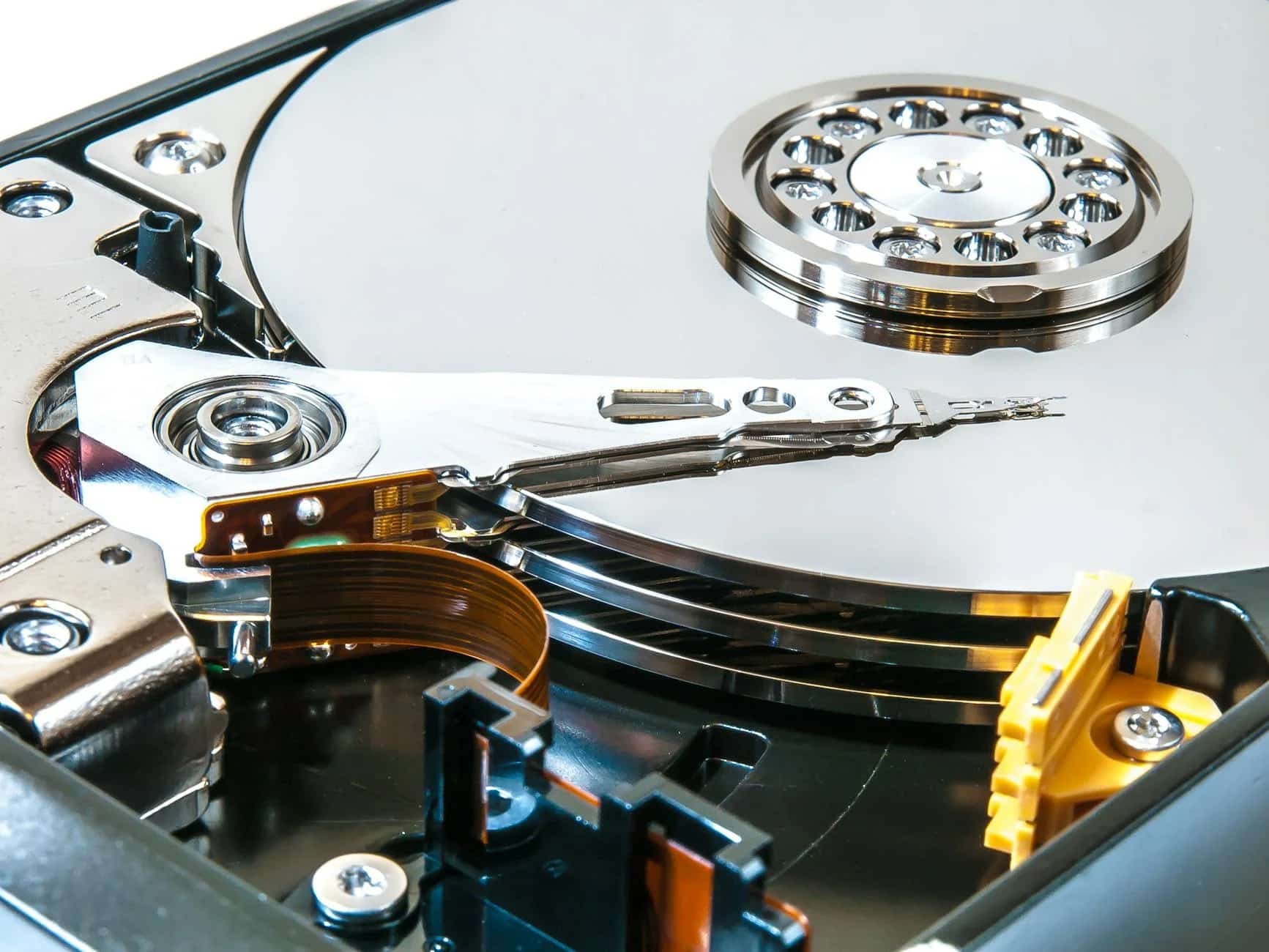
- HDD-Specific Repair: “HDD Regenerator” (paid software) remagnetizes damaged sectors—works only for minor physical defects. If your HDD is making clicking noises, stop all attempts and contact a data recovery service.
- SSD-specific measures: Update the firmware using manufacturer tools (e.g., “Samsung Magician,” “Crucial Storage Executive”). Temporarily disable TRIM if data recovery is necessary. Tools like “SSD Life” predict the drive’s lifespan based on write cycles.
- When to Call in the Pros: In cases of physical HDD damage (defective read head, seized motor), SSDs with “controller failure,” or if DIY tools are not yielding results. Labs such as “Kroll Ontrack” or “Data Recovery 24” operate in cleanrooms, but their services start at €500 and up.
- Safe disposal of defective drives: Physically destroy hard drives (shredding, drilling) or overwrite SSDs multiple times using tools like “Parted Magic.” Once repaired, hard drives should only be used as a secondary drive or for unimportant data—their reliability remains questionable.