230
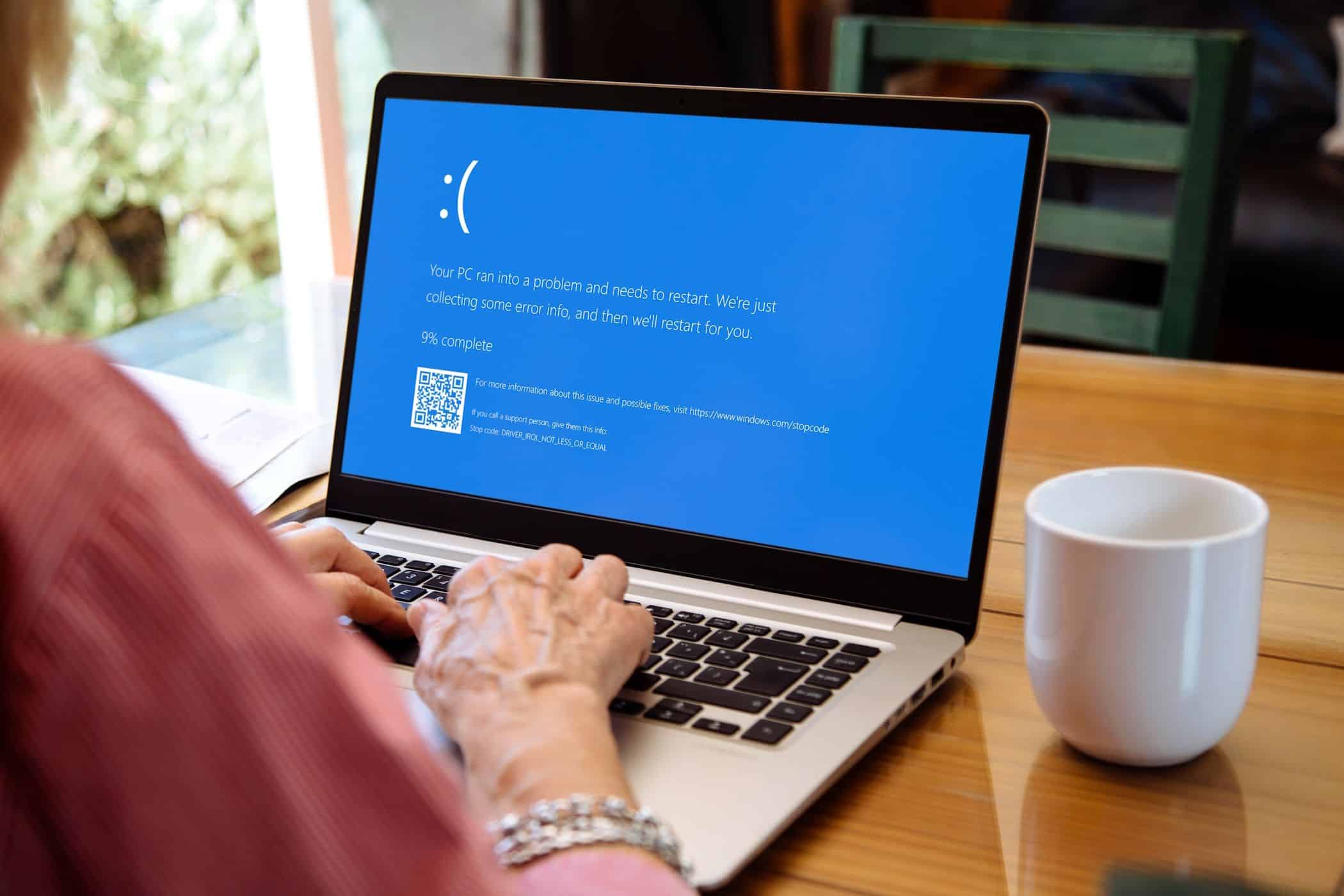
If a blue screen appears in Windows with an fltmgr.sys error message, there can be several causes. These can be effectively resolved.
Fltmgr.sys Blue Screen: Causes and Solutions
If you encounter a blue screen with the message fltmgr.sys, there are several possible causes.
- Most commonly, this is due to a driver issue with individual devices, primarily hard drives. As a result, these devices no longer function optimally and can cause the system to crash.
- Updating the drivers via Device Manager is particularly important here. Use Device Manager to check which components are affected and update them.
- It can also help to perform driver updates in Safe Mode . To start Safe Mode after turning on the PC, press the [F8] key several times. Since the system boots with only the necessary drivers in this mode, you can determine whether one of them is causing the blue screen.
- It’s equally important to install Windows updates. If you haven’t downloaded any updates for months, that could be the cause of the problem.
- It’s not uncommon for the issue to be caused by malware that has found its way onto your computer. Use an antivirus scanner such as Malwarebytes Anti-Malware to scan your system for potential issues and remove them.
- The problem may be caused by the installed RAM. Open the Windows Memory Diagnostic Tool via the search box, check the RAM and follow the on-screen instructions to troubleshoot the issue.
- Note: A System Restore may be worth trying to reset the PC to a point when it was still functioning properly.

Further Troubleshooting: Diagnostics and Tests
- You can resolve the issue by repairing the corrupted system files. Open the Command Prompt or Windows PowerShell by pressing [Windows key] and [X] and then clicking the option in the list.
- Enter the command sfc /scannow and press [Enter]. The tool will now search for corrupted system files and repair them automatically.
- Next, enter the command DISM /Online /Cleanup-Image /RestoreHealth and confirm again. This will check and repair Windows images. Then restart your computer.
- It may also help to use the command chkdsk /f /r if the previous steps did not resolve the issue. This command checks your hard drives and places a heavy load on them to find and repair errors.
- Tip: If the steps above do not help, you should reinstall Windows. Be sure to back up your data first, as it will be lost during the reinstallation.