287
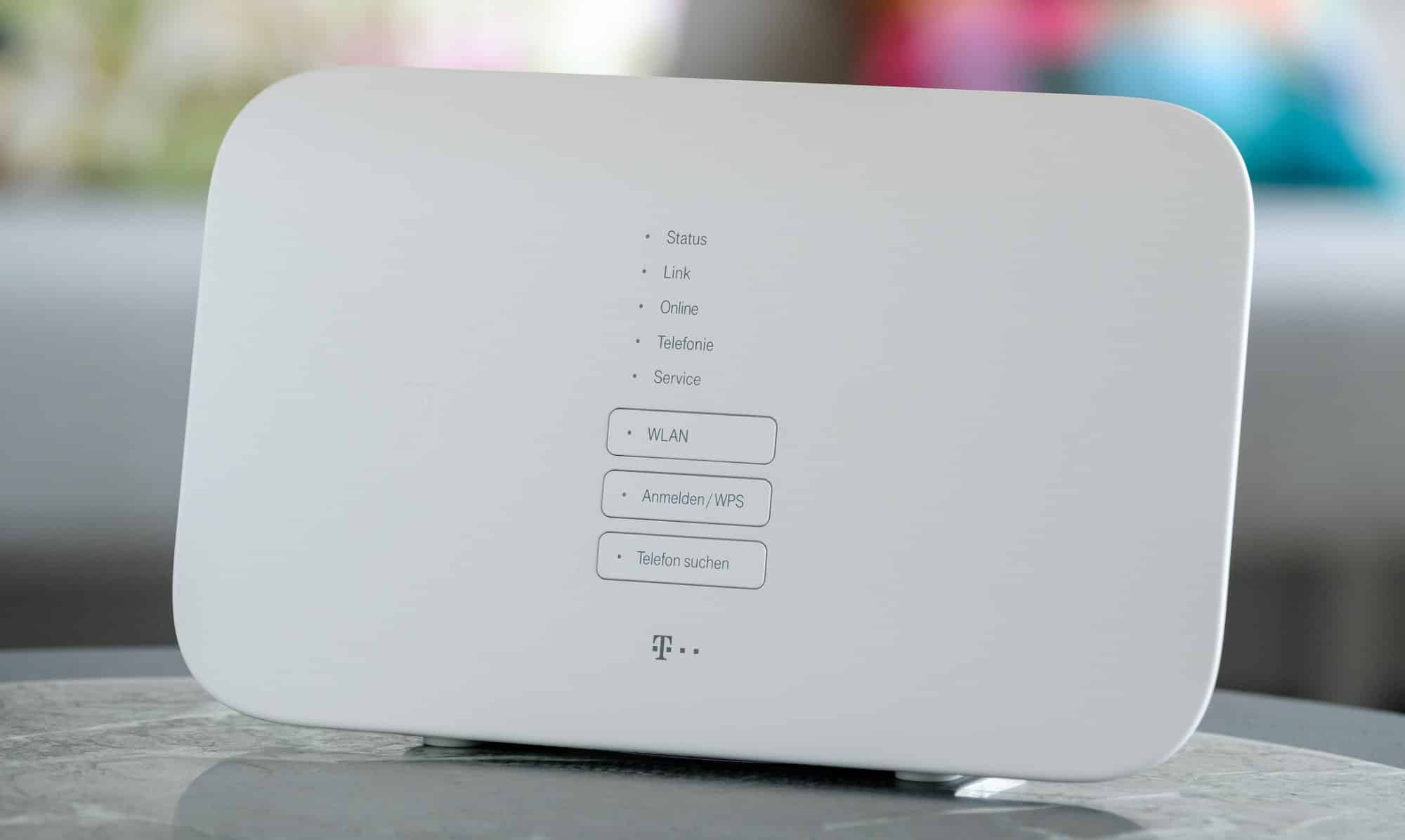
To use the convenient WPS feature with your Speedport, you must enable the option in the router menu. We’ll show you how to enable and use WPS on your Speedport.
Enable WPS on the Speedport—in 5 steps
To enable WPS (Wi-Fi Protected Setup) on a Speedport router, follow these steps:
- Open the router menu in your browser by entering the address speedport.ip and log in using the device password provided.
- Now click on “Home Network” and then select “Manage Wi-Fi Access.”
- Here, under “Add Devices to Wi-Fi,” you must enable the WPS option.
- You can now establish a connection with the push of a button. To do this, select your Wi-Fi network on the device and you’ll have two minutes to press the WPS button on your Speedport.
- Alternatively, you can set a four-digit PIN that you can then use to connect to the Wi-Fi network on the device.
Potential Security Risks of WPS
Although WPS (Wi-Fi Protected Setup) makes it easier to connect Wi-Fi devices using simple methods such as pressing a button or entering a PIN, it poses significant security risks, especially with the PIN method.
- Attacks on the WPS PIN method: The PIN, usually eight digits long, is rarely chosen randomly enough and can be split into two four-digit parts. This significantly reduces the complexity of brute-force attacks, allowing an attacker to guess the PIN relatively quickly through trial and error. If the PIN is cracked, the attacker gains access to the Wi-Fi network’s WPA2 password and can connect without authorization. This vulnerability is present in many Wi-Fi routers, even if the router generates the PIN itself.
- Faulty Random Number Generation: Some routers generate poorly randomized numbers during the WPS connection, which allows attackers to predict or repeat the required values, thereby simplifying access.
- Physical Access via the Push-Button Method: While the push-button method (PBC) is less vulnerable—since it is time-limited and usually requires physical access—caution is still advised, especially in semi-public environments.

Measures to Minimize Risk
The measures listed below can significantly reduce the risk of attacks via the WPS connection method and increase the security of your Wi-Fi network. However, the safest option is to disable WPS entirely if you rely on more modern encryption techniques.
- Completely Disable WPS: IT security experts recommend completely disabling WPS—especially the PIN method—whenever possible, since modern Wi-Fi security protocols such as WPA2 and, above all, WPA3 provide strong authentication and render WPS technically obsolete.
- Keep router firmware up to date: Regular router firmware updates patch known security vulnerabilities, including issues with WPS implementation. Updates should be installed as soon as possible.
- Use only the push-button method if WPS is necessary: If WPS cannot be avoided, at least the PIN method should be disabled and only the push-button method used to minimize the risk of brute-force attacks.
- Use a strong Wi-Fi password: Even with WPS enabled, a secure, complex Wi-Fi password should be set to increase protection.
- Secure administrative access: The password for the router’s user interface should be strong and not the default to prevent attacks on the router’s configuration.
- Use alternatives: If possible, opt for manual password entry or more modern, secure methods for Wi-Fi connection, such as WPA3 or connections via QR code or app.