2
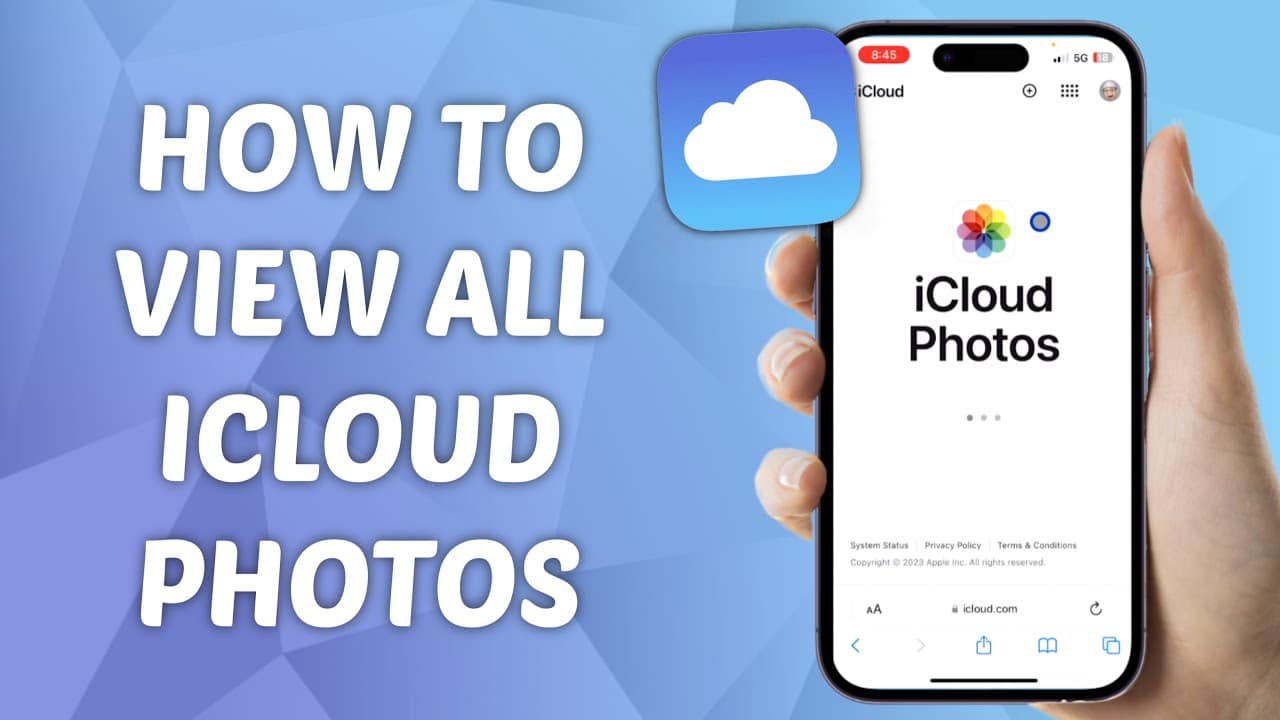
You can view photos in your iCloud from any browser or device. To do this, you must be signed in to the same iCloud account on the device.
Viewing iCloud photos in a browser
If you have an Apple device, you’ll automatically be given an Apple ID and access to iCloud when you set up your iPhone or iPad. However, you can also set up an iCloud account independently of any device and access your photos in any browser.
- Open your favourite web browser (e.g. Safari, Chrome or Firefox).
- Go to the website https://www.icloud.com/.
- Sign in with your Apple ID and password.
- Click the ‘Photos’ icon to view your photos and videos stored in iCloud.
- You can browse photos chronologically, by album or by media type, and view them individually in full size.
View iCloud Photos on a Mac
On a Mac, iCloud support is already built into the system.
- Open the ‘Photos’ app on your Mac.
- Make sure that ‘iCloud Photos’ is enabled in System Preferences under ‘Apple ID > iCloud’.
- Your photos from iCloud are automatically synced and displayed in the Photos app.
- You can manage, view and edit your photos directly within the app.

Viewing iCloud Photos on a Windows PC
You can also access iCloud using a Windows PC.
- Download the iCloud app for Windows from the Microsoft Store.
- Install the app and then open it.
- Sign in with your Apple ID.
- In the settings, enable the ‘Photos’ feature to synchronise your iCloud Photo Library with your PC.
- Alternatively, you can simply open a web browser, visit https://www.icloud.com/ and view your photos.
- You can download, synchronise and manage photos via the iCloud app.
Managing iCloud photos: Useful tips
Managing and downloading your photos via iCloud is generally intuitive. However, you should be aware of these tips:
- Photos can now also be downloaded, deleted or moved to albums directly via iCloud.com. iCloud photo management offers an integrated search function with object recognition and location filters, similar to the Photos app on the iPhone.
- You can quickly download multiple photos via your browser by selecting them and clicking the download icon. Options such as ‘Unmodified original version’ or ‘Highest compatibility’ are available when downloading.
- The web view on iCloud.com is user-friendly and gives you full control over your photos, although you can only download up to 1,000 images at a time.
- To view and manage photos on a PC without the iCloud app, there are also third-party tools such as FoneLab, which allow you to access iCloud backups and photos.
- From iOS 16 and macOS Ventura onwards, shared iCloud photo libraries are available, which can be used jointly with other people.
