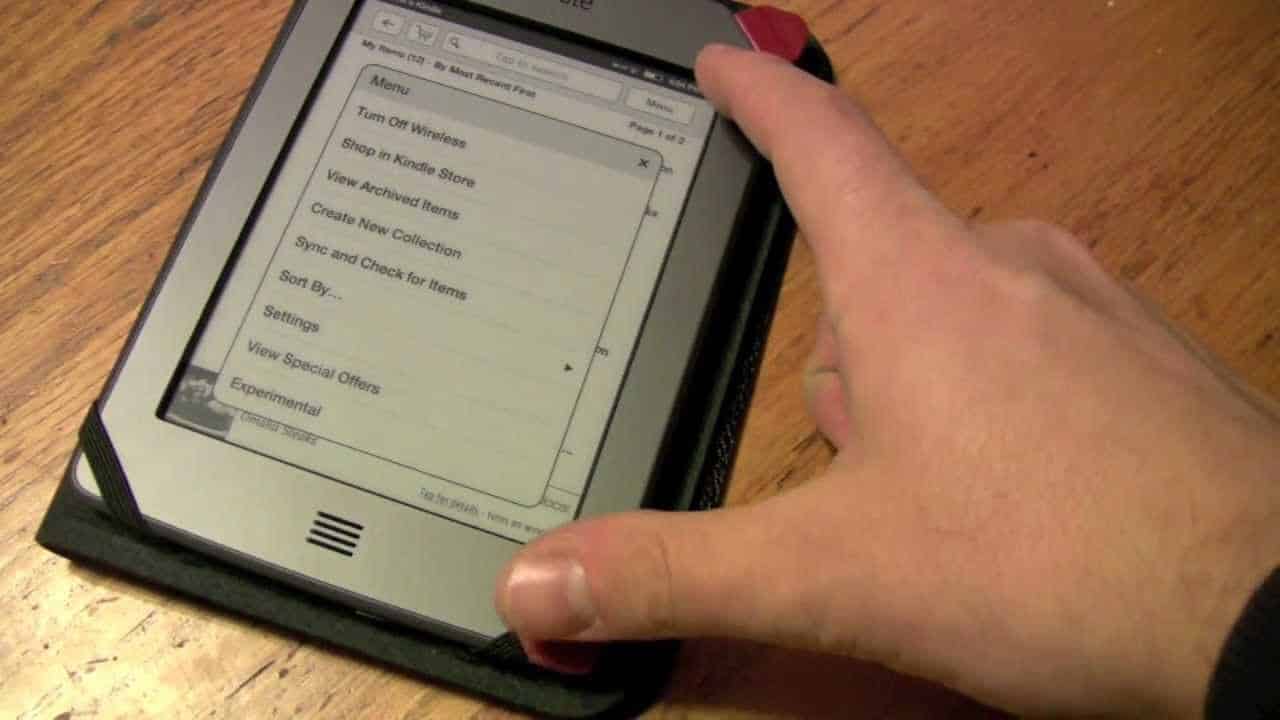
With the Kindle Paperwhite browser, you can browse the web freely. This means you can use the device to read articles in online magazines, both at home and on the go.
Opening the Kindle Paperwhite browser – it’s that simple!
With the Kindle Paperwhite browser, it’s really easy to browse the internet. Although the browser has a simple design and isn’t quite as user-friendly as the version on a computer, smartphone or tablet, it still does the job. You can use it to search for books or magazines online, keep up with the news or browse through online offers.
- To browse the internet on your Kindle, first switch on the device. Then go to the Kindle’s home screen (Library).
- Now tap the icon with the three horizontal lines in the top right-hand corner. A small window will open. Select the ‘Browser’ option.
- You can then enter the website of your choice in the address bar. To do this, the keyboard will open on your Kindle. Once you have entered the address, press Enter so that the system can carry out your request.
- To ensure you can browse the internet on your Kindle at any time, you should always keep an eye on the battery level. If necessary, connect your e-reader to a suitable charger so that you can continue using it.
Browsing on the Kindle Paperwhite
When you open the browser on your Kindle Paperwhite, you can browse the internet to a certain extent. Bear in mind, however, that you must be connected to Wi-Fi to do so.
- On the home screen, tap the three horizontal lines again. In the new window, tap the ‘Settings’ option.
- Look for the ‘Wi-Fi & Bluetooth’ or ‘Wireless’ option and select it. You will now see a list of all available networks in your vicinity.
- Log in to your Wi-Fi network using the relevant login details. To access a hotspot in public areas, you will usually need to log in separately. Simply follow the steps provided by the system.
- If you frequently take your Kindle Paperwhite with you when you’re out and about, it’s a good idea to protect your e-reader. Use a suitable protective case to ensure the device isn’t damaged if dropped.

Browser functions on the Kindle Paperwhite
You can make use of various functions within the browser. Click on the icon with the three horizontal lines in the top right-hand corner to access different features.
- Article Mode: When you enable this feature, the current website is displayed as plain text. Typical website content such as headers, adverts and banners disappears, and the font size is increased. This makes news and articles much easier to read. If you wish to browse normally again, switch back to ‘Web Mode’.
- Bookmarks: If you wish to save an article, tap ‘Add to bookmarks’. Via the ‘Bookmarks’ option, you can view, manage and access the bookmarks you have already created.
- History: The Kindle browser also features a browsing history. This allows you to quickly return to websites you have already visited. This is particularly handy on the Kindle, as typing, scrolling and searching can be quite fiddly here.
- Browser settings: Via the last option, ‘Settings’, you can clear your history and cookies just as you would on a PC. You can also disable JavaScript and images here.