309
A dead BIOS battery can cause system problems, but it’s easy to replace. Look for typical symptoms, use a compatible replacement battery, and reset the BIOS correctly after replacing it.
Signs of a dead BIOS battery
When the CMOS battery is slowly dying, various signs appear:
- Date and time are reset: After every reboot, the system displays an incorrect date or the time reverts to a default value.
- BIOS error messages: During startup, a message such as “CMOS Checksum Error” or “CMOS Battery Low”.
- Settings are not saved: Individual BIOS settings, such as the boot order or fan control, are lost after every reboot.
- Slow system startup: Some computers take an unusually long time to boot because the BIOS performs standard hardware checks.
- USB or peripheral issues: Some systems suddenly stop recognizing USB devices or other hardware correctly.
- In most cases, a dead battery won’t significantly affect usage as long as you don’t unplug the PC from the power source after shutting it down. However, if you don’t want to have to set the boot order every time you start up, you can replace the BIOS battery yourself in just a few simple steps.
CMOS Battery: Type, Lifespan, and Replacement
A functional CMOS battery is essential for the computer to save its BIOS settings.
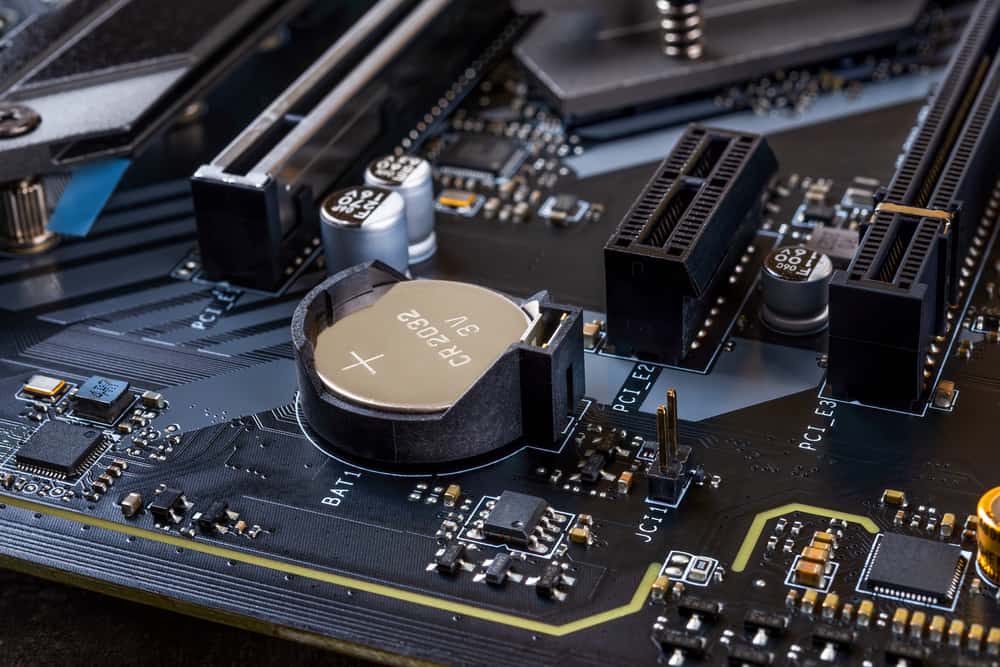
- Common battery types: Most motherboards use a CR2032 coin cell, a 3-volt lithium battery. Variants such as the CR2025 or CR2016 are also used, though rarely. The exact type is usually marked on the battery itself.
- Lifespan: A CMOS battery typically lasts between 5 and 10 years, depending on frequency of use and ambient temperature.
A PC that is permanently disconnected from the power source will drain the battery faster than a device that is used regularly.
- Replacing the BIOS battery: To replace the BIOS battery, start by turning off the PC and unplugging it from the power source. Next, open the case. This step can be more complicated with laptops, so it’s recommended that you read the manual.
- Locate the battery on the motherboard; it’s usually held in a bracket. Carefully remove the old battery and insert a new battery of the same type. Make sure to observe the correct polarity so that the positive terminal faces upward.
- Reassemble the PC and start it up. Finally, you’ll need to reset the date, time, and BIOS settings.

CMOS Reset and Safe Battery Handling
After replacing the BIOS battery, it is often necessary to reset the CMOS to avoid any error messages. It is also important to dispose of the old battery properly. Here’s how to do it.
- CMOS Reset After Battery Replacement: After replacing the battery, it may be necessary to reset the BIOS to its factory settings. To do this, select “Load Default Settings” directly in the BIOS menu. Alternatively, you can briefly move the CMOS reset jumper on the motherboard (see manual).
- In some cases, it also helps to remove the new battery for a few minutes and then reinsert it.
- Safe disposal of the CMOS battery: Since button cells contain chemicals that are harmful to the environment, do not throw them in the household trash.& nbsp;Use collection points at supermarkets, electronics retailers, or recycling centers.