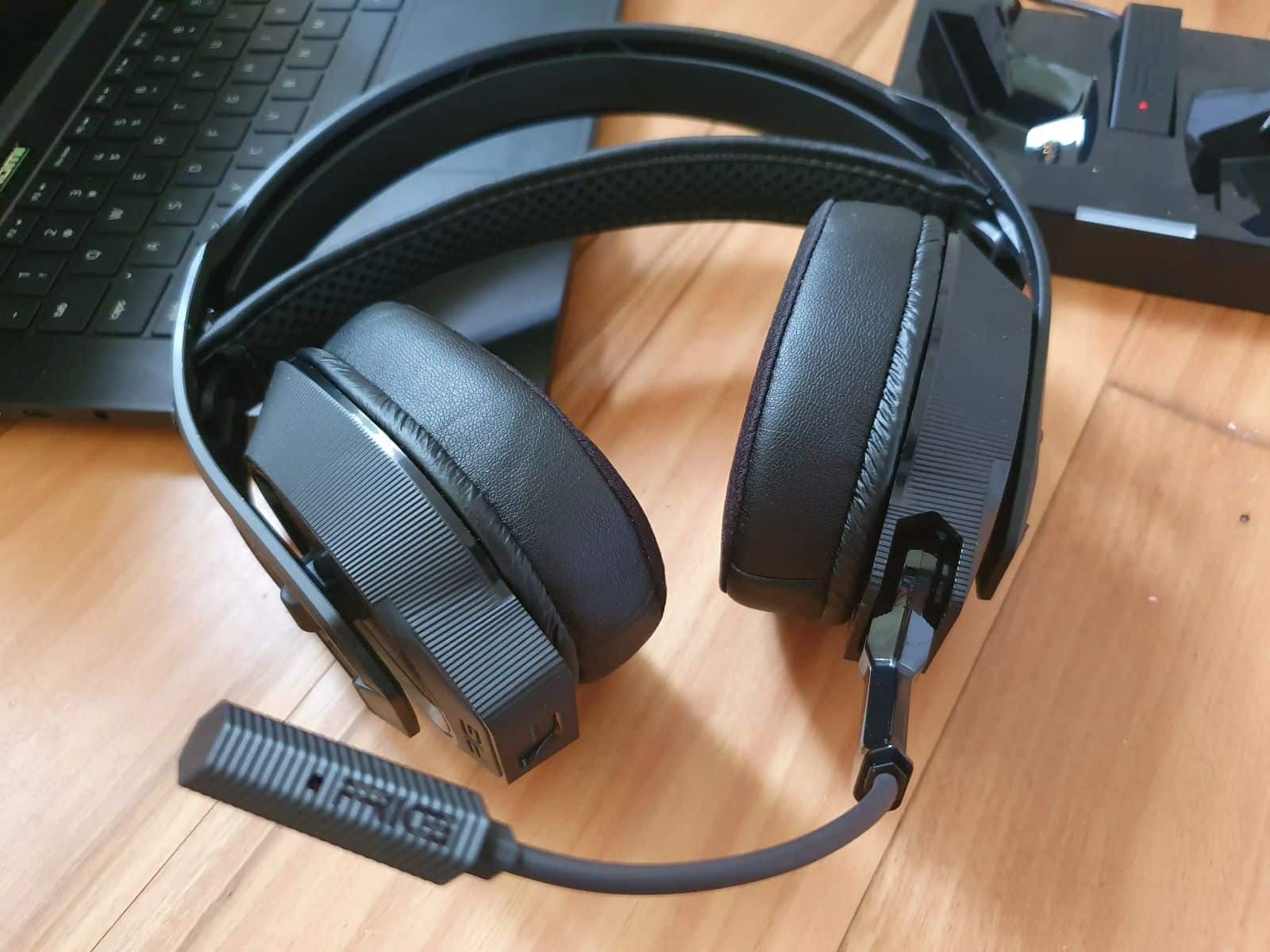
If your headset’s microphone stops working, there could be several reasons. Learn how to fix the problem in this practical tip.
Headset: Microphone Not Working – Troubleshooting
There are several reasons why your headset’s microphone might not be working. The problem could be with the headset itself or with your computer. Follow these step-by-step instructions: Check the connections, drivers, settings, and hardware. If the problem persists, a defect in the microphone or cable may be the cause—in which case, the only solution is often to repair or replace the headset.
- Check Cable Connections (AUX): First, check whether all cable connections are properly secured. If your headset is connected via AUX, check that both cables (speakers and microphone) are properly connected. If your PC has multiple AUX ports, try a different one.
- Check the USB connection: Newer headsets, in particular, are connected via USB. Check whether the connector is USB 2.0 or 3.0 and plug it into the appropriate port. Try switching ports: Plug the headset into a different USB port to rule out the possibility that the problem is with the connection.
- Rule out hardware defects: Unfortunately, physical damage can also be the cause. Check the cable for kinks, breaks, or other damage. Check for loose connections by gently moving the plug and seeing if the microphone works briefly.
- Check the Bluetooth connection: For Bluetooth headsets, make sure the headset is paired correctly. Make sure Bluetooth is enabled and that the device has been selected as the audio input (microphone). If necessary, it may help to unpair and reconnect the headset.
- Is the microphone turned on? Be sure to check whether your microphone is even turned on. Many headsets allow you to mute the microphone. The button for this is located on the ear cup or on the in-line remote.
- Check compatibility: It’s also possible that your microphone may not be compatible with a specific program. Test it using a different program.
- Update the driver: Faulty or outdated drivers are a common cause of microphone problems. In Windows, go to Device Manager. Under “Audio inputs and outputs,” locate your headset. Right-click it and select “Update driver.”
If the automatic update fails, manually download the driver from the manufacturer’s website and install it.
- Another PC: If none of the above worked, connect your headset to another PC. If it doesn’t work there, your headset is defective.

Check Settings and Troubleshoot
If your headset is working properly, the problem is likely due to an incorrect setting. Check whether your headset microphone is selected as the default microphone on your PC.
- First, right-click the speaker icon in the lower-right corner.
- In the menu that appears, click “Open Sound Settings”.
- Under “Input,” check whether your headset is selected as the microphone (see image, point 1). If not, select it manually from the drop-down menu.
- Next, click on the text “Device Properties”.
- Under “General”, “Use this device (enable)” should be selected at the bottom (see image, point 2).