1
One of the major advantages of cloud services such as Google Drive is the ability to collaborate on documents or other files. Conveniently, collaboration in Google Docs can be set up quickly and easily.
Setting up users for collaboration in Google Docs
To edit documents collaboratively in Google Docs, it is helpful if all team members also have a Google Drive account. However, this is not strictly necessary.
- First, open the document you wish to edit together with others.
- In the menu bar, click on ‘File’ and select the ‘Share’ option from the drop-down menu.
- In the dialogue box that appears, enter the email addresses of the people you want to allow to edit the document with you.
- Of course, you can also restrict access to the document. In addition to full access (“Can edit”), the options “Can comment” and “Can read” are also available.
- Finally, click on “Send”, and you’ll be able to edit the document collaboratively straight away.
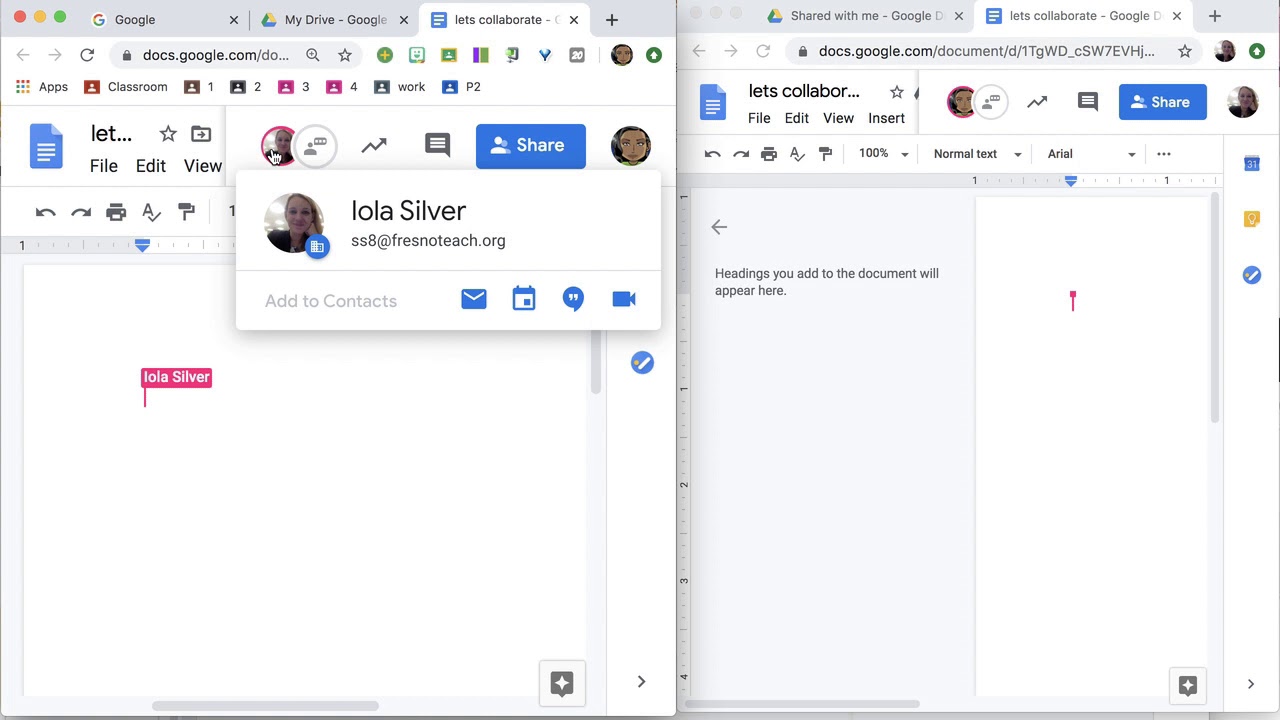
Editing a Google Document collaboratively
If you’re editing a document with several people, you can of course also track who is making which changes and when.
- Each user has their own colour, so you can see at a glance who is currently working on what or has made changes.
- The individual colour boxes containing information about each user are located on the right-hand side above the Google Docs document.
- If you wish to contact one of the other editors directly, you can do so by clicking on the relevant colour box and sending a message.
- You can get a better overall view by clicking on ‘File’ in the menu and then selecting ‘View revision history’.
