335
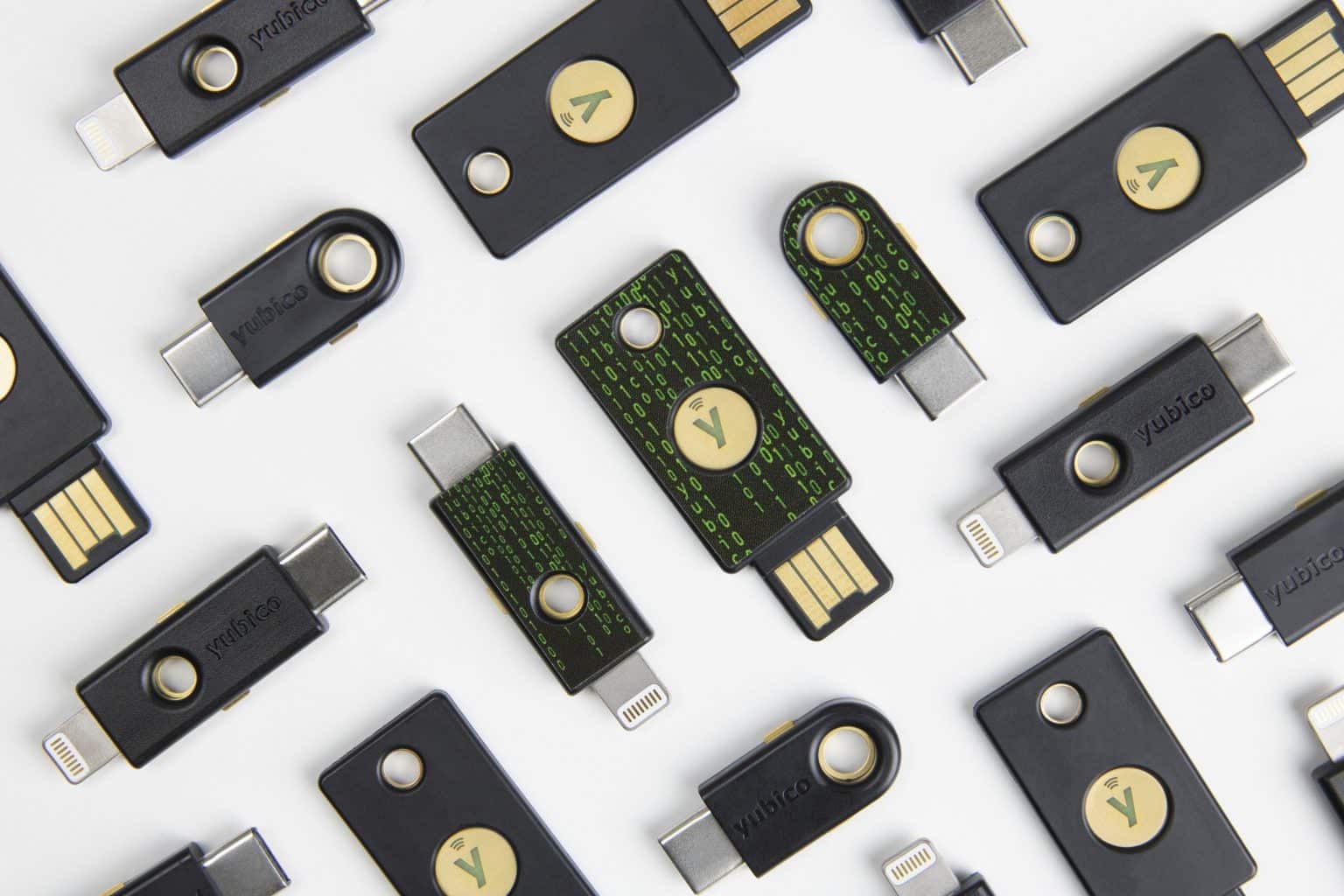
When you set up a YubiKey, you protect yourself from hacker attacks. The manufacturer’s software helps you with the setup. Once configured, your data is protected.
Setting Up YubiKey: Here’s How It Works
The YubiKey is a security key designed to protect you from phishing attacks . By implementing scalable authentication, your data is secure.
- Connecting the YubiKey: Plug the YubiKey into an available USB port on your computer. For models with NFC, you can hold it near a compatible mobile device.
- Download and install the software: Download the required utility, “YubiKey Authenticator,” from the official manufacturer’s website and install it.
- Open and configure the program: Launch the YubiKey Manager. The program icon will appear in the notification area. Right-click on it and select “Show Configuration Window.”
- Select a configuration slot: In the window, select a free configuration slot. Slot 2 is usually available. If no slot is available, you’ll need to delete an existing slot—a separate YubiKey personalization tool is available for this purpose.
- Select a function: Set the application to “6-digit TOTP” (Time-based One-Time Password). If necessary, uncheck the boxes next to “Use Token ID” and “Append Enter last” if they are enabled.
- Back up the secret key: Copy the displayed “Secret Key” to your clipboard and store it securely (for example, in a password manager). This backup is essential for recovering your account if you lose your YubiKey.
- Confirm the configuration slot: Click “Verify.” You will be asked: “Configuration 1/2 can be programmed. Do you want to use this?” If the number matches the selected slot, confirm by clicking “Yes.” If not, select the suggested slot and confirm as well.
- Paste the secret key: Paste the secret key you copied earlier.
- Complete programming: Confirm the prompt “Program slot 1/2 with the provided secret?” by clicking “OK” if the slot number is correct.
- Completion: Your YubiKey is now configured and ready for use.

Practical Tips and Notes
Once you have set up your YubiKey, you should keep the following tips and notes in mind.
- Once the YubiKey is set up, you can use it with services that support two-factor authentication (2FA). After entering your username and password, the YubiKey is required to confirm your identity—either by touching the YubiKey sensor or by automatically transmitting the TOTP code.
- Always set up a backup YubiKey so you can still access your account if you lose it. Use automatic login so that the YubiKey automatically sends the code when inserted. Also, store the recovery code securely and separately from the YubiKey.
- Pay close attention to the slot number during programming. If you’re unsure, don’t just confirm; instead, try the other slot or delete the configurations if necessary.
- If TOTP isn’t working, check that the time and date on your device are correct. If the YubiKey isn’t recognized, try a different USB port or restart the device. If you’re having NFC connection issues, make sure NFC is enabled on your mobile device.