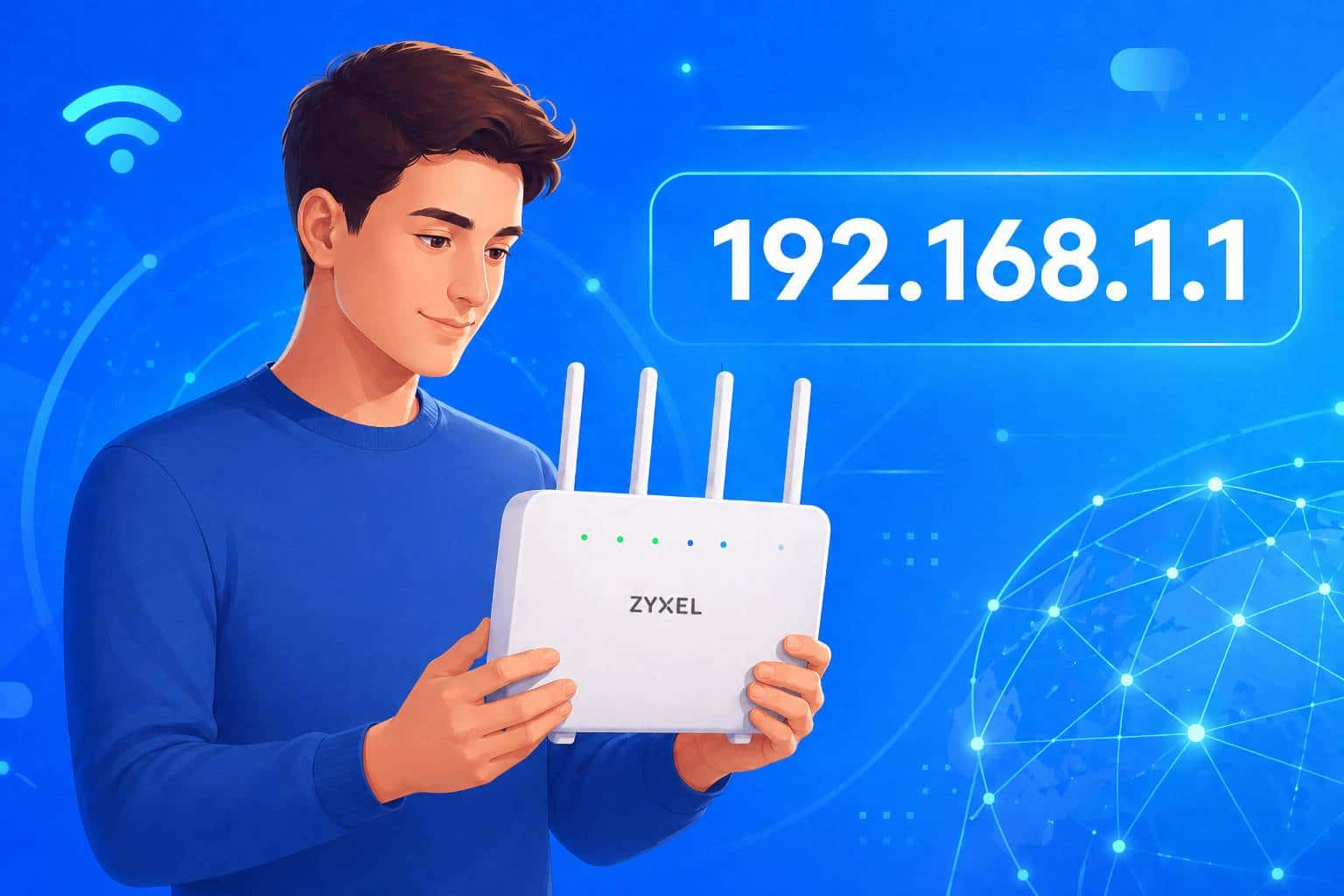
Zyxel routers have default login settings that you should change later for your own security. In this practical tip, we’ll show you how to log in for the first time or after a reset.
Default settings for the Zyxel router login
To access the user interface of your Zyxel router, you need information about the IP address, username, and password. Zyxel uses the following combinations by default:
- Option 1: Enter http://myrouter.local as the address in your browser. Leave the username field blank. Use the numbers 1234 as the password.
- Option 2: Type the IP address 192.168.1.1 into the address bar of your web browser. The username is admin and the password is 1234.
- Option 3: Use 192.168.1.1 as the IP address again. Then leave the username field blank. The password is 1234 here as well.
- Tip: Check your router’s user manual. You’ll also find login information for your specific model there.
Restore default settings on the router
You always need to access your router’s user interface when you need to change settings. If you can no longer log in, you can reset the device to its factory settings to regain access.
- The router must be turned on.
- Press the Reset button for at least 5 seconds.
- The router will then restart. It has been reset to factory settings.
- Now try logging in using one of the combinations mentioned in the first chapter.
- If this does not work, Zyxel Customer Service is available to assist you.
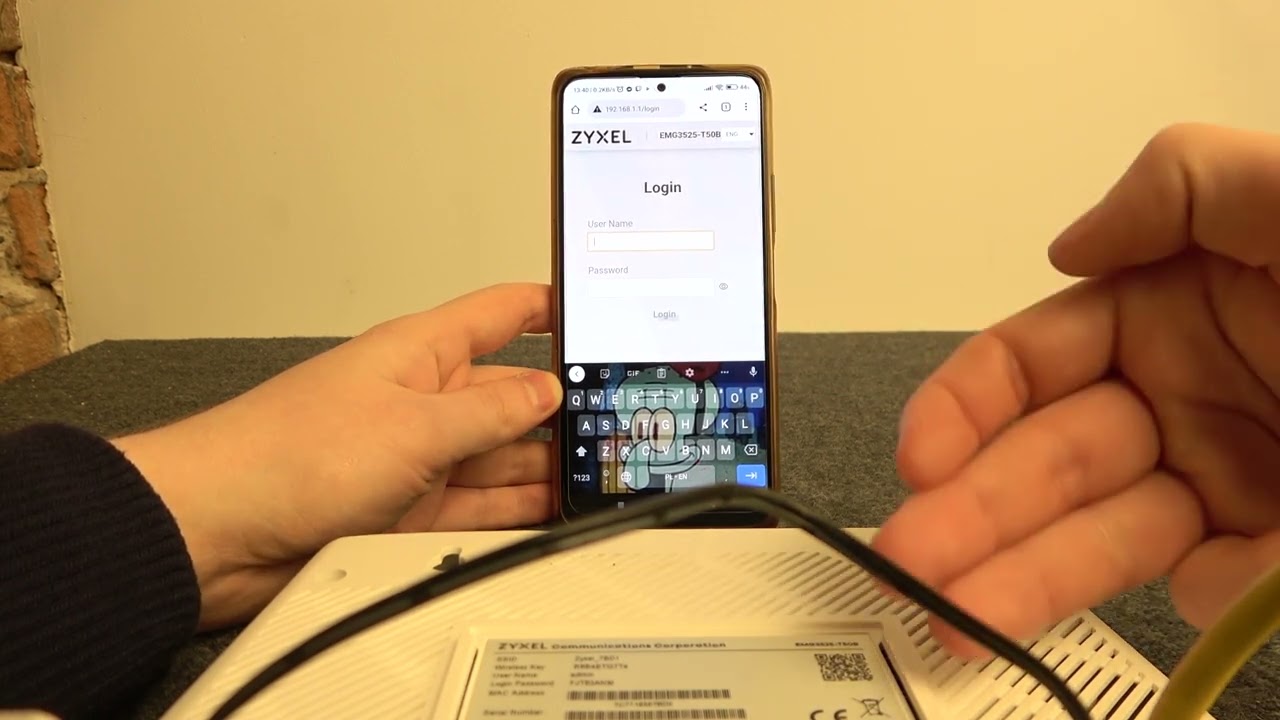
Common IP addresses and how to find them for your Zyxel router
Depending on the model or network settings, the default IP address of your Zyxel router may vary. Here’s how to find the current address:
- On your PC, open the Command Prompt (cmd) and enter the command ipconfig . The “Default Gateway” address displayed is usually your router’s IP.
- On a Mac, open System Preferences → Network and click on your active connection. You’ll see the IP address under “Router.”
- Alternatively, you can test various common addresses in your browser, such as 192.168.0.1, 192.168.1.254 or 192.168.178.1.
- If you have changed the address and no longer know it, you can reset the factory settings to restore the default IP.
Common login issues and their solutions
You may be unable to access the router. These steps will help you troubleshoot the issue:
- If the IP address is unreachable , check whether your device is connected to the router via an Ethernet cable or Wi-Fi. A direct wired connection helps prevent connection errors.
- If you no longer know the password , the only option is to reset the router using the reset button to restore the default login credentials (e.g., password 1234).
- Make sure no VPN connection is active, as this can block local access.
- If the user interface does not load despite correct input, clear the browser cache or try using a different browser.
- After a reset, all individual settings such as the Wi-Fi name and password will be lost. Make a note of these beforehand, if possible.
- After successfully logging in, you should definitely change the default credentials for security reasons. Choose a secure password with at least twelve characters, consisting of letters, numbers, and special characters. Also, change the default username if your router allows it, and regularly update the firmware via the router interface to prevent security vulnerabilities.