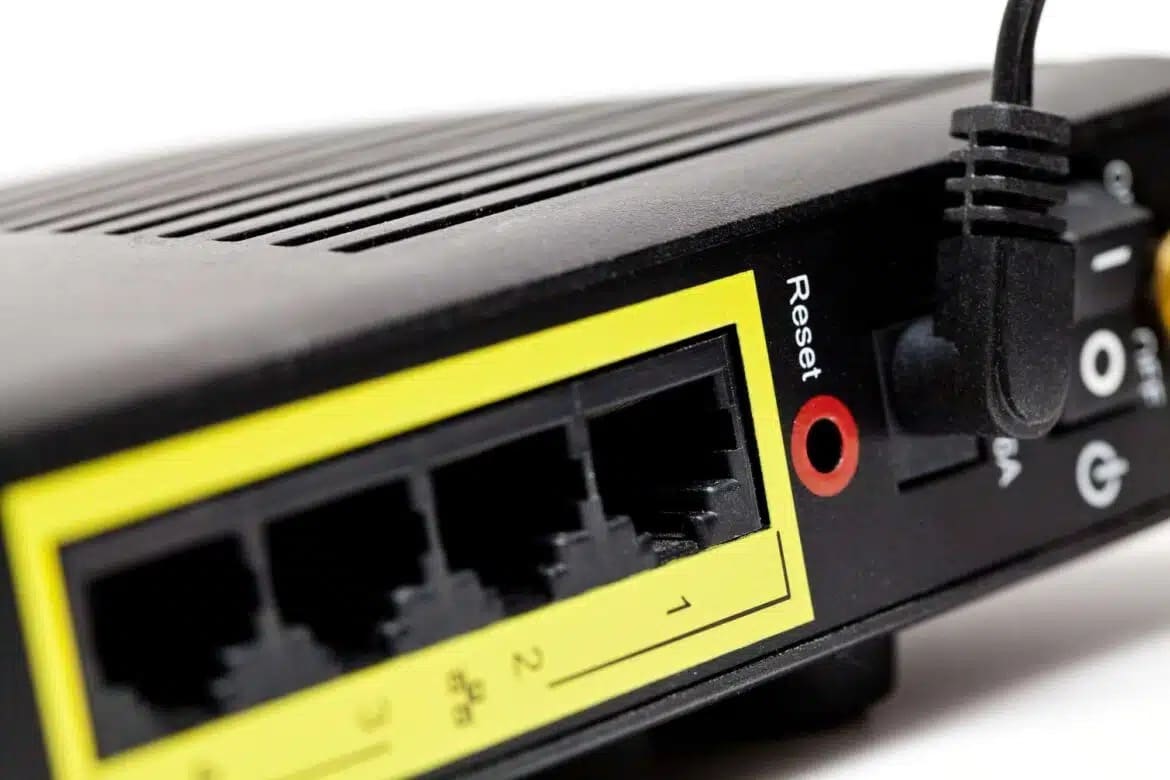
You can configure your Telekom router using the local address http://speedport.ip, or via the app, for example. We’ll explain the important settings.
Router configuration via speedport.ip and alternative addresses
To configure your Speedport router, first connect the router to a power source, turn it on, and open a web browser such as Safari, Firefox, or Chrome. The device itself has no display and only a few buttons, so you’ll need to use other methods.
- To configure your Speedport router, enter http://speedport.ip in the browser’s address bar. However, this address only works if you are already connected to the router via Wi-Fi or a network cable.
- You can find the login credentials for the Wi-Fi network on the back of the router.
- Alternatively, you can use the IP address “http://192.168.2.1” . This is the standard address for most Telekom routers.
- 192.168.1.2 can be used if the home network has been modified, for example by integrating a mesh system or by manually changing the IP configuration.
- To access the configuration menu, you’ll also need the device password, which is also located on the back of the Speedport or on the included router card.
- If you’re unsure which address is correct, check your computer’s network settings. In Windows, open the Command Prompt and enter the command ipconfig.
- On macOS or Linux, use the Terminal instead with the commands “ifconfig” or “ip a”. There you will find the default gateway address, which corresponds to the IP address of your router.
- If you don’t want to control important router functions via your PC, you can also manage it on your smartphone using the MeinMagenta app for Android and iOS. After installing the app from the Google Play Store or Apple App Store, log in with your Telekom account. As soon as your Speedport is detected, you can access numerous functions via the “Wi-Fi & Home Network” menu item.
- Compared to the web interface, however, the app is limited to basic functions. More complex settings such as port forwarding, DynDNS, Quality of Service (QoS), or advanced security options are available exclusively via the classic configuration interface in the browser.
How to configure the Telekom router via speedport.ip
Once you have logged in, you will be in your router’s menu.
It is clear and easy to use. Here, you can enter the login credentials for your Telekom internet connection, set filters for specific devices, and secure your Wi-Fi network with a custom password.
- If you are configuring the Telekom router for the first time, you can use the setup wizard. You’ll find it in the “Overview” section if you scroll down a bit.
- To protect the router configuration from unauthorized access, you should change the device password. You can do this under “System” in the menu and then “Change Device Password.”
- Under “Network” > “Wi-Fi Settings” > “Name and Encryption,” you should also set up a password for your Wi-Fi access. Under “Wi-Fi Settings” > “Wi-Fi Access (WPS)” > “Access Restriction,” you can allow all or only specific devices to access the Wi-Fi. Directly under “Network,” you can see which devices are connected.
- If possible, be sure to use WPA3 as the encryption method . This standard offers better protection against attack attempts compared to WPA2. Avoid outdated Wi-Fi technologies such as WEP or unsecured networks. These are extremely insecure nowadays and offer attackers an easy target—just like default or overly simple passwords.
- Under “Network” > “Wi-Fi Settings” > “Basic Settings,” you can turn Wi-Fi on or off and even enable a scheduler .
- You can also enable a separate guest network that allows your visitors to access the internet without granting them access to other devices on your home network.
- Under “Overview” in the “Status” tab, you’ll find key information such as the serial number and network speeds. If you want to change any of these settings, click through “Wi-Fi Settings” under the “Network” tab.
- Many network issues can be resolved with a simple firmware update . Updates also distribute new security features and bug fixes. You can perform firmware updates under “System” > “Firmware Updates”.
- Via the ‘Internet’ > “Port Forwarding” menu, you can also specifically forward certain internet traffic to devices on your network. This feature is necessary, for example, if you operate an online gaming server, want to access a NAS system while on the go, or use remote desktop services. To configure this, select the corresponding device in your home network and specify the desired TCP or UDP port numbers. You can view these under “System” > System Information > Active Services.
- With the Quality of Service feature, you can prioritize certain services or devices on the network. For example, you can give preferential treatment to video conferences, online gaming, or streaming services, while throttling large downloads. This can be done via “Network” and “Prioritization”.

Special features of current Telekom Speedport models
The latest Telekom routers, such as the Speedport Smart 4 or the Speedport Pro Plus are state-of-the-art. They support Wi-Fi 6, which ensures higher speeds, lower latency, and more simultaneous connections.
- Thanks to integrated Mesh technology multiple Wi-Fi components can be seamlessly linked together to achieve consistent network coverage throughout the home.
- This means: With the mesh technology built into modern routers like the Speedport Smart 4, you can connect multiple Wi-Fi devices—such as routers, repeaters, or additional Wi-Fi extenders—so that they function like a single, large Wi-Fi network & The devices communicate with each other and intelligently forward data.
- The advantage: You don’t have to manually switch between different networks when moving around a multi-story home. Instead, all devices automatically remain connected to the same network, and signal quality stays as stable as possible in every room.
- In addition, these devices support the Magenta SmartHome platform, which allows you to centrally control smart lights, heating systems, or security devices. To do this, navigate to “Network” and “SmartHome.”