553
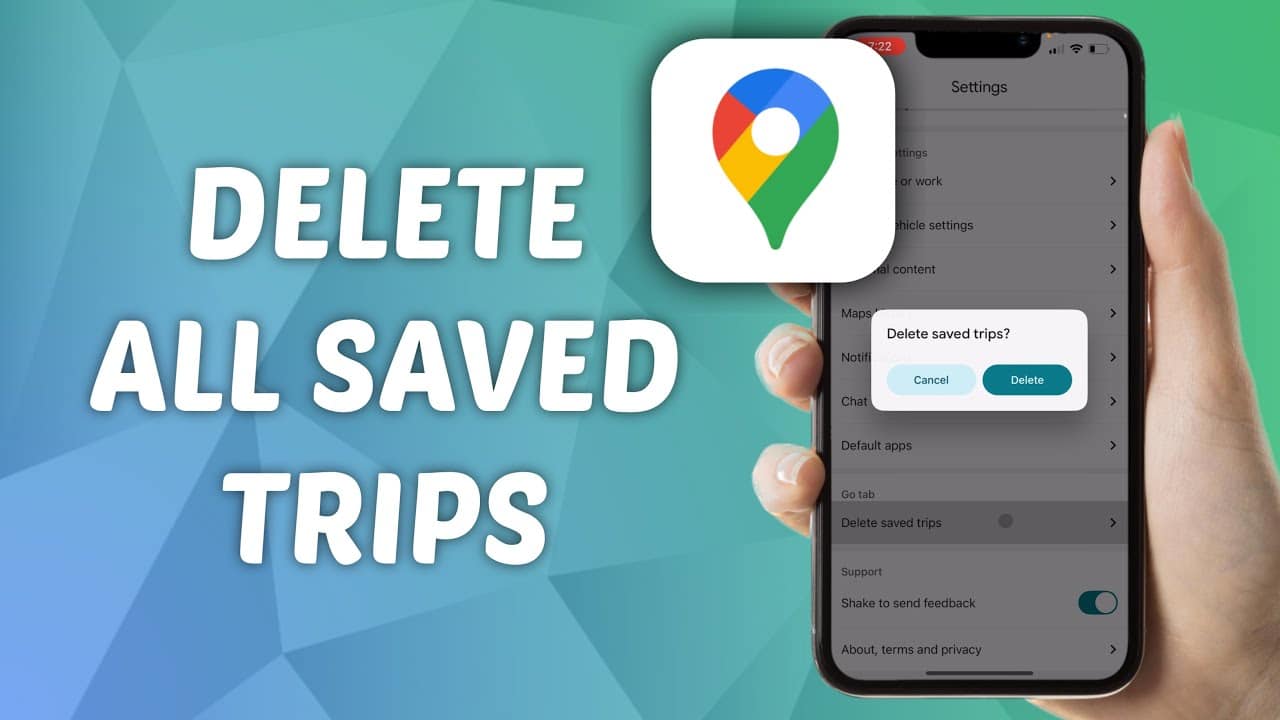
We’ll walk you through, step by step, how to delete saved trips in Google Maps and gain more control over your privacy.
Why You Should Delete Saved Trips in Google Maps
- Deleting saved trips on Google Maps can protect your privacy, especially if you’ve visited personal or sensitive locations. By removing this data, you minimize the risk of third parties gaining unauthorized access to your location history. Additionally, regularly deleting trips can help keep your location history up-to-date and organized.
- Another reason to delete trips could be to avoid storage issues. If you have saved many routes, this can affect your app’s performance. By removing old or unnecessary trips, you free up space for new data and ensure that Google Maps runs smoothly.
- Sometimes users simply want to organize their map visually. Saved trips can make the map view cluttered, especially when many routes overlap. Deleting these trips helps make the map clearer and makes it easier to find specific locations without distractions.
- Last but not least, removing past trips can help correct incorrect or erroneous entries. Sometimes routes are recorded incorrectly or contain errors. By deleting these entries, you can ensure that your location history remains accurate and reliable.
Guide to Deleting Saved Trips in Google Maps
If you’ve decided to delete certain trips from Google Maps, there are several methods available. These vary depending on your device type and your app’s specific settings.
- First, open the Google Maps app on your smartphone. Go to your profile picture or initials in the top-right corner and tap on it. Select ‘Your Timeline’ from the dropdown menu. Here you’ll see an overview of all your saved trips. To delete a trip, select it and tap the three-dot menu to choose the ‘Delete’ option.
- For desktop users, the process is slightly different. Open Google Maps in your web browser and sign in to your account. Click the menu icon and navigate to ‘Timeline.’ Here, too, you can scroll through your saved trips and delete individual entries by clicking the trash can icon.
- You also have the option to delete your entire location history. This can be done both in the app and in the browser. In the Timeline settings, select “Location History Settings” and then “Delete All Location History.” Note, however, that this will permanently delete all your saved routes.
- Don’t forget to review your privacy settings regularly. Google offers options to disable the automatic saving of location data. This can be helpful to prevent future trips from being recorded in the first place, thereby saving you the trouble of deleting them later.

What to Keep in Mind When Deleting History
- Make sure no important information is lost before deleting trips. Check whether certain routes or locations are important for future reference, and create manual backups or notes if necessary.
- Please note that deleting your location history may affect your personalized recommendations within Google services. Google uses your location data to provide tailored suggestions, and removing it could reduce the accuracy of such recommendations.
- Keep in mind that deleted data generally cannot be recovered. Once you’ve deleted a trip, it’s permanently removed. Therefore, think carefully before proceeding, especially if the information is business-related or otherwise critical.
- Stay informed about Google updates. The handling of location data and the features offered often change, and it’s helpful to regularly review Google’s latest guidelines and tips to get the most out of the services while protecting your privacy.
Additional steps to optimize your location data
In addition to deleting saved trips, there are other steps you can take to optimize how your location data is handled. These range from adjusting your privacy settings to managing third-party apps that access your location information.
- Regularly review the privacy settings in your Google Account. You can specify what data is collected and how it is used. Enable notifications that alert you to changes in your location data so you can stay up to date.
- Consider disabling the “Share Location” feature in Google Maps if you don’t need it. This feature allows selected people to see your current location in real time and, if left unmonitored, can unintentionally compromise your privacy.
- Adjust permissions for third-party apps. Many apps request access to location data even when it isn’t strictly necessary for their main function. Review your smartphone’s permission settings and revoke access to your location information for unnecessary apps.
- Use incognito browsing options and virtual private networks (VPNs) to further protect your online activities. These tools prevent your actual IP address—and thus your exact location—from being tracked, providing an additional layer of security.