173
With the right keyboard shortcut, you can quickly take screenshots on your MacBook—from the entire screen to selected areas to individual windows.
How to Take a Screenshot of the Entire Screen on a MacBook
Whether you want to capture an error message, share a window, or save a specific area of your screen—it’s easier than you think on a Mac. Thanks to handy keyboard shortcuts, you can take a screenshot quickly and easily.
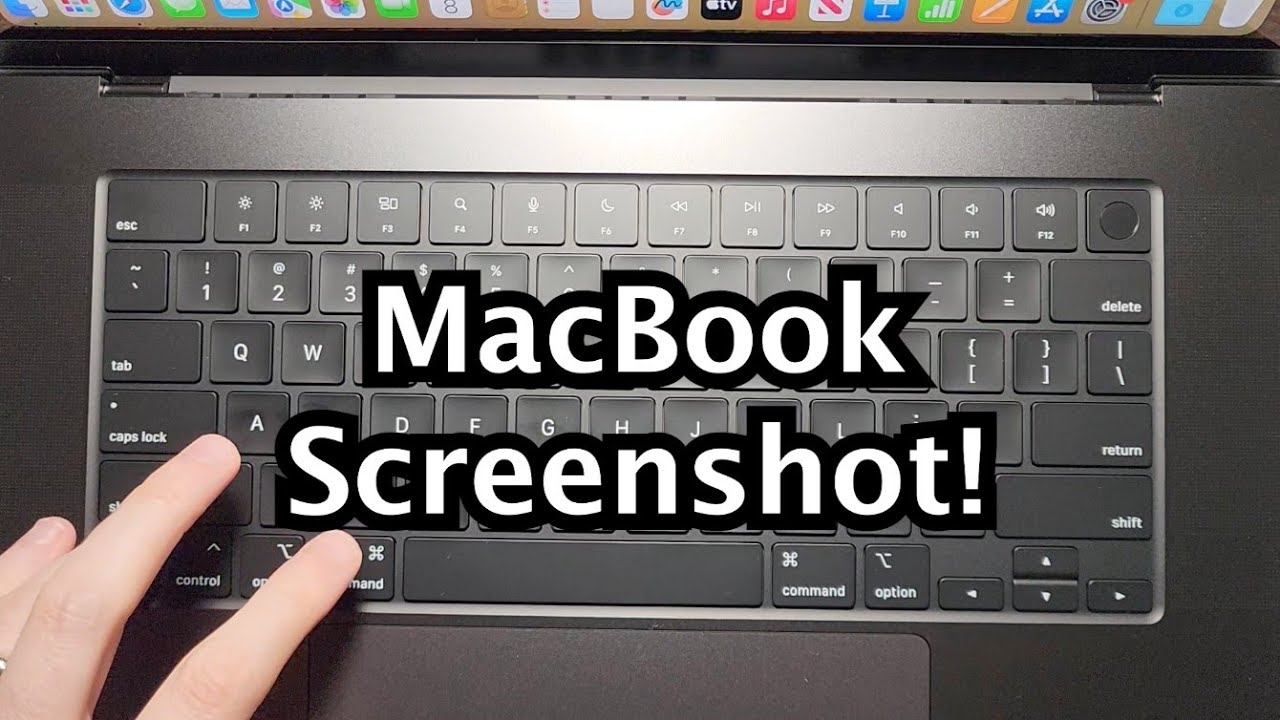
- To take a screenshot of the entire screen on a MacBook, press the keyboard shortcut [Shift] + [cmd] + [3].
- After taking the screenshot, a small preview image appears in the corner of the screen. Clicking on it lets you edit the screenshot immediately.
- The image is automatically saved to your desktop. The file name includes the date and time the screenshot was taken.
- Starting with macOS Mojave, you can change the save location using the Screenshot app, which you can open with [Shift] + [cmd] + [5].
- While taking the screenshot, also hold down the [Ctrl] key to copy the image directly to the clipboard and paste it elsewhere.
Capturing a portion of the screen
Sometimes it’s enough to capture just a small portion of the screen—for example, to highlight specific information or show a detailed view.
- To do this, press the keyboard shortcut [Shift] + [cmd] + [4] again. You’ll notice that the mouse pointer turns into a crosshair.
- Click and drag with the mouse to select the desired area. To move the selection, simply hold down the spacebar.
- Once you’re satisfied with your selection, release the mouse button or trackpad to take the screenshot. The image will be saved to your desktop as usual.
- To cancel the action, simply press the [Esc] key.

Taking a screenshot of a single window or menu
If you only want to take a screenshot of a single window, that’s no problem on a MacBook either.
- To do this, open the window or menu you want to capture.
- Here, too, use the keyboard shortcut [Shift] + [cmd] + [4] and hold down the Space bar. Your mouse pointer should then turn into a camera icon.
- Click on the desired window or menu to take a screenshot. The screenshot will be captured with a shadow.
- If you don’t want to see the window shadow, hold down the Option key while clicking.
- The image will appear on your desktop as usual. Clicking the thumbnail opens the editing options if you want to make adjustments.