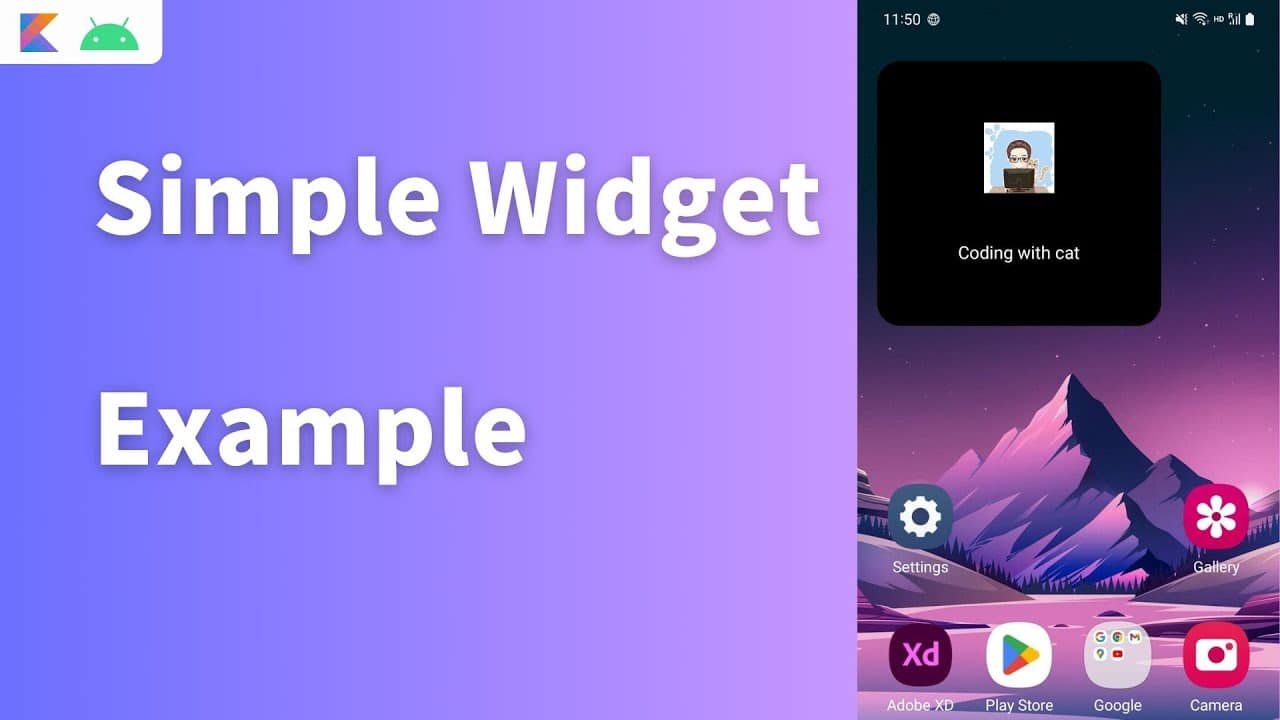
It’s not always clear at a glance what exactly a widget is when you look at your smartphone, tablet, or PC. Yet these applications have long been an integral part of our digital daily lives.
What is a widget?
A widget is a display element on the screen of your smartphone, tablet, or computer that you can interact with. Widgets are, so to speak, small, handy tools.
- Another name for a widget is “mini-application.” This is because it’s a small program window or interface element that displays information or provides a function on your home screen or desktop without requiring you to open an app or application completely.
- Widgets allow you, for example, to see your step count at a glance without opening the fitness app, or to control music—such as pausing or skipping tracks—without opening the music app. Unlike traditional apps, widgets are lightweight and quickly accessible. Many of them are even interactive; you can interact with them directly to, for example, scroll through the latest news or manage to-do lists—such as checking off tasks in Apple Reminders or Google Tasks right within the widget.
- Modern widgets are no longer just small information panels, but genuine everyday helpers. For example, you can control the temperature in your living room using a smart home widget. Calendar widgets are also extremely popular, as they display upcoming appointments at a glance. News widgets , on the other hand, deliver the latest headlines from your preferred sources, while weather widgets display detailed forecasts.
- You can control the application by interacting with individual widget elements using either a mouse or your finger. Common operating systems such as Mac OS X, Windows, Android, and Linux support these controls.
- In the past, widgets often required special engines or additional programs to function on the operating system—especially on Windows or older versions of Android. That is no longer necessary. Modern operating systems like Windows 11, Android, and iOS offer native widget support. This means that widgets are integrated directly into the system and do not require any additional software. As a result, they not only launch faster but can also be managed more securely and efficiently.
How to Use Widgets on Your Smartphone
Today, widgets play an important role, especially on smartphones. Both Android and Apple devices offer comprehensive support for widgets. Since iOS 14, iPhone users have even been able to place their widgets directly on the home screen—a feature that Android has offered for years.
- To add a widget to an iPhone, simply press and hold an empty spot on the home screen until the app icons start to wiggle. Then tap the plus sign in the upper-left corner.
- This opens the widget gallery, where you can select a suitable widget—for example, for weather, calendar, or fitness data. After choosing the desired size, tap “Add Widget,” and it will appear on the Home screen.
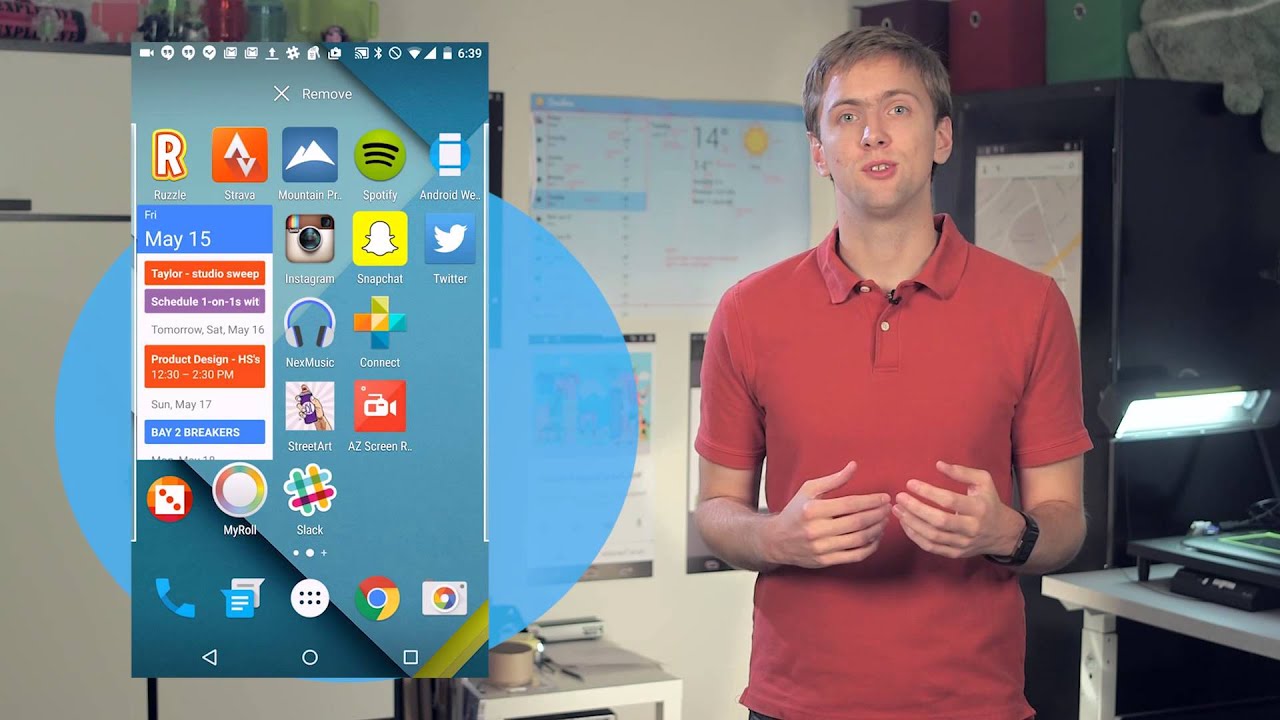
- On Android , you can also add widgets by long-pressing an empty spot on the home screen. In the menu that opens, select “Widgets” and choose the one you want. You can now place the widget on the screen and, depending on the manufacturer, adjust its size and functionality. Android offers a particularly wide range of customization options for widgets.
Web Widgets: Practical Extensions for Your Website
Widgets are also ubiquitous on the Internet. Many websites offer so-called web widgets—small modules that you can embed on your own website.
- For example, this allows you to display weather forecasts, stock market tickers, social media feeds, or event calendars directly on your site.
- To do this, website operators usually just copy a short HTML code snippet to the desired location in the source code, and the widget is active.
- For visitors, this adds value through up-to-date, dynamic content—for website operators, it’s an easy way to bring their site to life.