166
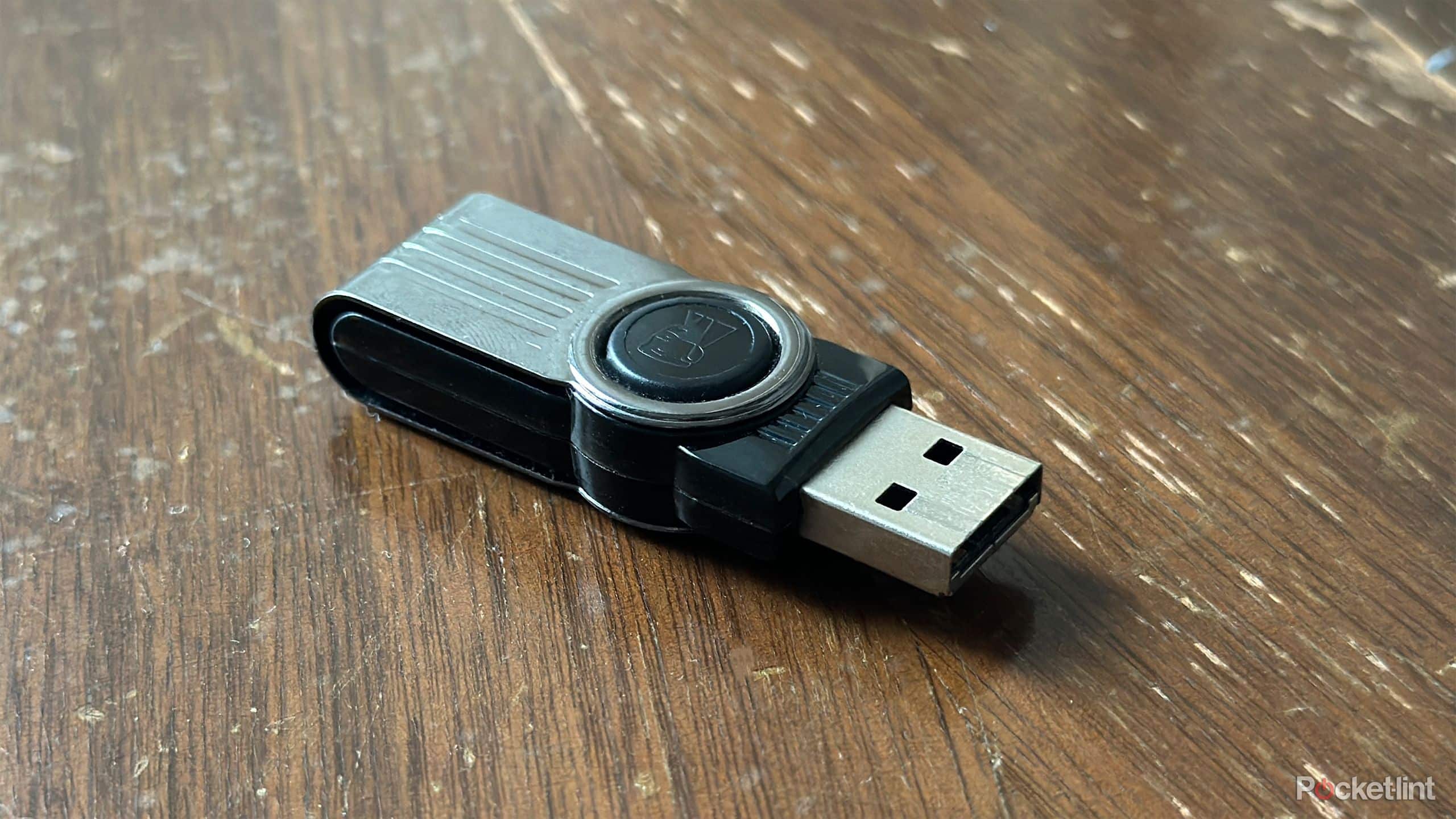
When you play music from a USB flash drive on a stereo system or in your car, you’ll notice that the playback order of the MP3 files is completely random. But you can prevent this with a few simple tricks.
Change the playback order in File Explorer
If you don’t necessarily want to organize your songs into different folders, you can simply number your music:
- To do this, place a number before the name of each MP3 file. It might look something like this:
- “001 – Track 1”, “002 – Track 2”, “003 – Track 3”, etc.
- Be sure to always include enough zeros at the beginning. Otherwise, the order will get mixed up starting with the tenth or hundredth song.
- You can also enter these track numbers in the file tag. This will also achieve the desired result on some systems. To do this, right-click on the desired file and select “Properties.” In the “Details” tab, you can now enter the track number (see image).
- Of course, you should also turn off shuffle mode on your car stereo and music system. This is the only way to ensure the songs are played in the specified order.

Set the playback order using a music playlist
If you want to play the music on another computer, you can also create a playlist. Most music systems now support this feature as well.
- To do this, copy the desired songs to the USB drive. The exact storage location doesn’t matter.
- Now create a playlist in the desired playback order. You can do this using VLC Media Player, for example.
- Save the playlist to the USB drive as well. Important: Once you rename or move a file, it can no longer be played via the playlist.
