265
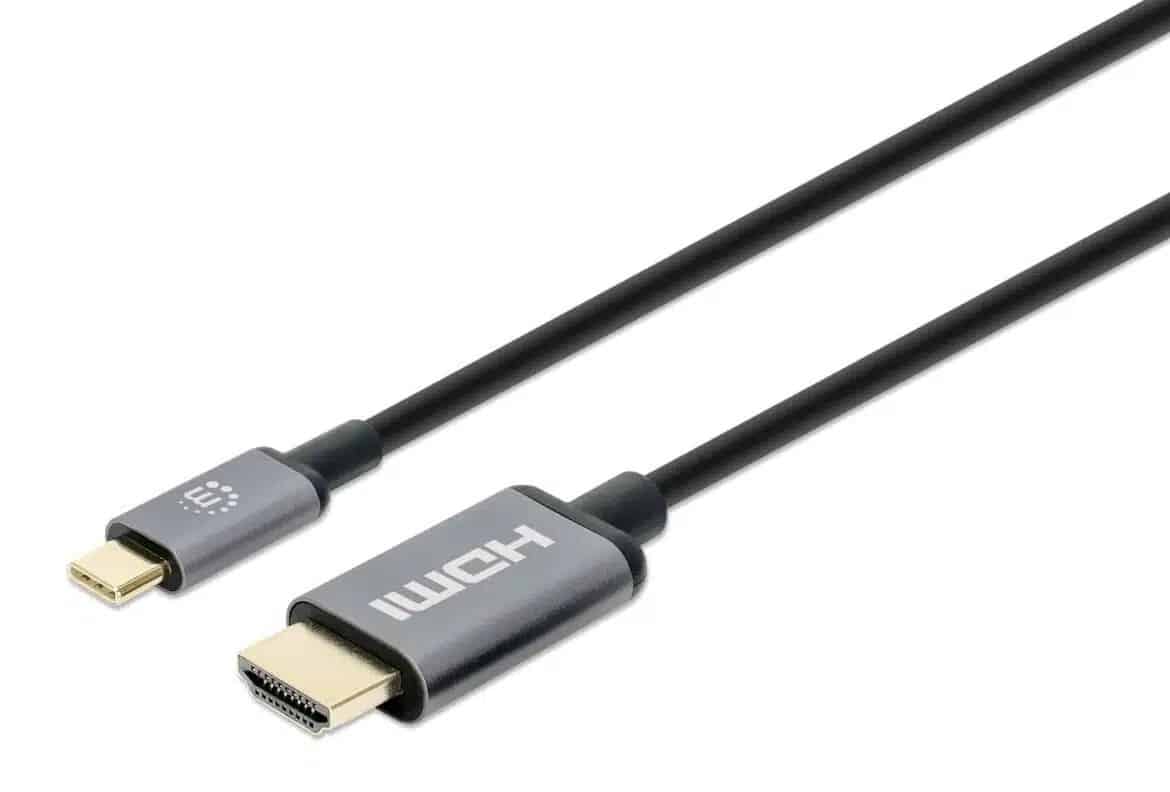
If USB-C to HDMI isn’t working, it’s usually just a minor issue. Once you know the reasons why, you can fix it in just a few steps.
USB-C to HDMI isn’t working with an adapter
If you use an adapter to connect the USB-C port to the HDMI port, the following issues may occur:
- Outdated driver: The adapter’s driver may be outdated. Updating it may resolve the issue. To do this, open Device Manager. You can access it, for example, by simply typing “Device Manager” into the Windows search bar. Then select the adapter. Right-clicking will open the “Update Driver” option.
- Defective adapter: If you are sure that your screen is working, the adapter may be defective. If you use a different one, the problem may resolve itself.
- Defective USB-C port: It’s also possible that your USB-C port is defective. If you have multiple ports to choose from, connect the cable to a different port. Also check to see if the cable is plugged in properly.
Other causes if USB-C to HDMI isn’t working
Sometimes the adapter may not work because of an issue with Windows. An update may help resolve the problem:
- Open the “Update & Security” menu. You can find this via the search bar or by pressing the Windows key and ‘I’.
- Now select “Windows Update”. Now you can check for new or pending updates and install them. After restarting, you can try the adapter again.
- If the adapter worked before an update and no longer does, you can take the opposite approach and roll back the latest update. To do this, also open “Update & Security” and click on ‘Recovery’.
- Using the “Get started” button, you can restore Windows to the state it was in before the last update. Keep in mind, however, that this may affect other programs.
Troubleshooting for various types of issues
Troubleshooting for various types of issues with the USB-C-to-HDMI connection can be structured as follows:
- Black screen despite connection: Check whether the monitor is set to the correct input (HDMI), as monitors often need to be manually configured to the input port. Check cables, adapters, and connectors for a secure fit and damage. Adjust the computer’s signal resolution to match the monitor’s supported resolution, as incompatible resolutions can cause a black screen.
- Screen flickering: Loose or poorly seated connectors are the main cause. An unstable connection due to incompatible resolution or refresh rate. The adapter, cable, or USB-C port may be defective. Driver issues or outdated firmware can interfere with the signal.
- Resolution or frequency issues: The monitor or adapter does not support the set resolution or refresh rate. HDMI cable quality or length can affect signal quality, e.g., with very long cables over 4.5 m (15 feet). Keep the graphics card and adapter drivers and firmware up to date. High-resolution monitors (4K, 144 Hz) often require high-quality adapters and cables.
- General recommendations: Restart or reconnect the device, adapter, and cable. Perform an operating system update to resolve compatibility issues. Try a different USB-C port on the device. If possible, test the adapter or cable on a different device.
Meaning of DisplayPort Alternate Mode (DP Alt Mode)
DisplayPort Alternate Mode (DP Alt Mode) is a special operating mode for USB-C ports that allows not only data and power but also high-resolution video and audio signals to be transmitted via the USB-C port in accordance with the DisplayPort standard.
- This allows a USB-C port to function as a video output without the need for a separate HDMI or DisplayPort connection. USB-C-to-HDMI adapters use this mode to convert the DisplayPort signal sent via USB-C into an HDMI signal, so that the image can be displayed on an HDMI monitor or TV.
- For such an adapter to function, it is essential that the source device (e.g., laptop, tablet, smartphone) supports DP Alt Mode. Only then can it output the video signal via USB-C. If it does not, no image will be output through this port, and the adapter will be ineffective.
- Users can check whether their device supports DP Alt Mode by looking for symbols near the device or port, such as a DisplayPort or Thunderbolt logo. These symbols usually indicate support for video mode via USB-C; consult the user manual or the device’s technical specifications.
Manufacturers generally specify there whether DP Alt Mode is supported or, if necessary, provide software tools to check the USB-C connection mode. - It is important to note that not every USB-C port supports DP Alt Mode; in particular, lower-priced or less feature-rich devices often only offer USB data and power, but not video output via the USB-C port.