278
Connecting your Jabra headset to a compatible device makes it easier to make calls. Simply follow our step-by-step guide.
Connecting a Jabra Headset to a Device: A Guide
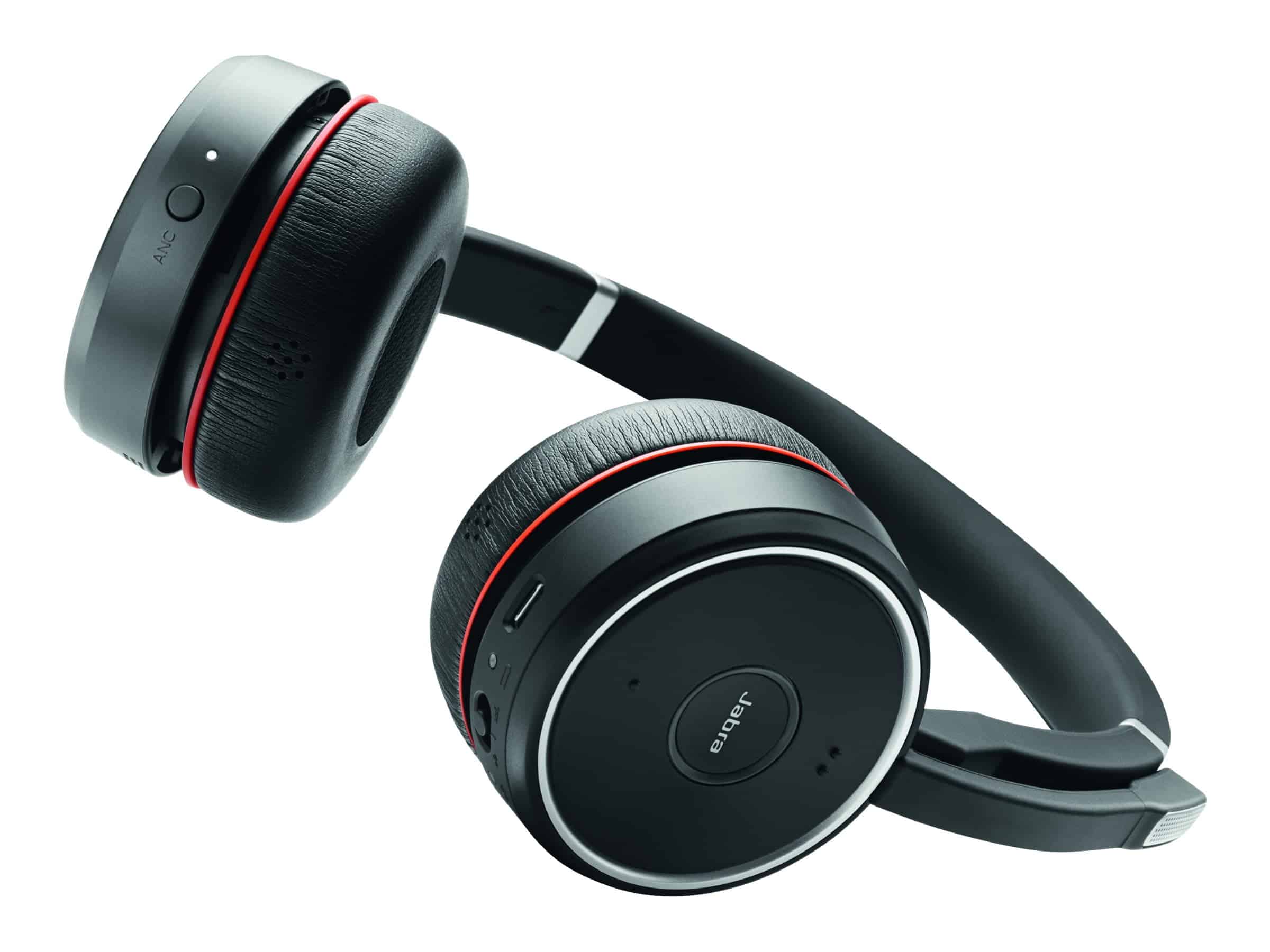
- Turn on the headset, then press and hold the call button for five seconds until the blue LED indicator lights up. This activates the pairing process.
- The headset is now ready to pair with other Bluetooth-enabled devices. To do this, enable Bluetooth on your mobile device. Your headset should appear in the list of available devices.
- If pairing has already taken place, Jabra will automatically connect without you having to select the headset on your smartphone or other mobile device.
Using the Jabra Link 370 USB Bluetooth Adapter with a PC
- Simply plug the Jabra Link 370 into a USB port on your PC or Mac—it’s ready to use right away (plug-and-play) and is specifically designed for Jabra Bluetooth headsets.
- The adapter provides an extended wireless range of up to 30 meters and crystal-clear HD Voice sound during calls, as well as Hi-Fi audio streaming (A2DP).
- Using the Jabra Direct software, you can add (pair) additional Bluetooth devices or re-pair existing ones.
- It is important to set the Jabra Link as the default device for speakers and microphone in your PC’s audio settings.
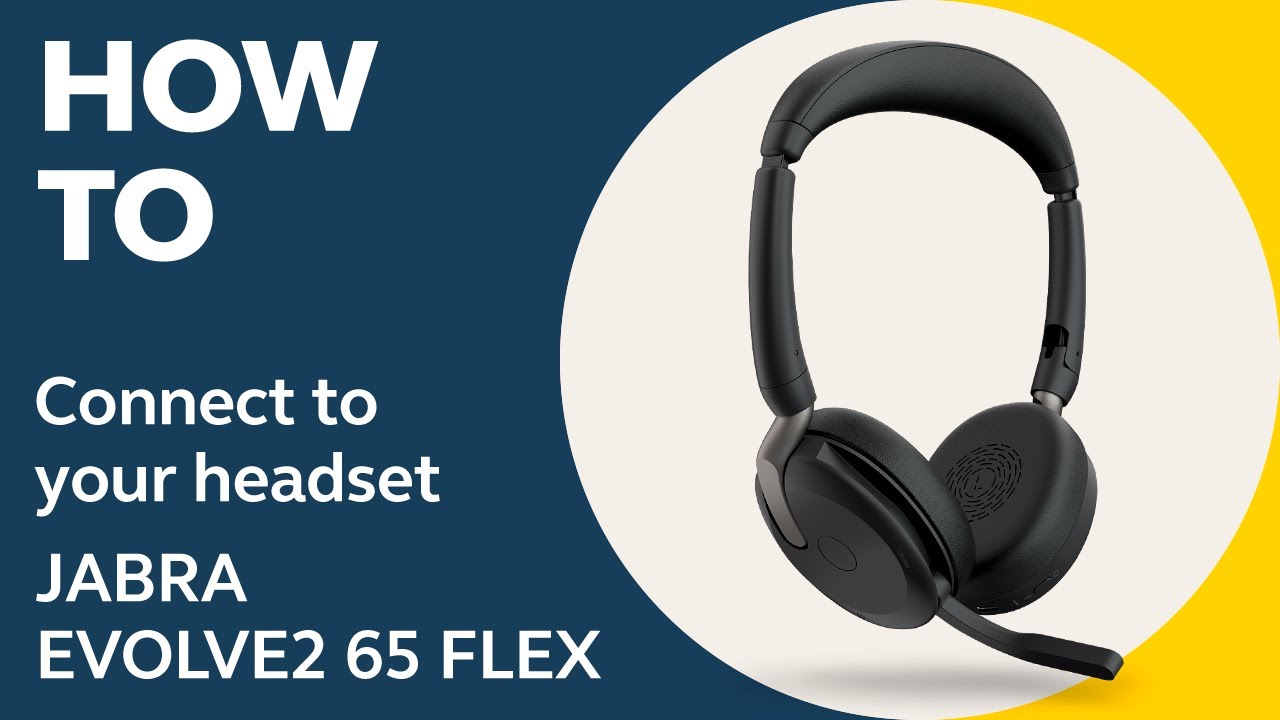
Special features of Jabra models (e.g., Evolve 65, Evolve 75 SE)
Newer Jabra models with dual connectivity make it easier to use them flexibly with both a PC and a mobile device.
- Models such as the Jabra Evolve 65 offer dual connectivity: You can be connected simultaneously to a PC via a USB dongle (Jabra Link 370) and to a mobile phone via Bluetooth.
- The Evolve 75 SE also offers active noise cancellation and additional convenience features, as well as dual connectivity, allowing you to switch seamlessly between your phone and PC.
- This dual connectivity makes it easy to receive calls from both devices and stream media content.
Troubleshooting Microphone and Pairing Issues
Issues such as microphone malfunctions or connection problems can usually be resolved using standard settings and software tools like Jabra Direct.
- Microphone issues may occur if the USB adapter is not selected as the default recording device in the Windows operating system. This should be checked in the Windows sound settings.
- If pairing fails: Make sure the Jabra headset is turned on and in pairing mode. Use the Jabra Direct software to re-pair the adapter with the headset. Sometimes it helps to briefly remove and reinsert the USB adapter or restart the PC.
- If you continue to experience problems, perform firmware updates via Jabra Direct and check that the drivers are up to date.