
146
If you’ve accidentally deleted important photos or messages in WhatsApp, you can restore an old backup to recover your data.
Restoring a WhatsApp Backup on Android—Here’s How to Do It Easily
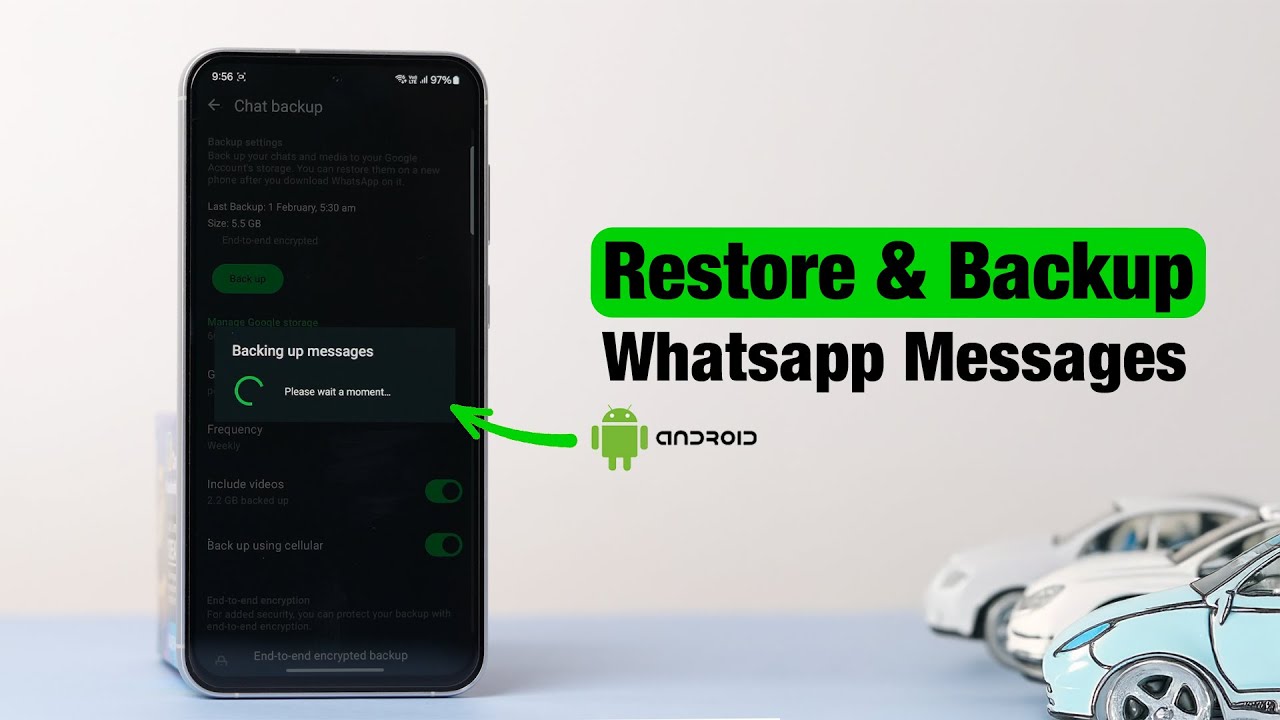
With just a few taps, you can easily restore a WhatsApp backup to your Android device. By following a few important steps, you can quickly back up your files.
- WhatsApp usually backs up chats automatically to Google Drive. Therefore, enable Google Drive on your smartphone to use the automatic backup feature.
- First, reinstall the WhatsApp app. To do this, download the app from the Play Store and launch it. Then verify your phone number.
- WhatsApp will now recognize the saved backup and display its size and the time it was created. Tap “Restore.” Wait until the process is complete, then tap “Next.”
- Your chats and media are now available in the app again. You can access all the files saved by the backup within the app.
How to restore your WhatsApp backup to an iPhone
Of course, you can also use the backup feature on your iPhone. It only takes a few taps.
- WhatsApp backs up data to iCloud—daily, weekly, or monthly, depending on your settings. Therefore, check under “Settings” to see when the last backup was created. To do this, go to “Chats” in Settings and then to “Chat Backup.”
- When using iCloud, keep in mind that iCloud has limited storage space and can therefore only store a limited number of chat histories. Also note that you’ll need an internet connection for the restore process.
- Next, delete WhatsApp from your iPhone and re-download the app from the App Store. Sign up again using your phone number.
- During the app’s setup process, select the “Restore Chat History” option. There, you can easily restore your chat histories and the files you’ve sent and received to your iPhone using the backup you created. Confirm the process.
How to Use a Local Backup on Your Android Device
You can also access your backup in other ways. With a local backup, you don’t need a Google Drive backup.
- If you are not using a Google Drive backup, you can find local backups in the “/sdcard/WhatsApp/Databases” folder. Rename the desired file to “msgstore.db.crypt12”.
- Uninstall the WhatsApp app, reinstall it, and sign up. The backup will be recognized and can be loaded.
More important information for you
If you want to use the backup feature for WhatsApp on your smartphone, there are a few additional important notes you should keep in mind.
- Always use the same phone number and the same Google or iCloud account as you did when creating the backup. This is the only way to use the feature correctly.
- Be aware that some messages may be lost. Messages received after the last backup will not be included in the backup.
- Restoring a backup may take a few minutes. So don’t worry if the restoration process takes some time.
- You can also use various third-party tools, such as MobileTrans or iMyFone iTransor. These tools also allow you to restore backups quickly and easily.