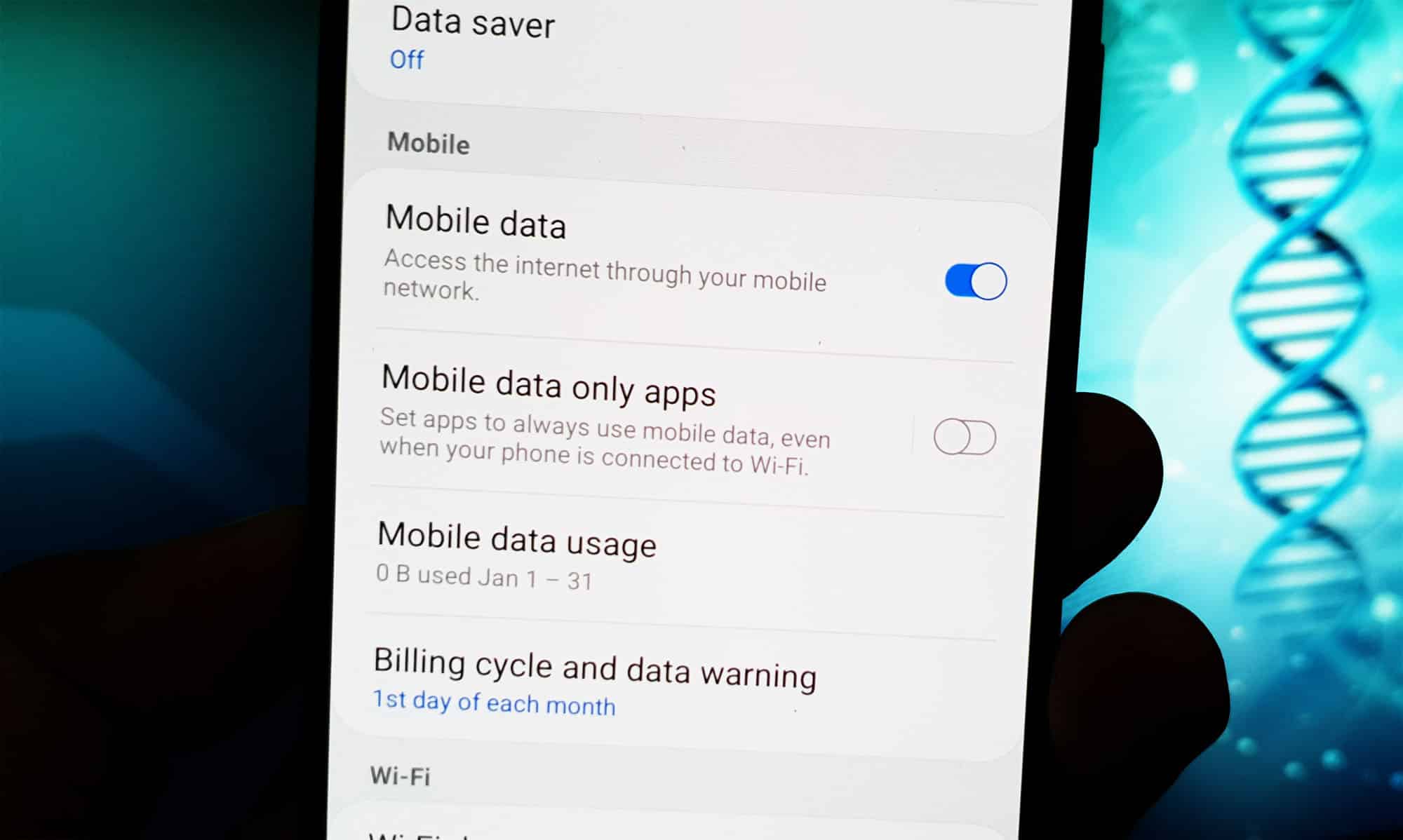
If your mobile internet isn’t working, it can be particularly frustrating when you’re out and about. Fortunately, there are a few things you can try to sort out the problem.
Mobile internet not working: what to do?
If you want to browse whilst out and about, mobile data must be enabled. Depending on your smartphone, you’ll find this option in the status bar or in Settings. Swipe down from the top of the screen and check whether the mobile data icon (two arrows or a mobile network symbol) is active.
- Enabling mobile data on Android: Open Settings via the cog icon. Go to Network & Internet > SIMs or Mobile Networks. If necessary, select the desired SIM card (for dual-SIM devices). Toggle the switch next to Mobile Data.
- Enabling mobile data on iOS: Open Settings. Tap Mobile Data. Toggle the switch for Mobile Data. If using dual SIM, select the desired SIM under Mobile Data Plans.
Modern network technologies and troubleshooting
Please note that 3G has been switched off in many places. For fast internet, you’ll need a device and a plan with 4G (LTE) or 5G. The network icon (e.g. 4G, LTE, 5G) shows which technology you are currently connected to. If it shows ‘E’, ‘G’ or ‘H’, the network is very slow. If this happens, you have the following options to get your mobile data working again:
- Restart: Restart your device. This often resolves many connection issues.
- Airplane mode: Briefly enable airplane mode and then disable it again. This resets the connection to the mobile network.
- Check network coverage: Move to a different location to rule out poor reception. Check the network icon on the screen.
- Data allowance and credit: Make sure your data allowance has not been used up and, if you have a pay-as-you-go SIM, that you have sufficient credit.
- Roaming settings: If data roaming is switched off on Android, you must in activate it whilst abroad via Settings > Network & Internet > Mobile network > Data roaming. If you are using iOS, go to Settings > Mobile network > Data options > Data roaming.
- Dual-SIM devices: Check which SIM is being used for mobile data and whether it is set up correctly. On Android, select Settings > Network & Internet > SIMs. On iOS, go to Settings > Mobile Network > Mobile Data Plans.
- Check APN settings : Incorrect access points (APNs) prevent internet access. On an Android device, go to Settings > Network & Internet > Mobile network > Access points (APN). If you are using iOS, open Settings > Mobile network > Data options > Mobile data network. Compare the APN details with those provided by your provider and correct them if necessary.

Further tips at a glance
There are other options you can try if the previous tips haven’t worked.
- Reset network settings: Reset your network settings to fix errors. Please note: Saved Wi-Fi and Bluetooth connections will be deleted. On Android, go to Settings > System > Reset > Reset network settings. On iOS, select Settings > General > Transfer or Reset iPhone > Reset > Network Settings.
- Test the SIM card: Remove the SIM card and reinsert it. If necessary, test it in another device to rule out a fault. If the card is faulty, you will need to replace the SIM card.
- Check data saver mode: If data saver mode is enabled, it may block background data. If you are using Android, go to Settings > Network & Internet > Data Saver. On iOS, go to Settings > Mobile Network > Data Options > Data Saver.
- Network issues with your provider: Check websites such as allestoerungen.de or your provider’s app to see if there is a network disruption. Many provider apps also display data usage and network issues.
- Software updates: Install the latest updates for your operating system to fix known bugs. If you experience problems after an update (e.g. iOS 18): Reset your network settings or check whether any VPN profiles or special settings are active.
- If problems persist, a factory reset may help (as a last resort). You can also contact your provider’s helpline or a shop if the SIM card is faulty or you are still unable to connect.
