130
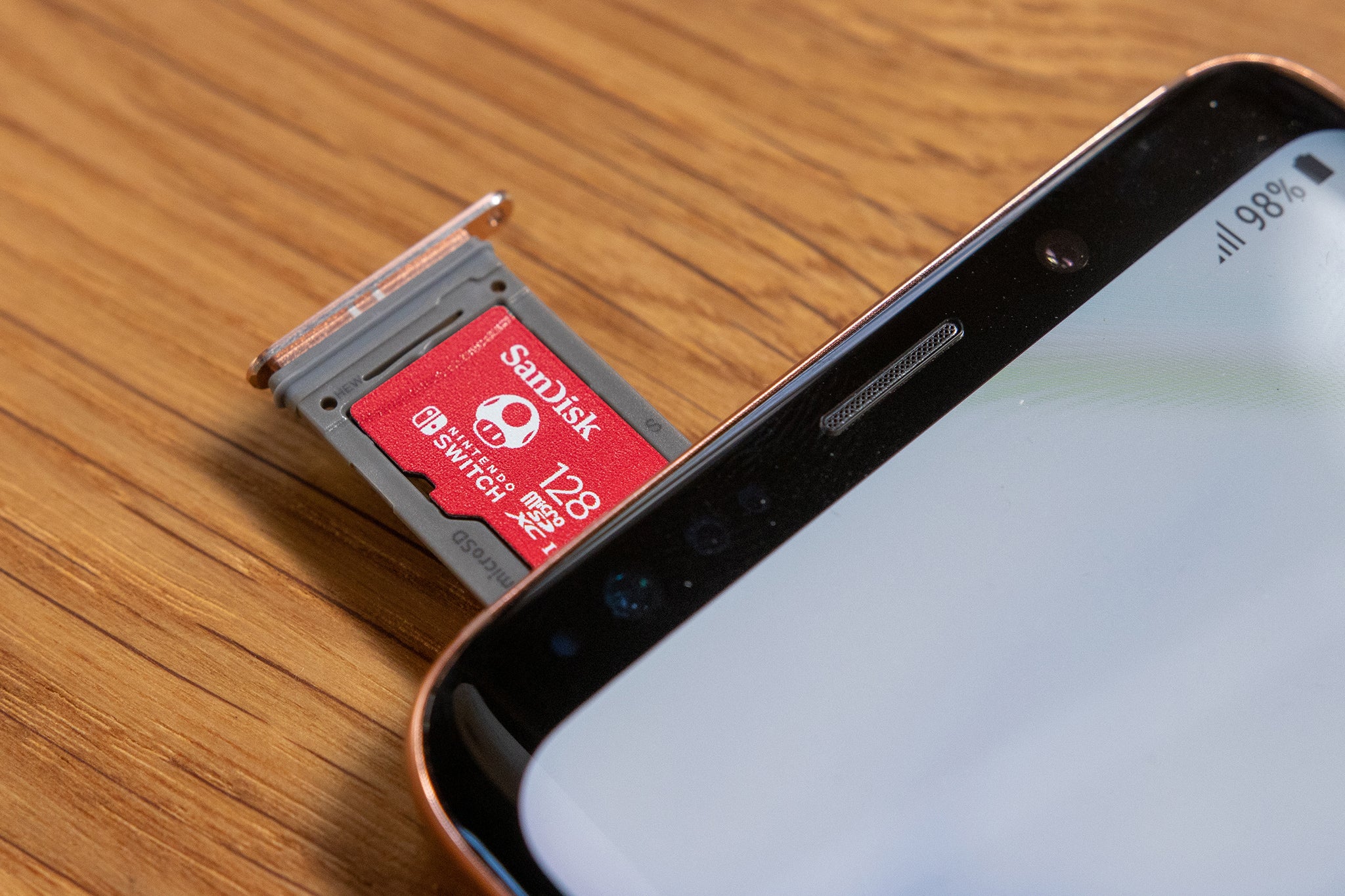
Micro-SD cards often contain sensitive photos and data that you should securely erase. Only then should you sell or give away the SD card. We’ll show you how to do it.
Securely Deleting a Micro-SD Card: How to Format the Card
For non-magnetic storage media such as a micro-SD card, secure deletion isn’t as complicated as it is for regular hard drives:
- In practice, it would be sufficient to overwrite the storage medium with zeros just once. However, the standard factory reset on a cell phone doesn’t always perform this process. With tools like Recuva, the data would be easily readable by a third party.
- If you want to securely erase your micro-SD card, you must first connect the card to your PC. This works best with a USB card reader or an SD adapter if your PC has an SD card reader.
- Connect the micro-SD card to your PC in this way so that it appears as a drive in File Explorer.
- For erasing, we do not recommend using the Windows formatting function; instead, use the Eraser tool.
- Install the program and create a new task in the “Erase Schedule” via the right-click menu. Then click “Add Data” and set the “Target Type” to “Disk/Partition.” In the dropdown menu below, you can select your micro SD card.
- The task will then appear in your schedule. Start it via the right-click menu (see image). The data will then be securely deleted.