220
If you want to format an SSD in Windows, you can use Disk Management. However, there are a few things you should keep in mind.
Formatting an SSD Using Disk Management
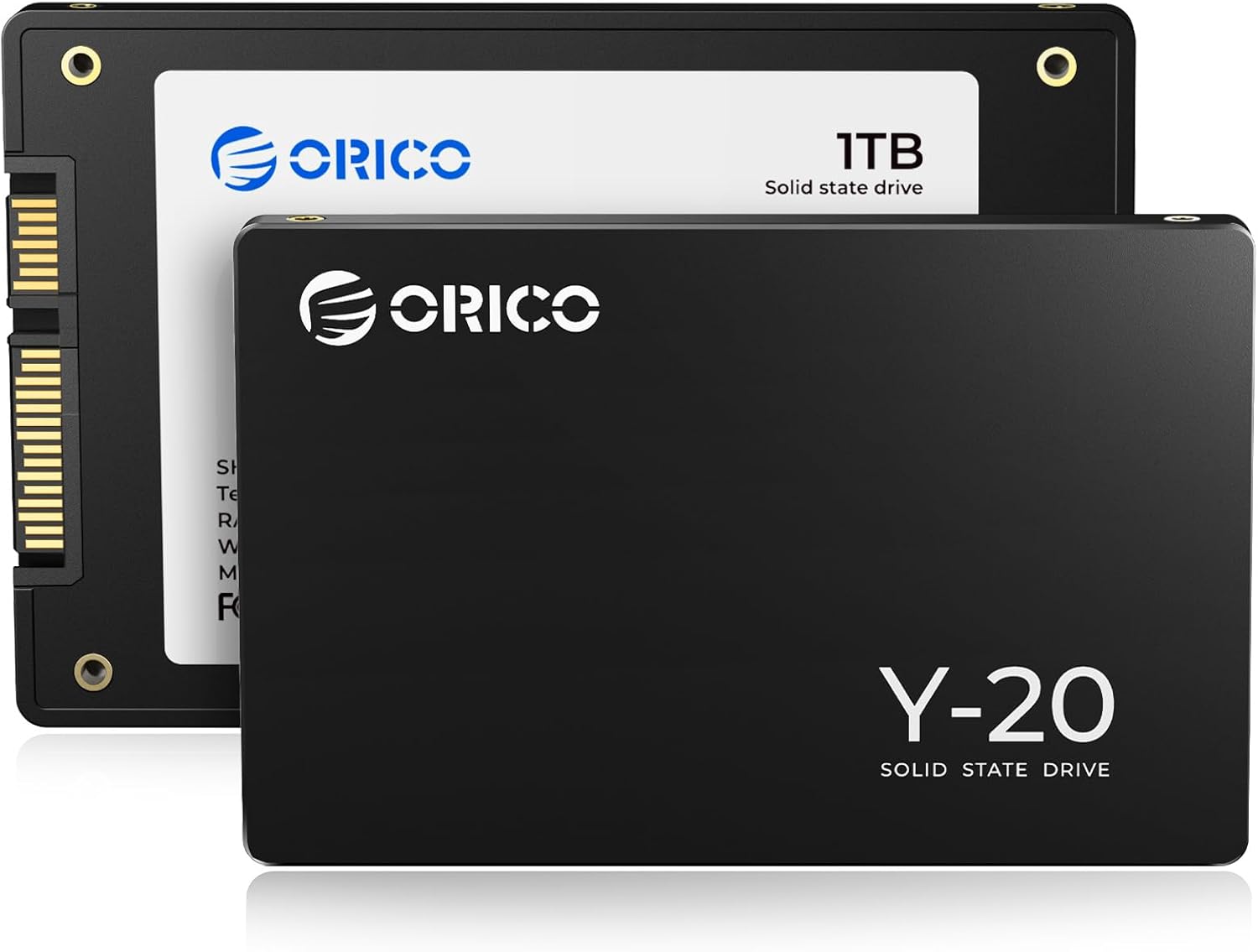
SSD drives can significantly speed up your PC. Just like traditional storage devices, they must be formatted correctly before use. The procedure is similar, however:
- Connect the SSD to an available internal slot on your PC or use an external enclosure.
- Open Disk Management by pressing [Win] + [R] and entering the command diskmgmt.msc .
- If you’re connecting the SSD for the first time, you’ll need to initialize it. To do so, select the partition style GPT. You should only use MBR for older systems with BIOS.
- The SSD will now be displayed as Unallocated. Right-click it and select New Simple Volume. Then follow the wizard.
- Specify the volume size (use full capacity).
- Assign a free drive letter to it.
- Select the file system NTFS or exFAT.
- Make sure that Perform quick format is enabled, and click Finish.
- If you want to reformat an existing volume, right-click it. Select Format > OK. Here, too, you should perform a quick format.
Disable defragmentation for SSDs
Unlike traditional hard drives, SSDs do not need to be defragmented . This offers no speed benefits and can even shorten the drive’s lifespan.
- In Windows, defragmentation for SSDs is therefore automatically disabled and cannot be accidentally enabled.
- If you use an older third-party program to defragment your drives, you should disable defragmentation for SSDs in that program if necessary.
- Windows 11 automatically optimizes your SSDs using the TRIM command.

How to Enable TRIM for Your SSD
SSDs work differently than traditional hard drives. They require the TRIM command to properly remove data debris, such as deleted files. We’ll show you how to enable TRIM in Windows.
- Now open the Command Prompt by pressing [Win] + [R] and entering the command cmd.
- Enter the following command in the Command Prompt: fsutil behavior query DisableDeleteNotify.
- If the result is 0, TRIM is already enabled and you don’t need to do anything else.
- If the result is 1, enter this command: fsutil behavior Set DisableDeleteNotify 0.
- If you want to disable TRIM, replace the 0 with a 1.
