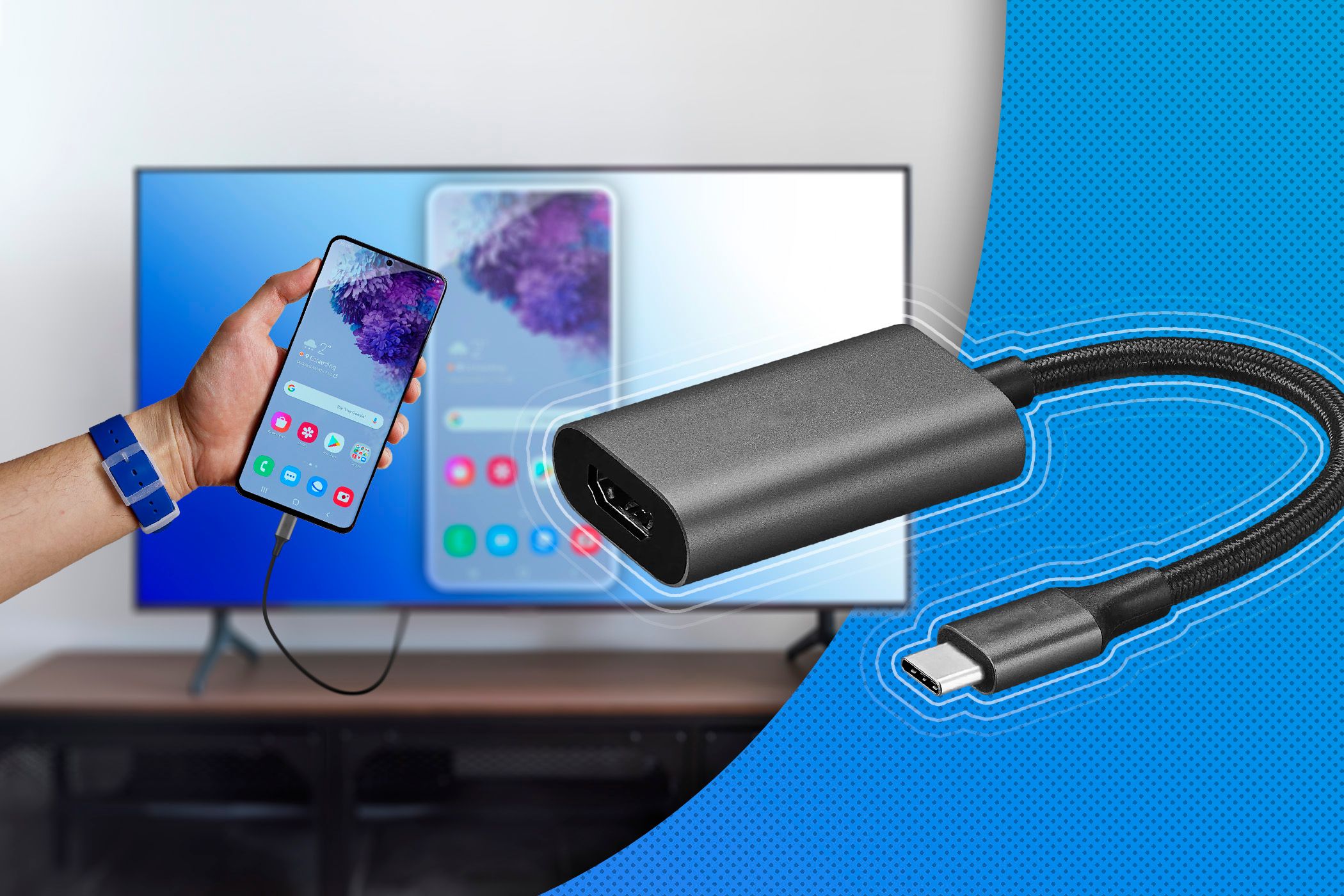
There are many ways to connect your smartphone to your TV. This can be done wirelessly or via a cable—depending on your device. Whether using Chromecast, Miracast, Apple TV, DLNA, or an HDMI adapter—this guide will show you all the options available.
Connect your smartphone and TV with Chromecast
The first method is wireless and uses Google’s Chromecast.
- Simply plug the small dongle into an available HDMI port on your TV and power it using a USB cable or power adapter. Then connect it to your Wi-Fi network.
- All devices on the same network can now send content to the Chromecast. For example, you can stream videos, photos, or your entire smartphone screen to the TV.
- On your Android device, open the Google Home app, select your Chromecast, and tap “Cast Screen” at the bottom. Then confirm the connection. To stop the transmission, tap “Stop Casting” again.
- Depending on your smartphone manufacturer, you can also connect via Quick Settings (“Cast” or “Screen Casting”).
- Newer Chromecast models support resolutions up to 4K UHD and HDR. Please note that Google discontinued the Chromecast product line in 2024, but support continues.
Connect TV and Smartphone via DLNA
DLNA enables the wireless transmission of media files within the home network.
- Most modern smart TVs already support this standard.
- Install an app like BubbleUPnP on your Android smartphone.
- Launch the app, search for nearby DLNA-enabled devices, and select your TV.
- You can then play photos, videos, and music files from your smartphone on your TV—usually in Full HD or, on newer devices, even in 4K resolution.
Connect your smartphone to your TV via Apple TV
- Connect the Apple TV to your TV via HDMI and set it up. You can then use AirPlay to stream content from your iOS device to the TV.
- Newer models such as the Apple TV 4K support 4K and HDR streaming. Latency is very low (about half a second), so games and presentations can also be played back smoothly.
- Depending on the model and features, the price ranges from 170 to 220 euros.
Screen Mirroring (Smart View or AirPlay 2)
If you don’t want to use additional devices like Chromecast, Fire TV, or Apple TV, you can often also connect your smartphone directly to the TV – without any accessories. Many modern smart TVs support what is known as Screen Mirroring, which mirrors your entire smartphone screen onto the TV in real time.
- If you have an Android smartphone, you can use the Screen Mirroring feature or Smart View.
- For this to work, your TV must support this feature. On the Smart TV, launch the “Screen Mirroring” or “Smart View” option.
- On your smartphone, swipe down the status bar twice to open Quick Settings. Tap “Screen Mirroring” or “Smart View” there. Your TV should appear in the list of available devices shortly.
- iPhone users need a TV that is AirPlay 2-compatible . If both devices are on the same Wi-Fi network, open the Control Center on your iPhone, select “Screen Mirroring,” and then choose the Smart TV. If an AirPlay code is displayed, enter it—and you’re done.

Amazon Fire TV
- In the Fire TV menu, open the section “Display & Sound” and enable the option “Screen Mirroring”.
- On your Android device, go to Settings and look under “Connections” or “Smart View” to find the screen mirroring option. Select Fire TV there—and after a short while, your screen will be mirrored.
- For iOS devices, an app such as AirReceiver is required to use Fire TV as an AirPlay receiver. This solution works reliably, but must be started manually before each use.
Miracast and Miracast adapters
If both your TV and your smartphone supportMiracast, connecting is particularly easy.
- Enable the feature on both devices—the transmission will start automatically.
- Miracast can run over your home network, but it also works directly in peer-to-peer mode without a Wi-Fi router. Apple devices do not support Miracast; in this case, AirPlay is used.
- If you have an older TV without Miracast, you can plug a Miracast adapter (e.g., Microsoft Wireless Display Adapter) into the HDMI port. This allows you to easily add the feature.
Connect your smartphone via an MHL or USB-C cable
A wired connection is the most stable way to display smartphone content on your TV.
- Older devices used the MHL (Mobile High Definition Link) standard via the micro-USB port.
- Modern smartphones, on the other hand, feature USB-C with DisplayPort or HDMI Alt Mode. With a suitable USB-C-to-HDMI adapter, you can connect your smartphone directly to the TV.
- The transmission is usually in Full HD or 4K, with no delay or loss of quality. The downside: the cable limits your flexibility.
Overview of common wireless standards
Since there are several transmission standards, the connection types vary depending on the smartphone and TV model. To find the right method, it’s worth taking a quick look at the most important wireless technologies and their differences.
- Chromecast (Google Cast): Supports many Android devices, as well as iPhones to a limited extent. Ideal for streaming YouTube, Netflix, or Spotify.
- Miracast: Widely used on Android smartphones and Windows devices. No app required; direct connection possible.
- AirPlay / AirPlay 2: Apple’s own standard for iPhone, iPad, and Mac. Supported by many smart TVs (e.g., Samsung, LG, Philips, Sony).
- DLNA: Classic standard for media streaming on home networks, primarily for photos, music, and videos.
- Check your TV’s technical specifications to see which of these technologies are supported.