182
Keeping track of screen time on Android devices can help you maintain a healthy digital balance and develop healthier usage habits. We’ll show you how to monitor and effectively manage your screen time.
Monitor Screen Time on an Android Smartphone
Follow the steps below to keep track of your screen time and manage or limit it as needed. Especially handy: Starting with Android 9, these features are built right into the system and can be easily accessed through Settings.
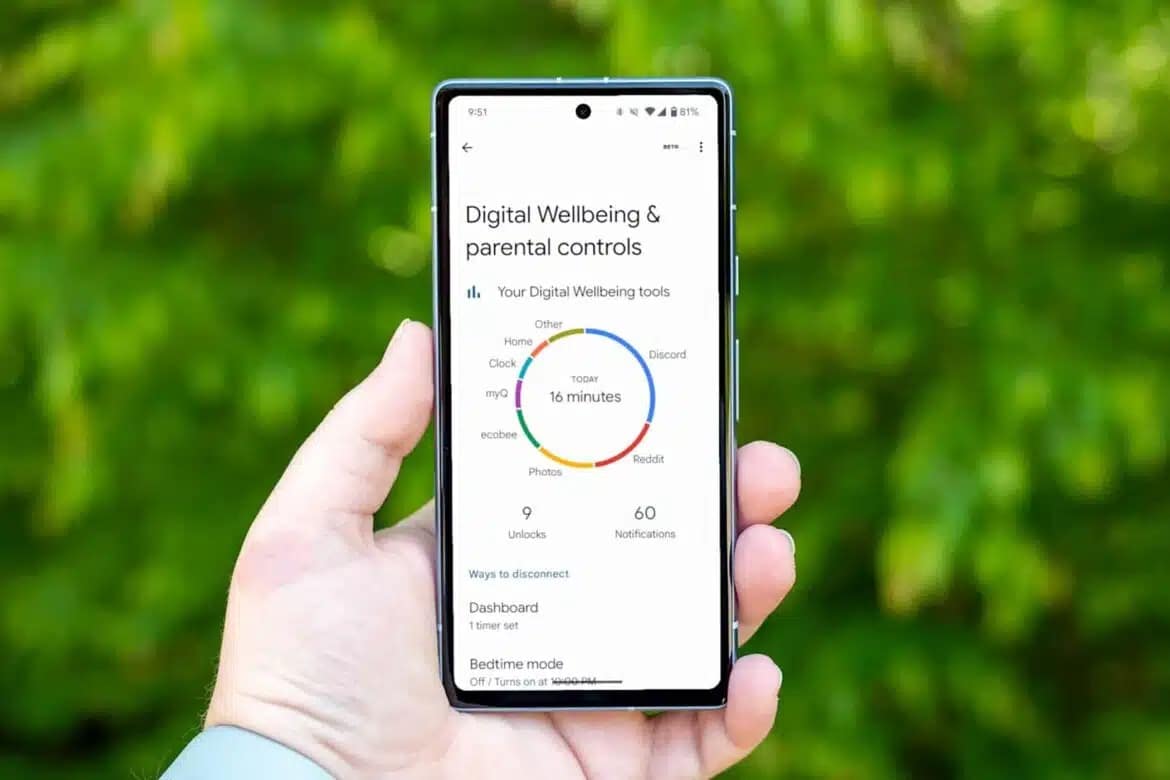
- Monitor screen time using built-in tools: Open the Settings on your Android smartphone. Look for the menu item “Digital Wellbeing” or “Digital Wellbeing & Parental Controls.” Depending on the manufacturer, this item may also be called “Digital Balance” or “Digital Gleichgewicht.”
- There you’ll see an overview of your daily and weekly usage time, as well as the time you spend on individual apps. In the dashboard , you can view additional details, such as how often you’ve unlocked the device or how long you’ve used specific apps.
- Limit screen time: In the same menu, you can set app timers or usage limits for individual apps. Once the set time has elapsed, the app will be blocked for the rest of the day. You can also set a general daily limit for screen time. If needed, you can set up a PIN to prevent the limits from being easily changed—this is especially useful for devices used by children.
- Alternative third-party apps: If your device doesn’t support “Digital Wellbeing” (for example, on older versions of Android), you can use third-party apps such as ActionDash or AirDroid Parental Control . These apps offer similar features: They display detailed usage statistics, allow you to set time limits, and some provide additional parental control options.

Differences in Screen Time Features Between Android and iOS
iOS offers more convenience overall, more in-depth analysis, and better integration of parental controls. Android excels in simplicity and clarity, but is less flexible and requires an additional app for family features.
- Android uses the “Digital Wellbeing” system for screen time, while Apple relies on “Screen Time.” On iOS, you can set app limits not only for individual apps but also for entire app categories (e.g., “Social Networks”), which isn’t possible on Android—there, you must set a timer for each app individually.
- The usage data overview is more detailed on iOS: You can see how often you’ve unlocked the device, at what times of day you use it the most, and how long your longest usage session was. Android displays this data with less granularity.
- Both systems issue a warning five minutes before an app limit expires. On Android, an app is immediately paused once the limit expires and disappears from the app switcher. Extending the limit is only possible—and somewhat cumbersome—through the settings. On iOS, a full-screen pop-up appears once the limit expires, offering various options: You can extend the limit by one minute, 15 minutes, or for the entire day without permanently changing the original limit.
- iOS integrates parental controls directly into Screen Time and Family Sharing. Parents can restrict content, set bedtimes, and centrally manage app usage—all password-protected. Android, on the other hand, does not offer parental controls directly within Digital Wellbeing but rather through the separate “Family Link” app. This allows parents to set time limits and other restrictions for their children’s devices.
- On iOS, Screen Time settings can be synced across devices (iPhone, iPad, Mac) and managed centrally. Android does not offer this synchronization by default; settings apply only to the individual device.