391
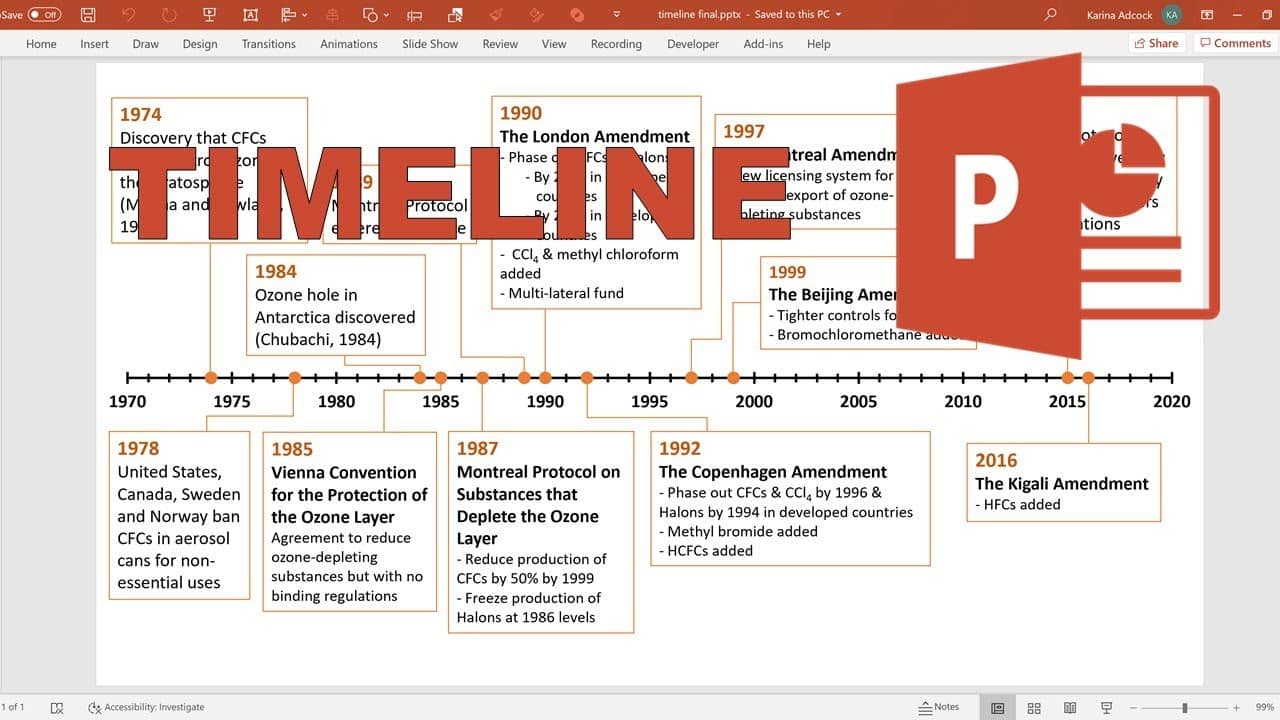
A timeline in PowerPoint allows you to present various data in a compelling way. PowerPoint offers numerous options for presenting chronological sequences clearly, professionally, and visually effectively.
How to create a timeline manually using shapes in PowerPoint
Open PowerPoint and select “Insert” → “Shapes” from the main menu.
- A selection of various graphic elements will open. For a timeline, a arrow from the “Lines” or “Block Arrows” section works best.
- Drag the arrow to the desired length while holding down the mouse button. For markers or intermediate points repeat the process using lines or smaller arrows. Use the arrow keys to adjust the position precisely, or copy existing markers by right-clicking → Copy → Paste to duplicate them at regular intervals.
- Under “Format” → “Shape Outline” you can change the color, line thickness, or style (e.g., dashed). You can also specify exact dimensions via “Format Shape” . For labels, use “Insert” → “Text Box” to add text boxes, which you can also position freely and customize the color of.
- Tip: If you want to animate your timeline, select all elements, right-click, and choose “Group”. This way, all components move together.
Create a timeline with SmartArt graphics
A much faster and more professional method is to use SmartArt graphics. To do this, follow these steps:
- Open the desired slide in PowerPoint.
- Select “Insert” → “SmartArt” → “Process”.
- Search the list for layouts such as “Simple Timeline”, “Basic Timeline” or “Circular Process”.
- Click on your preferred design and confirm with “OK”.
- In the text area on the left, you can enter individual events or dates directly. PowerPoint automatically inserts the corresponding elements.
- Via “SmartArt Tools” → “Design” you can add arrows, shapes, or additional events and change the order. Under “Format” you can customize colors, fill effects, shadows, and fonts to match your corporate design or presentation style.
- Tip: If you want a particularly modern look, combine SmartArt elements with icons from “Insert” → “Icons” or use 3D formats, which PowerPoint has supported since version 2023.

Templates and Add-Ins for Timelines
If you regularly create timelines or need particularly complex visualizations, you can benefit from templates or add-ins:
- PowerPoint templates: Via “File → New” you can search for keywords such as “timeline,” “timeline,” or “project plan.” Many free designs are already optimized for milestones or project timelines.
- Office Timeline Add-In: This popular add-in (available for free and as a Pro version) integrates directly into PowerPoint and automatically creates attractive, scalable timelines from your data. The integration with Excel or Microsoft Project is particularly useful, allowing you to easily import existing schedules.
- Online templates (e.g., via Microsoft 365 or template portals) offer a variety of modern layouts with color schemes, icons, and professional animations.
Design, Application, and Practical Tips
A compelling timeline is not only informative but also visually appealing. Therefore, keep the following design recommendations in mind:
- Colors: Use harmonious, high-contrast shades to highlight important events. Do not use more than three main colors.
- Fonts: Clear, sans-serif fonts (e.g., Calibri, Segoe UI, or Arial) improve readability.
- Symbols and icons: Small symbols help viewers grasp content more quickly and create visual anchor points.
- Animations: Have events appear one after another to direct the audience’s attention. Choose subtle effects such as “fade in” or “fade out.”
- Layout: Keep spacing consistent and avoid overcrowding. If necessary, use multiple slides if your timeline is very long.