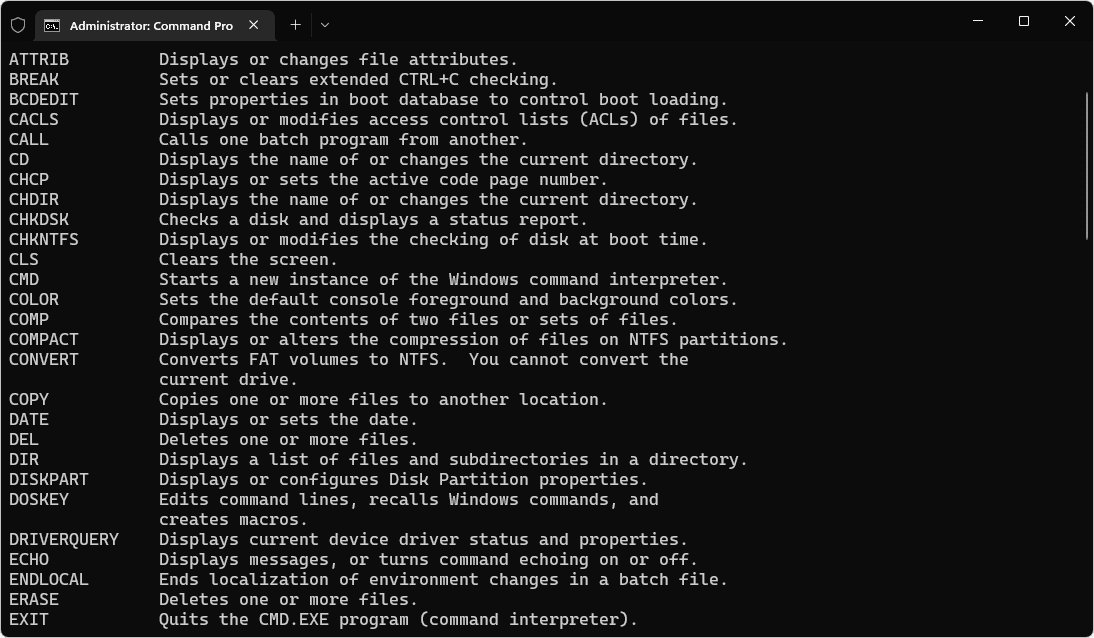
The Command Prompt (CMD) offers a wide range of functions—but each one requires its own command. In this practical tip, you’ll learn which CMD commands are the most important.
Important CMD Commands for the File System
You can use CMD to access your file system and manage files and folders.
- When you start the Command Prompt, you are usually in your user folder or in the system32 folder if you start CMD as an administrator.
- To open a different file path, you can use the “CD” commands.
- With the command “cd [folder]”, you can access a subfolder of the currently selected folder. To do this, replace “[folder]” with the desired folder name. You do not need to enter the quotation marks.
- The command “cd ..” takes you one level up.
- “md [folder]” creates a new folder with a name of your choice in the currently selected path.
- “dir” gives you an overview of all subfolders in the currently selected folder.
- Another useful command is “del [filename]”, which allows you to delete files. Note, however, that this action cannot be undone—inexperienced users should therefore use it with caution.
View system information
With a simple command, you can get an overview of all relevant information about your device.
- All you need to do is enter the command “systeminfo”.
- This will provide you with information about your device, your system, available storage space, and other details.
- The “chkdsk” command is similarly helpful, allowing you to check your drives for file system errors. For example, “chkdsk C:” can detect bad sectors on drive C.
Information about an external address
You can also examine IP addresses and URLs using the command prompt.
- “ping [website]” provides you with ping statistics for a website.
- This allows you to send and receive packets to an address of your choice to test the server’s speed.
- “nslookup [website]” also provides you with additional information about a website. This allows you to find out the IP address behind a website.
- With “tracert [website],” you can see in detail the path a data packet takes through the network—useful for network errors or high latency. The “netstat” command displays active network connections and open ports, which is particularly helpful for security checks or connection issues.
IP Configuration
If you’re looking for information about your own IP address and the status of your internet connections, you can do this quickly and easily using the Command Prompt.
- “ipconfig” provides you with all the information about your network.
- This displays your IPv4 address and your network address.
- Once you have run ‘ipconfig’, you can execute additional commands.
- “ipconfig /all” provides detailed information.
- “ipconfig /renew” renews all adapters.
- “ipconfig /flushdns” also clears the DNS cache—useful if certain websites load incorrectly or the IP mapping has changed. This is a frequently used command for network issues.
Ending processes with CMD
The Task Manager isn’t the only way to get an overview of running processes. In the Command Prompt, you can display a list and end processes.
- “tasklist” lists all currently running processes. Unlike the Task Manager , you can copy the list here and save it to a text document if desired.
- Each process listed by “tasklist” has its own ID. You can use this ID to terminate the processes.
- With “taskkill /pid [xyz]”, you can terminate a process with a specific process ID. (Replace “[xyz]” here with the displayed process ID.)
- With “taskkill /im chrome.exe”, you can also terminate processes by name.
- Another helpful command is “sfc /scannow”. It checks all system files and automatically repairs damaged Windows components—especially useful if Windows starts up incorrectly or programs close unexpectedly.
Securely delete a file path with Cipher
While the “Delete” function in File Explorer hides the files, the data remains on the hard drive until it is overwritten by new data. Cipher allows for direct deletion.
- So if you want to securely delete a file path, such as “C://”, or overwrite the hard drive, you can do so with “cipher”.
- The “cipher” command clears the entire file path by writing random data to it.
- For example, with “cipher /w:c” you can delete all empty space on the selected hard drive (in this example, C:).
- Your existing files will not be deleted; only the empty space will be overwritten.
- Additionally, “cipher” can also be used to encrypt data or change file attributes—especially in professional or security-sensitive environments.
- A particularly powerful CMD command is “diskpart,” which allows you to manage disks, partitions, and volumes. Use “list disk” to view your drives, “select disk X” to select a drive, and “clean” or “create partition” to delete or create new partitions.
Shutting Down the System
The Command Prompt offers nearly endless possibilities for controlling the shutdown process.
- “shutdown” offers many different options through additional parameters.
- “shutdown -s” shuts down your computer immediately.
- “shutdown -s -t 600” shuts down your computer after the specified time. The time must be specified in seconds. In this example, the computer shuts down after 10 minutes.
- “shutdown -a” cancels the scheduled shutdown. For example, if a program attempts to shut down your device, you can quickly prevent the shutdown this way.
- The same commands also work with a “-r” option, which not only shuts down the device but also restarts it.
- The command is also suitable for automation—for example, in maintenance scripts or for scheduled restarts.
Administrative Commands
Some commands require administrator privileges to run.
- These include, for example, “chkdsk” (disk check), “sfc /scannow” (System File Checker), “net user” (user account management), and “diskpart”.
- To launch CMD with administrator privileges, right-click the Start icon and select “Windows Terminal (Administrator)” or “Command Prompt (Administrator)”.
Difference between CMD and PowerShell
The Command Prompt (CMD) is the older, classic command-line tool in Windows.
- It is particularly suitable for simple file, network, or system operations. PowerShell, on the other hand, is a more modern framework based on the .NET platform that offers significantly more extensive automation and scripting capabilities.
- While CMD relies on classic DOS commands, PowerShell uses so-called cmdlets (e.g., “Get-Process” instead of “tasklist”). Additionally, PowerShell allows you to filter output, store it in variables, and map complex workflows. For everyday system queries, however, CMD remains clearer and faster to use.
Security Notes and Practical Examples
Caution is advised when using the Command Prompt—especially with critical commands such as “format,” “del,” “rd /s,” or “diskpart.”
- These can irrevocably delete data or reformat drives.
- Inexperienced users should therefore only make changes to system files and storage devices under supervision. In practice, CMD can help resolve network issues: After running “ipconfig /flushdns,” followed by “ping google.com” and “tracert google.com,” you can check whether an Internet connection is unstable or functioning correctly and where potential packet loss occurs.
- Similarly, a damaged system can be checked and repaired with “sfc /scannow” if Windows components are defective.