9
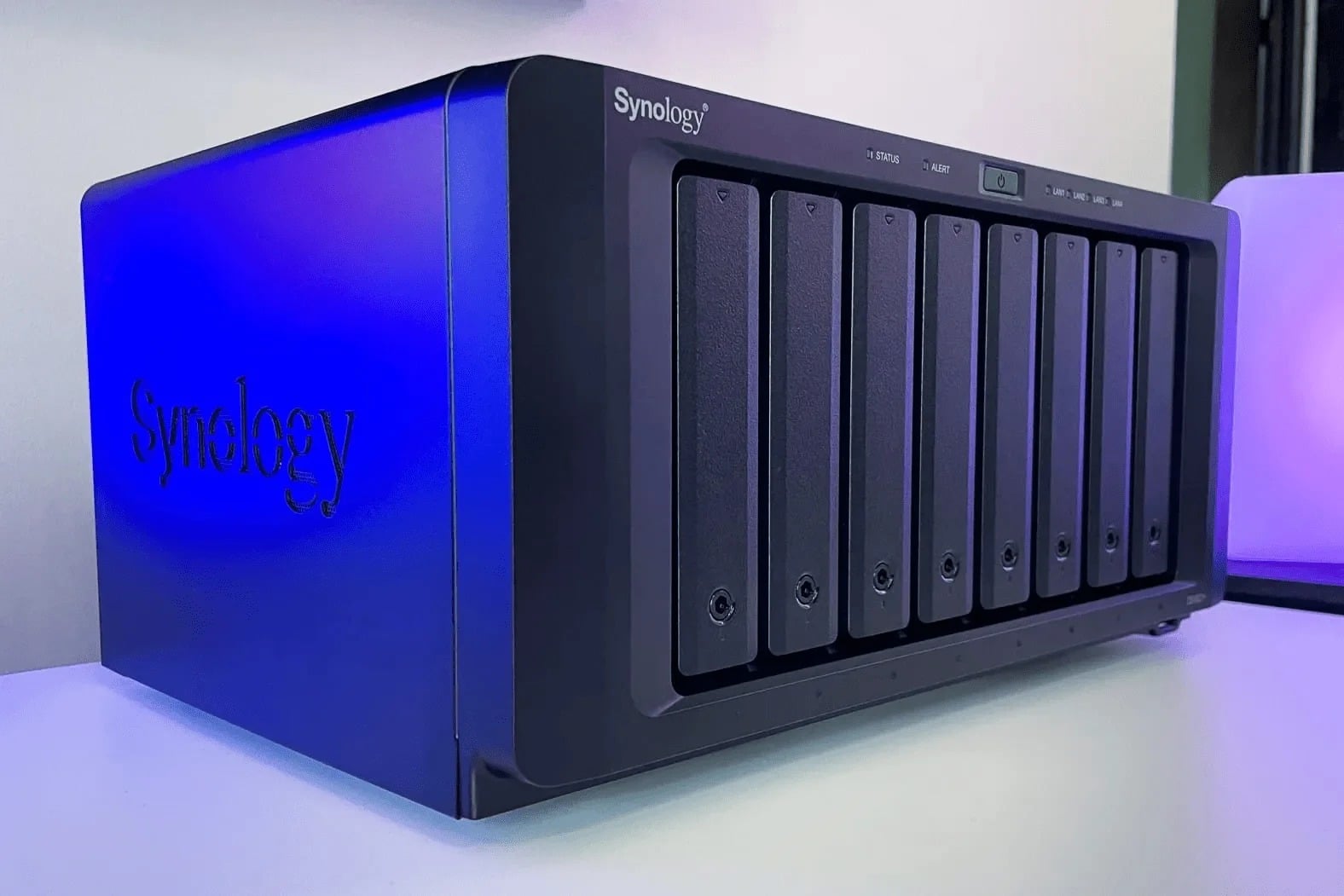
If you want to set up your new Synology NAS fully, you should connect the device to your PC as a network drive. This allows you to access all the important files on your NAS using File Explorer.
Connecting a Synology NAS as a network drive – here’s how
- Open File Explorer, click on ‘This PC’ and then click on ‘Map network drive’ at the top.
- You can now specify any drive letter for the network drive. If you leave the field blank, Windows will assign a random letter to your NAS.
- Next, enter the path to your shared folder. To do this, type “\\” followed by the name of your Synology, then “\” again and the name of the folder. So, if your Synology is named “DiskStation” and your shared folder is called “Photos”, you must type “\\DiskStation\Photos”.
- Then click “Finish” and enter your login details. Please note that the user you are using must have access permissions for the folder.
- You can now use your Synology. In File Explorer, the NAS will appear under “This PC” and the corresponding drive letter.

