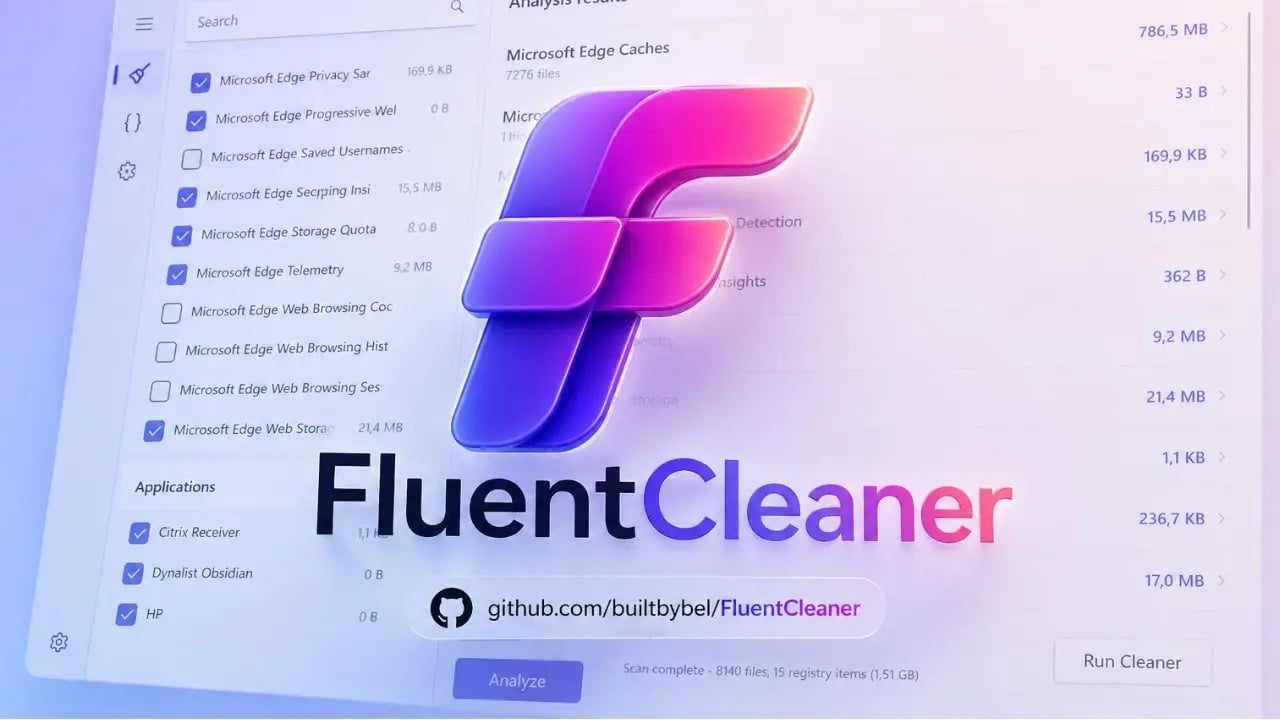
Various tweakers and programs for cleaning “junk” from the Windows disk are a frequent topic on this site. And even though I can’t directly recommend them to most users—especially those who prefer to check all the boxes at once and click “clean/optimize”—I can’t pass up new and interesting utilities of this kind.
FluentCleaner is a free, open-source utility from the same developer who created FlyOOBE, Bloatynosy, and many other useful utilities aimed at Windows 11. We’ll discuss it further below.
Using FluentCleaner and Its Features
You can download FluentCleaner from the developer’s GitHub page—the program doesn’t require installation; simply extract the archive to a convenient location.
On the same release page, you’ll find the Extensions.zip archive containing FluentCleaner extensions (plugins), which may also prove useful. To install them, extract the archive into the root folder of the utility itself so that an Extensions folder containing a set of scripts appears there.
To get started, simply run FCleaner.exe as an administrator. Although the utility does not have a Russian interface, using it is unlikely to raise any questions.
Before you begin, keep in mind: as with any other program of this kind—you are solely responsible; not every “cleanup” is 100% safe on every system. If possible, create backups and/or system restore points.
- For a simple cleanup, simply go to the corresponding tab, click the “Analyze” button, wait for the analysis to complete, select the items you want to clean (those marked with an exclamation point may be potentially unsafe to clean), and then click the “Run Clean” button to proceed. In my test on a virtual machine, it suggested cleaning over 9 GB, whereas Windows 11’s built-in tools suggested freeing up only 2.7 GB.
- If you go to the settings tab, in addition to the standard cleanup database (Winapp2), you can download and install the more aggressive and less safe Winapp3
(which may remove components critical to certain mechanisms: when selecting items, carefully review their purpose), as well as a database for removing unnecessary built-in Windows 11 apps—Winappx. After downloading, the program will need to be restarted. Note: all of these databases were created by the community based on the CCleaner database and additional developments and may contain something that is best not to apply on your specific system. - If you installed the extensions as described above, go to the Tools tab to view their list and launch the ones you need: some extensions include help documentation and the ability to pass parameters. The screenshot shows an example of enabling functions by ID using ViVeTool:
- Another option is to use the terminal within the program itself to perform various cleaning or analysis tasks:
- The program can be launched from the Task Scheduler or in another way without displaying the UI for automatic cleaning. Command examples: In both cases, previously saved parameters will be used for cleaning.

Yes, that’s basically it, but despite its simplicity, the program is interesting in terms of its extensibility (for example, this greatly helped boost the popularity and functionality of the Windhawk tweaker back in the day):
- Since extensions in FluentCleaner are standard PowerShell scripts and the utility already includes many examples, users can create their own extensions tailored to their specific tasks:
- The cleaning rule databases are simple text .ini files, straightforward enough to allow you to add your own locations and cleaning templates, for example, if you need to delete specific types of temporary files in non-standard locations.
- In summary, the tool is appealing in terms of convenience and the ability to extend its functionality with custom solutions. A potential drawback for site readers is the lack of a Russian-language interface, but otherwise, FluentCleaner definitely deserves attention.