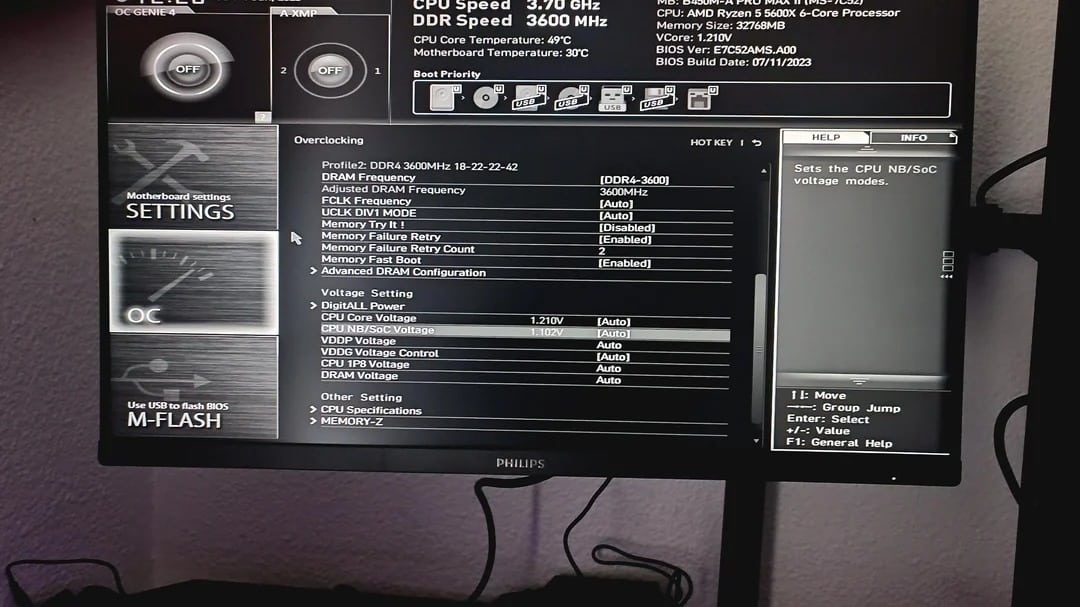
When attempting to enter BIOS/UEFI to change settings, some users find that there is no image on the monitor screen—only a black screen.
Possible causes and ways to fix the issue
In most cases, the problem is related to differences between the graphics card drivers used in BIOS/UEFI (which also use drivers—GOP or VESA) and those used by Windows itself, hence the differences in behavior and display capabilities.
The basic drivers in BIOS/UEFI are more limited and “picky” regarding adapters, connectors, and resolutions, as well as the presence of multiple monitors; in some cases, this can lead to the black screen issue on your specific configuration.
The following steps, from simple to more complex, are described on the assumption that you know exactly how to enter the BIOS/UEFI on your PC or laptop—which keys to press, or how to access UEFI via the Windows 11/10 recovery environment.
- Fast Boot — the Fast Boot options in UEFI and “Fast Startup in Windows,” while not intended to cause a black screen (but rather to prevent access to the BIOS), should still be ruled out. One method you can try to enter the BIOS while bypassing Fast Boot: while holding down the Shift key, click “Restart” in Windows; in the menu that appears after restarting, select “Troubleshoot” — “Advanced options” — “UEFI Firmware Settings.”
- 1 Multiple monitors — if multiple monitors are connected to your PC/laptop, even if all the extra ones are turned off, the BIOS/UEFI video driver may start displaying an image simply because a cable is present in a “higher-priority” video card port. Solution: If more than one monitor cable is connected to the graphics card, leave only the one connected to the desired monitor and disconnect the rest.
- Adapters and converters — if you are using any adapters (HDMI to VGA, DP to HDMI), try connecting the monitor directly: basic drivers may not be able to initialize the converters correctly.
- DP version conflict — a relatively rare but possible occurrence on modern systems, usually arising when an old graphics card is paired with a new monitor via the DisplayPort interface. A way to check this is to connect via HDMI, which is less “picky”; temporarily disconnect the DP cable from the graphics card’s port during the test.
- Some older graphics cards require CSM (Legacy) to be enabled in order to display an image before the OS and main drivers load. On a motherboard where “UEFI-only” mode is enabled, displaying an image may not be possible. Solution: If the processor has an integrated graphics core, try connecting the monitor to the port on the motherboard, then try entering the BIOS again.
- If, upon entering the BIOS, you see not just a black screen but a message such as “Out of range,” “Signal not supported,” and similar messages, the reason may be that the native resolution (usually 1024×768 or 1920×1080) and refresh rate (60 Hz) output by the UEFI are not supported by your monitor. This is rare, but possible for certain ultra-wide or other “advanced” monitors.
- Previous BIOS/UEFI settings related to display output that conflict with the capabilities of the monitor/graphics card or the current configuration. Solution: Reset the CMOS settings by shorting the CLEAR CMOS contacts on the motherboard or removing the battery from the computer (including unplugging it from the power source) for a few minutes while it is turned off. It is also worth pressing and holding the power button for 5–10 seconds on the powered-off PC to discharge “residual currents” from the circuits.
- Just to be safe, it makes sense to check other monitor connection interfaces and cables, if available.