
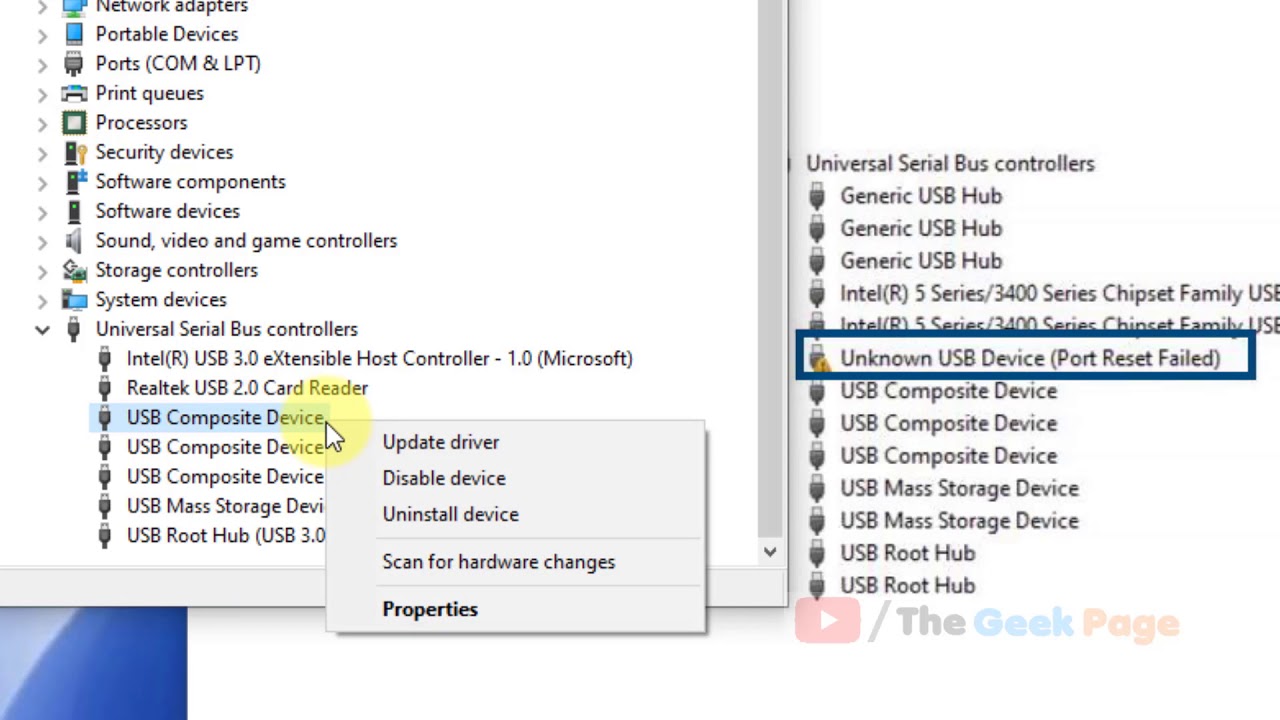
Users may encounter a situation where Device Manager displays “Unknown USB Device (Port Reset Failed)” and the device status shows “The system stopped this device because it reported a problem (Code 43).”
Simple ways to fix the error
Before digging deeper, I recommend starting with the simplest ways to fix the “Unknown USB Device (Port Reset Failure)” error, which often work, especially if you haven’t had any issues with this device before:
- Right-click the device with the error in Device Manager, select “Uninstall” (but do not uninstall the driver), and after uninstalling, use the “Action” menu — “Update hardware configuration.” Note: If the problem is with the mouse, you can use the keyboard in Device Manager: the Tab key and the arrow keys to switch between items, the context menu key next to the right Ctrl on the bottom row of the keyboard, and the Alt key to access the main menu.
- If the method described above or restarting your computer resolves the issue, but it then reoccurs, try disabling Windows Fast Startup.
- If you know which device is causing the problem and it is connected to the front panel of the PC or via a USB hub, try connecting it directly to the ports on the motherboard at the back of the system unit or directly to the ports on the laptop.
- If the error is successfully resolved using one of the methods listed above but then reappears intermittently, try disabling power saving for root USB hubs and host controllers: open the properties of the relevant devices in the “USB Controllers” section and uncheck “Allow this device to be turned off to save power” on the “Power Management” tab.
Specific causes of the error and additional methods
Connecting USB devices as internal devices (some internal laptop and PC devices may be connected to internal USB hubs) is a process consisting of several stages:
- Physical connection.
- Detection (the USB hub “notices” a change in voltage at the port and reports this to the controller).
- Port reset (to initialize operation with the new device from “scratch”).
- Descriptor request (retrieving device information), address assignment, and startup.
The error in question occurs in step 3, but there are similar errors for subsequent steps as well, specifically: Device descriptor request failed (Code 43).
The following factors may cause the error:
- Hardware issue — damage or oxidation of the device’s or connector’s contacts, or the cable (as well as a poor connection), causing the reset signal to fail or become distorted. Solution — examine the connection and test its functionality with other configurations.
- Power issues on USB ports or excessive power consumption by a connected device without an external power source. Just to be safe, it’s a good idea to check the 5V line voltage using utilities like AIDA64 or HWiNFO.
- Timeout while waiting for a response from the device; common when using USB hubs with multiple active devices (can sometimes occur “spontaneously,” such as during a background driver update by the Update Center; resolved by simply restarting the computer or using the first method in the instructions).
- Incorrect operation of USB host controllers, especially on a new system and specific hardware running a recently installed Windows 11/10. A possible solution is to visit the official website of the motherboard or laptop manufacturer, download and install everything from the “Chipset” section (including components such as the Intel Management Engine Interface or Intel ME), and, if available, the ACPI, Power Management, and individual USB controller drivers.
- If available, try installing older (or, conversely, newer) drivers for the device reporting the error. This may work if the error occurs during operation: the device is working, “crashes” due to a driver failure, but subsequent initialization fails. One approach for quickly installing other driver versions without downloading (must be done while the device is still working): Right-click the device in Device Manager — Update Driver — Browse my computer for driver software — Select a driver from the list of available drivers on your computer; if the list contains more than one entry with your device’s driver name, each one represents a different version of the driver for that device.