Many owners of Bluetooth-connected devices—headphones, speakers, mice, and others—may find that their devices regularly disconnect on their own in Windows 11/10. Usually, the connection is restored afterward, but in rare cases, a restart or removing and re-adding the device may be required.
Why Bluetooth Devices Might Disconnect on Their Own
The main causes of Bluetooth devices disconnecting on their own in a system that is otherwise functioning properly include:
- Power-saving settings and features of both the end devices themselves and the Bluetooth adapter.
- Background driver updates—this usually happens rarely, but if Windows Update begins downloading and installing an updated adapter driver, the connection will be lost temporarily while it is being installed.
- For devices with multi-connection capability (for example, headphones that can connect to both a phone and a laptop/computer at the same time)—connection drops when another device requests the audio channel.
- Driver conflicts, malfunctioning of the “generic” driver installed automatically by Windows, or issues (such as the absence) with original chipset and/or power management drivers from the motherboard or laptop manufacturer.
- For USB-connected Bluetooth adapters—the presence of other devices on the same USB controller.
In most cases, the cause is one of the items listed above, and in more than half of the cases, it comes down to the first point.
However, there are also more exotic and less common causes for this behavior:
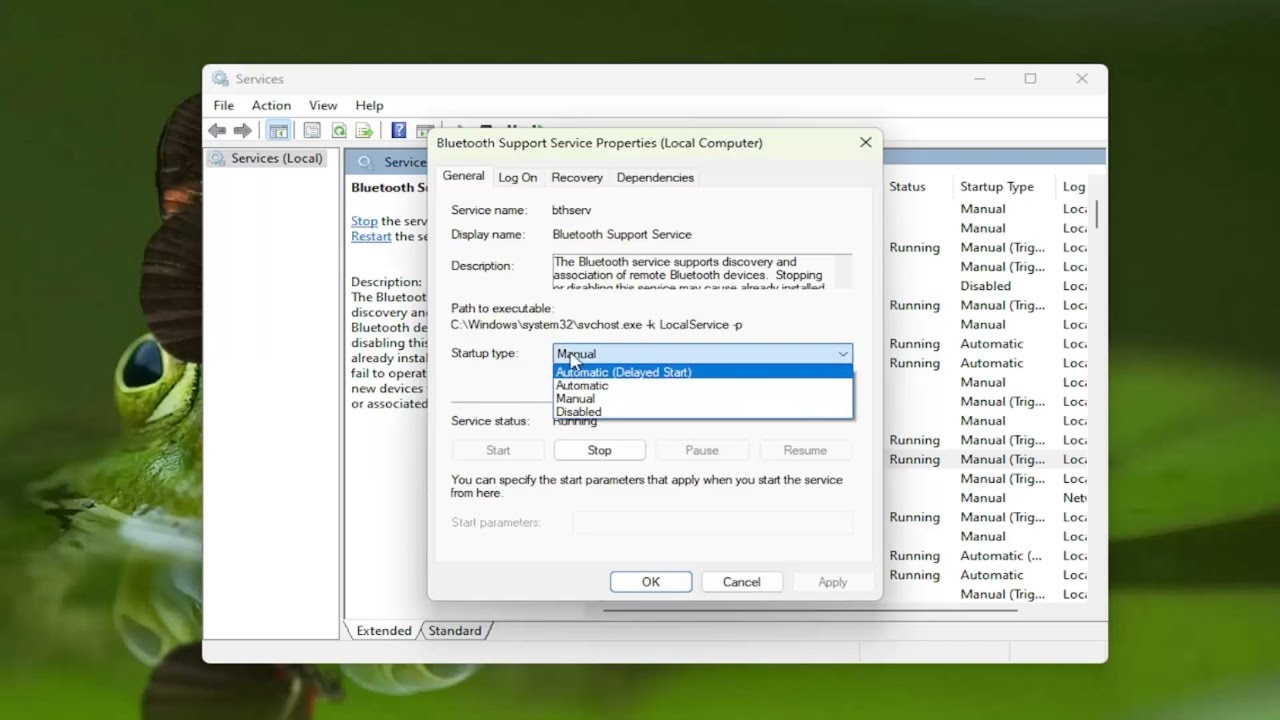
- Bluetooth service failures (however, in this case, automatic recovery usually does not occur).
- Interference from other devices operating at 2.4 GHz: routers, microwave ovens, wireless keyboard receivers/transmitters, and mice.
Ways to Fix the Problem
Based on the causes, here are the main ways to fix the issue of headphones, mice, or other Bluetooth devices disconnecting from a PC or laptop running Windows 11 or 10:
- Open Device Manager (you can do this via the context menu by right-clicking the “Start” button), then open the properties of your Bluetooth adapter in the “Bluetooth” section. If there is a “Power Management” tab in the properties, uncheck “Allow this device to be turned off to save power” and apply the settings.
- Use the same method to disable power-saving mode for the “Universal USB Hub” or “Root USB Hub” device in the “USB Controllers” section (Bluetooth adapters, even internal ones, connect via the USB interface). If there are multiple devices, you can identify the correct one by checking the path to the device instance on the “Details” tab of the adapter itself, then searching for the USB hub whose path begins with the same path as the adapter’s.
- Pay attention to the power plan settings: Win+R — powercfg.cpl — Power Plan Settings — Change advanced power settings. Specifically, check the settings for when the USB port is temporarily disabled in the “USB Settings” section (if available). See if disabling this feature resolves the issue.
- Don’t skip this step, especially if you haven’t done it yet: find the support page for your motherboard or laptop (and for your discrete Bluetooth adapter, if it’s a separate adapter), manually download the chipset drivers (everything from the “Chipset” section), as well as the Bluetooth drivers—even if they’re older than the ones Windows installed automatically—and install them: first everything related to the chipset, then the adapter itself.
- If you use the same headphones on both your smartphone and computer (without having to pair them again), check to see if the problem is resolved by turning off Bluetooth on your phone.
- Try forgetting the device on your computer (Settings > Bluetooth & devices), and then pair it again; sometimes this resets “states” and caches that can cause problems.
- For an external USB adapter (“dongle”), check whether connecting it to different USB ports—including ports of a different version and, preferably, on a separate, unused set of ports—resolves the issue.
- For headphones, it may also help to disable the option for programs to use exclusive mode: press the Win+R keys on your keyboard, enter mmsys.cpl, select your headphones on the “Playback” tab and click “Properties,” go to the “Advanced” tab, and uncheck the boxes related to exclusive mode.
- If available, consult the manual or manufacturer’s app for your specific Bluetooth device: if there are any power-saving settings, try disabling the relevant features (Auto Power Off, Standby, Sleep, and others).
- For headphones/speakers that turn off due to a lack of signal for a certain period of time—a process handled by the device’s firmware—the third-party tool Sound Keeper may help (it generates a completely inaudible signal, but the headphones “detect” it, so they don’t turn off).