378
There are several ways to mirror your phone’s screen to your PC—both wirelessly and via a cable.
Android Phone: Mirror Your Screen to a PC
You can easily mirror your phone’s screen to your PC at no additional cost—either wirelessly using Windows’ built-in features or via a USB cable and software. Numerous third-party solutions are available for specific needs.
- Using Windows’ built-in features (Windows 10/11 or later, wirelessly via Miracast): On your PC, open Settings and go to “System” > “Project to this PC”. Check whether the “Wireless Display” feature is installed. If not, click “Optional Features” > “Add a feature” and install “Wireless Display”.
- Launch the ‘Connect’ app on your PC (just search for “Connect”). On your Android phone, enable the “Screen Mirroring,” “Smart View,” or “Wireless Projection” option (depending on the manufacturer, this can be found in the quick settings menu or under ‘Settings’ > “Connected Devices”). Select your PC from the list of available devices. Your phone’s screen will now be displayed on the PC.
- Note: Both devices must be connected to the same Wi-Fi network. The screen mirroring works without any additional apps.
- Using a USB cable and software (e.g., Phone Mirror): Download and install software such as “Phone Mirror” on your PC. Connect your phone to the PC using a USB cable. Enable USB debugging on your phone (under “Developer Options”). Follow the software’s instructions to start screen mirroring. Your screen will now appear on the PC and can often even be controlled using the mouse and keyboard.
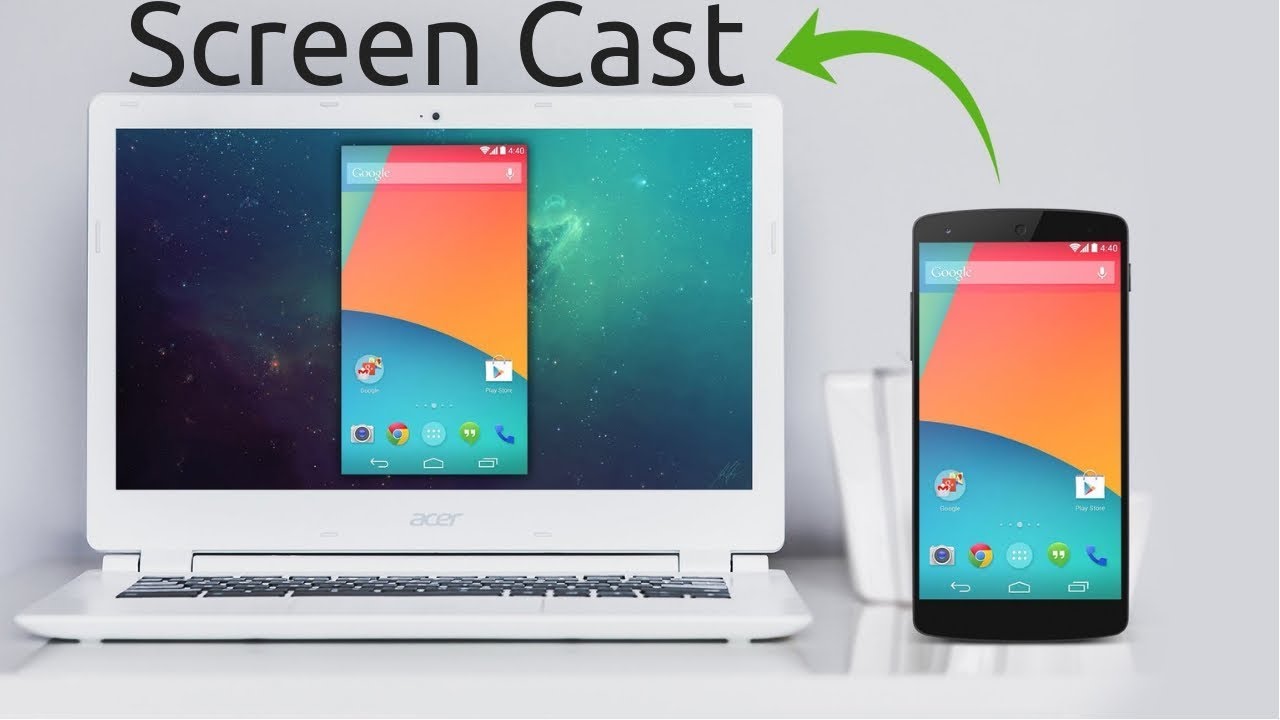
- Using third-party apps (e.g., Screen Cast, Screen Stream Mirroring): Install the desired app on your phone. Connect both devices to the same Wi-Fi network. Start the screen mirroring in the app and, if necessary, enter any displayed link into your PC’s browser to view the screen.
- iPhone: Mirror Screen to PC: Use AirPlay if your PC supports AirPlay (e.g., with third-party programs like “5KPlayer” or ‘AirServer’). Your iPhone and PC must be on the same Wi-Fi network. Open the Control Center on your iPhone and select “Screen Mirroring.” Select your PC from the list.
- Tips and Notes: The quality and speed of the transmission may vary depending on the method and Wi-Fi connection. Some apps and streaming services (such as MagentaTV) block screen mirroring for copyright protection reasons. In such cases, a black screen often appears. For more advanced control options, we recommend using USB-based solutions or specialized apps such as “Your Smartphone” by Microsoft (particularly suitable for Samsung and Surface devices).

