2
It only takes a few steps to switch to the new Google Pixel 7 or 7a and transfer all your data.
Switching to Google Pixel and transferring data – step by step
You can transfer data to a Google Pixel from both an iPhone and an Android smartphone. If you’re using an Android phone, make sure all updates are installed. It’s best to use a working Wi-Fi network and ensure that both devices are sufficiently charged or plugged in during the transfer.
- First, you’ll need to do some preparation. Switch on the Google Pixel and tap ‘Get started’. Follow the on-screen instructions. Once you reach the relevant step, tap ‘Copy apps & data’ and then ‘Next -> Copy data’.
- Select ‘Use your old device’ and confirm by tapping ‘Next’
- Now you need to connect the two devices. Switch on your old device from which the data is to be transferred. Connect the iPhone or Android smartphone to the Pixel using the Quick Switch adapter. This is included with the smartphone.
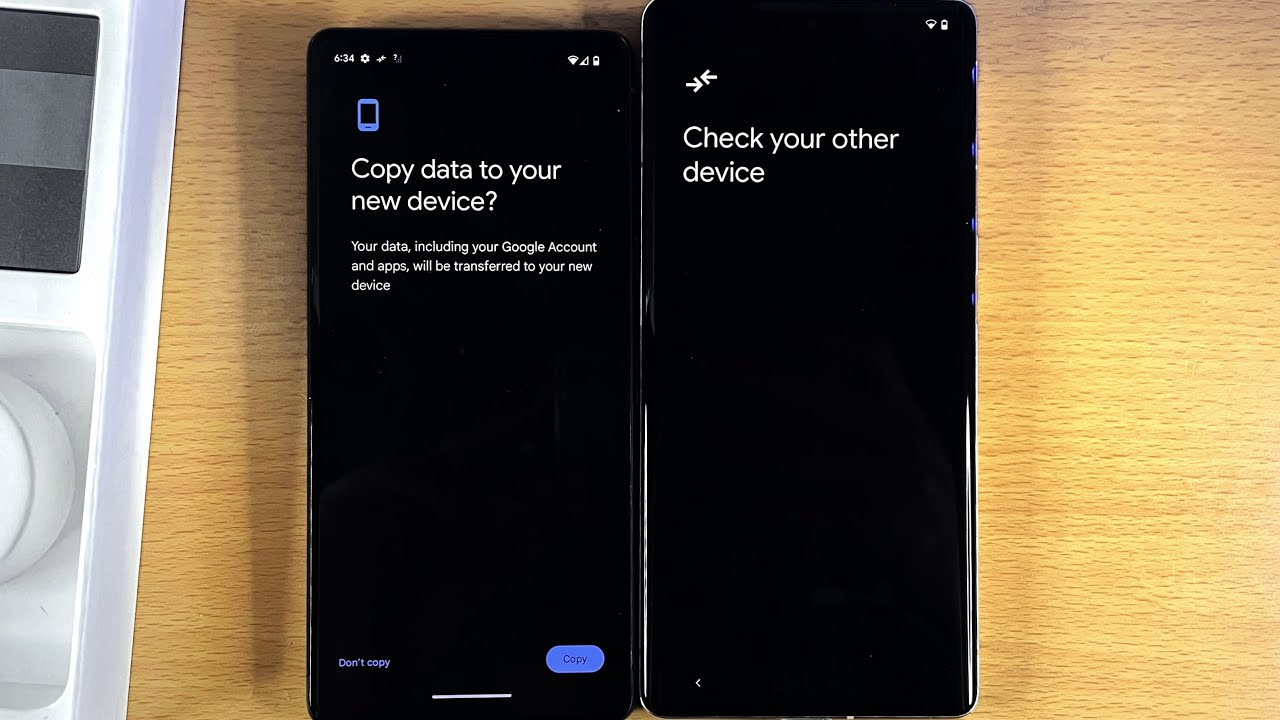
- If your old smartphone already has a USB-C port, no adapter is required – simply connect the devices directly via a cable. On your current smartphone, select “Copy” and follow the on-screen instructions.
- Newer Pixel devices support an optimised Wi-Fi connection, which enables fast and stable data transfer. If this connection is slow or unstable, you can also switch to a USB cable connection to increase the transfer speed.
- Note for iPhone users: Before transferring data, remove the SIM card from the iPhone and disable iMessage to avoid problems receiving messages after the switch. To do this, open Settings > Messages on your iPhone and switch off iMessage.
- You can now start the data transfer: on your current smartphone (the old device), tap ‘Copy’ and follow the on-screen instructions.
- From the list displayed, select the content you wish to transfer – e.g. photos, contacts, text messages, apps (Android only), music or calendar data – and tap ‘Copy’. Both devices must remain connected throughout the entire process. Do not disconnect until the transfer is complete.

Using the Post-Copy feature and Google Drive
If you missed the data transfer during the initial set-up of a Google Pixel 9, or if you wish to transfer further data at a later date, you can do so using the Post-Copy function. This allows you to transfer data even after the device has been set up for the first time, without having to go through the set-up process again.
- Another useful feature on Pixel devices is the ‘Restore Credentials’ function, which automatically saves and transfers passwords and login details. This means you no longer have to log in manually to every app or website. This feature ensures that your confidential data is transferred securely and conveniently to your new device.
- To back up your data via Google Drive, open the Google Drive app on your old device and select the data you wish to back up, e.g. contacts, calendars or photos. Once the backup is complete, sign in to your Google account on your Google Pixel and tap ‘Restore data from Google Drive’.
- Select the specific data you wish to transfer to your new device. Google Drive allows you to transfer files and apps easily and selectively.
- If you’d like more flexibility when transferring data, you might want to consider tools such as Aiseesoft MobieSync. This software offers advanced features for transferring data between different platforms and allows you to transfer data from an iPhone, Android device and even from the cloud directly to your new Google Pixel.
