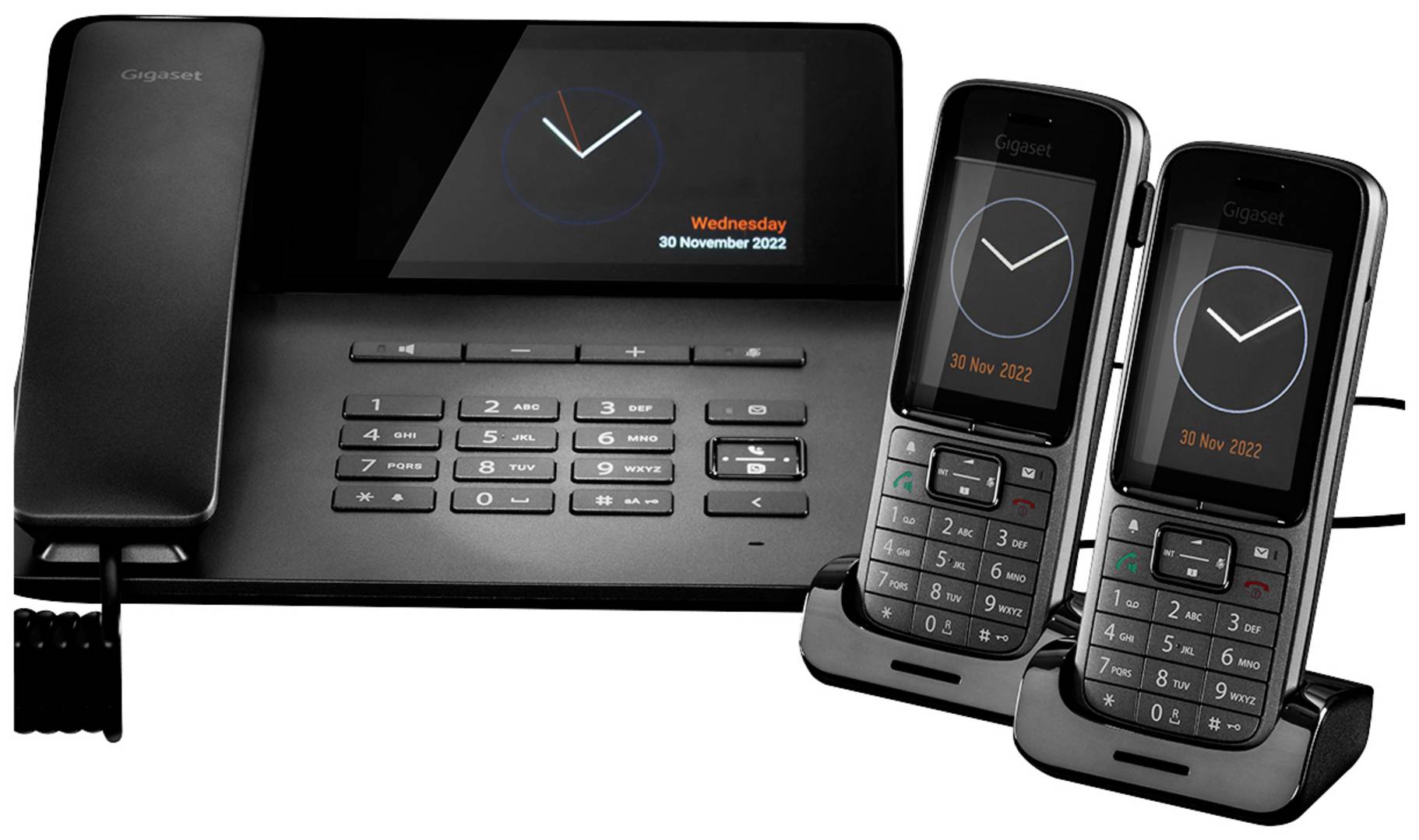
If you’re tired of hearing the standard Gigaset ringtones all the time, you can download and use your own ringtones or songs. In this practical tip, we’ll show you how.
Gigaset: How to Download and Change Ringtones
The process for changing and adding ringtones on Gigaset phones varies depending on the model. Generally, you can select ringtones via the phone’s menu; your own ringtones can be imported (depending on the model) via USB, SD card, or Gigaset software. Be sure to use supported file formats and secure download sources.
- First, download and install the free Gigaset QuickSync software. The unofficial gTool software offers a similar function.
- Connect your Gigaset phone to the computer via a USB cable and select the ringtones section. Here, you can now transfer all desired ringtones from your PC. Note that these must be in MP3, WMA, or WMV format.
- Next, simply select the ringtone from the Gigaset phone’s menu. To do this, open the “Settings” menu and select the “Sounds and Signals” category. Your custom ringtone will now appear under “Ringtones.”
- Select “Handset Ringtones” or “Melody” (depending on the model). You can select one of the preinstalled ringtones from the list; confirm with “OK.”
- Gigaset A690: Menu → Audio → Melody → External Calls
- Gigaset E290: Menu → Settings → Handset → Tones + Signals → Melody
- Gigaset E390: Menu → Tones and Signals → Ringtones → Melodies
- Gigaset Smartphones: Swipe up → Settings → Tones → Select Ringtone
Custom Ringtones via USB, SD Card, or Software
Custom ringtones can (depending on the model and format) be copied via USB (usually via QuickSync), SD card, or directly, and then activated in the menu. The MP3, WMA, WMV, and MIDI formats are often supported. For safe downloads, use the official manufacturer’s website as well as well-known royalty-free portals.
- Via SD card (for supported models): Save the desired ringtone (make sure it’s in the correct format!) to the microSD card. Insert the card into the phone. In the phone’s menu, select the option to choose tones from the SD card (often under “Tones” or “Ringtones”).
- Direct download and transfer: Royalty-free ringtones can be safely downloaded from portals (see the last section).
Copy the file to the phone’s ringtone folder, then select it from the menu as described above.
- Supported file formats: Many Gigaset models support MP3, WMA, WMV, and MIDI for ringtones. Supported formats may vary depending on the model and software version. It’s best to always check the manual or the manufacturer’s website. Tip: Avoid large files, as many phones have size restrictions.
- Download options and sources: Official sources: The Gigaset website offers software, updates, and often additional ringtones for download.& nbsp;Royalty-free portals: Portals like All4Phones offer numerous free and legal ringtones, including those in the Gigaset style (such as the famous “Fountain” ringtone). Other portals with royalty-free ringtones include Freesound.org and Zedge.net—be sure to check the supported formats for each.

Troubleshooting Tips
Gigaset ringtones can be downloaded, customized, and adjusted for volume. If downloaded ringtones are too quiet on your Gigaset phone or aren’t recognized, there are specific solutions.
- Troubleshooting: Ringtone Too Quiet: The volume can be adjusted in 5 levels. To do this, go to “Settings → Sound Settings → Handset Ringtones → Alarm Volume” in the menu. Check whether “Crescendo” mode is enabled—where the tone starts softly and gets louder—or whether different volume levels are set for the handset and the base station.
- If the ringtone doesn’t play at all or is very quiet, check whether the icon with the crossed-out bell appears on the display. In this case, press the star (*) key for about 3 seconds to disable mute.
- Troubleshooting: Ringtone Not Recognized: Make sure the selected audio format (e.g., MP3) is actually compatible with your Gigaset model. If the handset doesn’t ring at all, restarting it may help (remove the battery for 2 minutes).
- Check whether the phone numbers are correctly configured in the base station or router and that there is no “ringing block” in place. Reset the handset to factory settings if there is a software error.
Alternatively, use the unofficial gTool software if QuickSync is causing problems.
- Additional tip: A ringtone may also be muted—you can tell by the crossed-out bell icon; reactivate it as described above. Problems sometimes occur specifically when the handset is in the charging cradle; for example, the ringtone may be very quiet or turned off. Check the settings with this in mind.