341
You can install a Wi-Fi card in your PC or laptop in just a few steps. This practical tip explains what you need to keep in mind.
Installing a Wi-Fi card in a desktop PC
- Unplug your powered-off computer from the power source and open the case on one side.
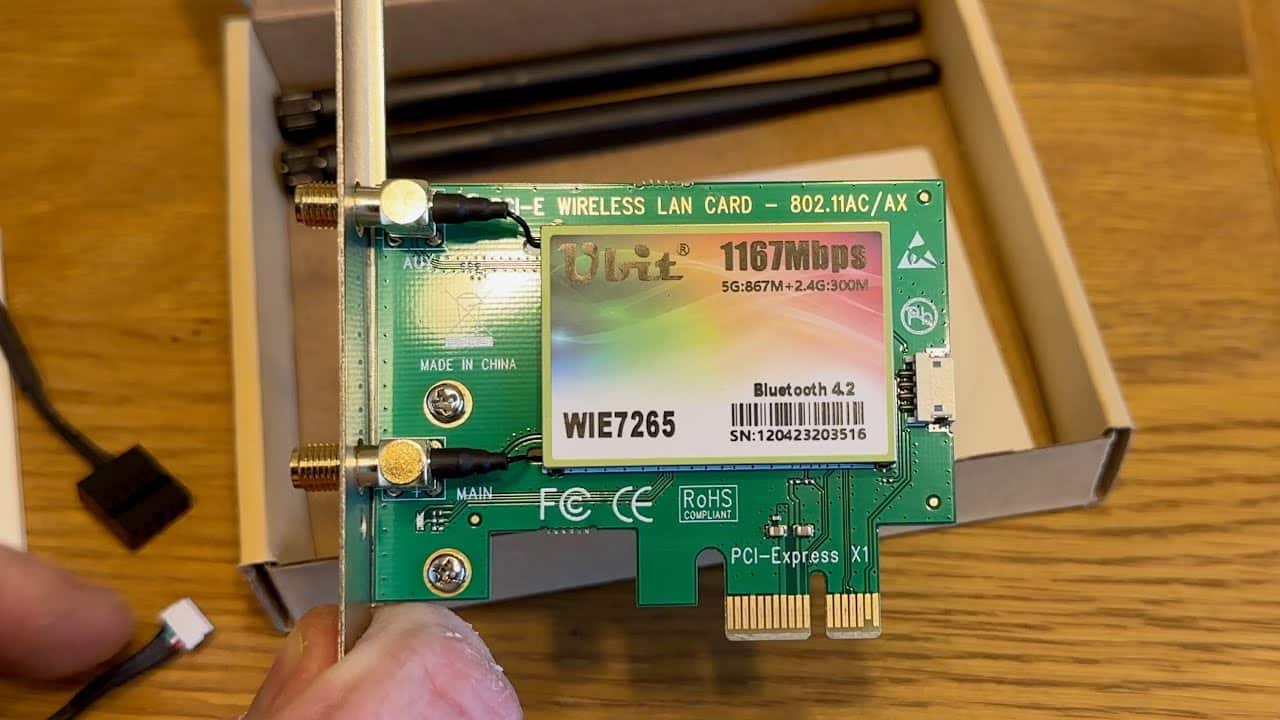
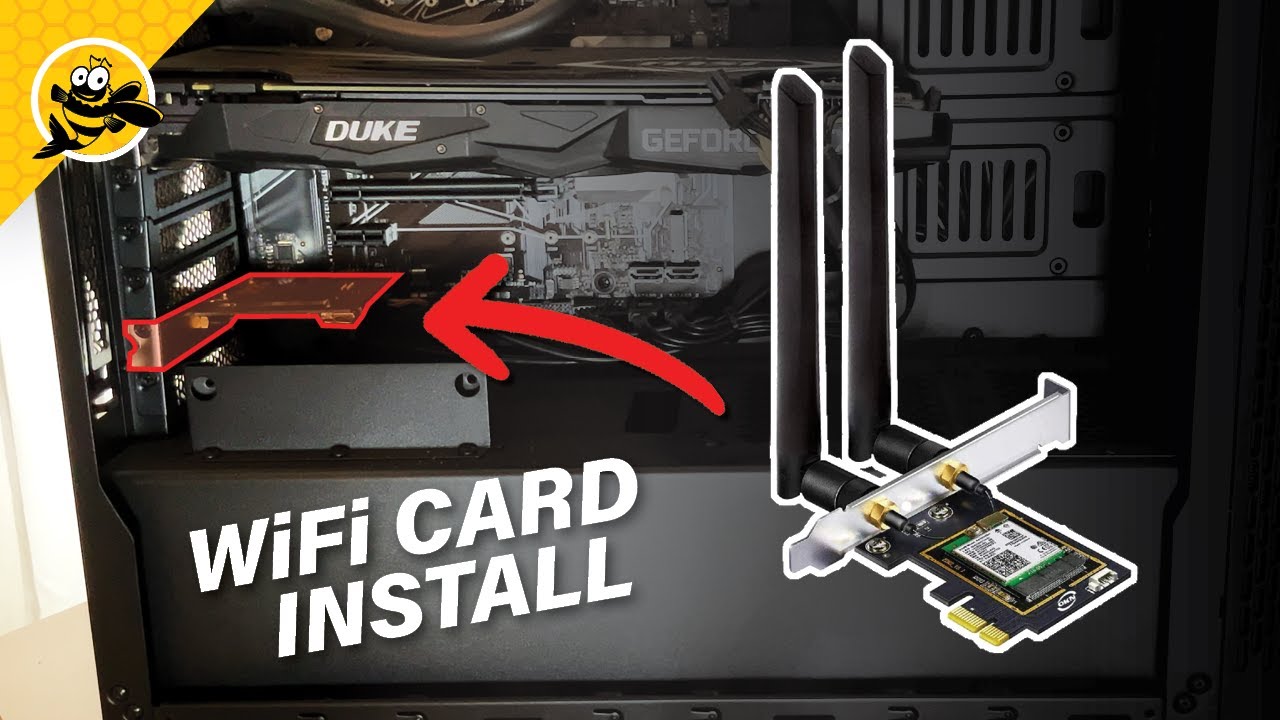
- Depending on the model, slide the card into an available PCI or PCI Express slot on your motherboard. You may first need to remove a placeholder from the back panel of the case.
- Secure the new hardware to the case with the small screw and close it. Then screw the antennas onto the adapter from the outside.
- If the card isn’t recognized at startup, install the necessary drivers from the CD or the manufacturer’s website.
Upgrade Laptop WiFi
If your laptop is having problems with network access, it may make sense to replace the Wi-Fi adapter. First, check the manual or contact support to see what the manufacturer says about such DIY repairs.
- First, you need to access the inside of your laptop. Depending on the model, this can be easier or more complicated. In the best-case scenario, you only need to remove a few screws on the back.
- The wireless network antenna is housed inside the laptop’s case to save space. Carefully detach it from the old Wi-Fi card using a flathead screwdriver or by hand.
- Now you can replace the modules. Compact Mini-PCI cards are typically used here. Pay attention to the orientation of the notch on the slot and the number of screw connections.
- Finally, connect the antenna cable to the corresponding contacts. Then reattach all screws and the bottom of the case. Once everything is in place, you can apply gentle pressure to help secure it.
Wi-Fi card not detected automatically: What to do?
The steps listed below apply to Windows systems (e.g., 10, 11) and standard PCs or laptops. This ensures that the Wi-Fi card is not only installed correctly but is also recognized by the system and fully functional.
- The card is often recognized automatically at startup; if not, you will need to install drivers. Drivers can be downloaded from the included CD or the manufacturer’s website.
- Alternatively, you can have the PC automatically search for them via Device Manager using “Update Driver.” The driver can also be downloaded on another computer and transferred via USB.
- If problems occur, you should manually reinstall the Wi-Fi driver or use tools like “Driver Easy” to search for and update it.
- After installing the driver, you must restart the computer.
- It is also helpful to temporarily disable your firewall and antivirus software if the Wi-Fi is not working.